
Your banking app held back a payment or showed a scam warning, and Settings now lists Impersonation Risk Detection. That is worrying when you only meant to pay a bill. I would read what the check does before you touch the switch.
It arrived with iOS 27, and Apple documents it in a new support article. An owner asked about it on MacRumors, and that thread has about 1,000 views.
What the check is for
Apple says the feature "helps protect against active social engineering scams".
In those scams, Apple says, an attacker "might pose as a bank, government agency, or someone you trust to pressure or guide you into making a payment or changing your account details".
Your usual protections may not see it coming. Apple says: "Traditional security measures like two-factor authentication can't always detect this kind of scam."
The reason is simple. Apple says it slips through because "you're taking the action, even though you've been tricked or pressured".
Status: checked 2 October 2026. Impersonation Risk Detection came with iOS 27 and iPadOS 27. It works only in apps that support it, and each app decides what to do with the result.
1. Know what the app is told
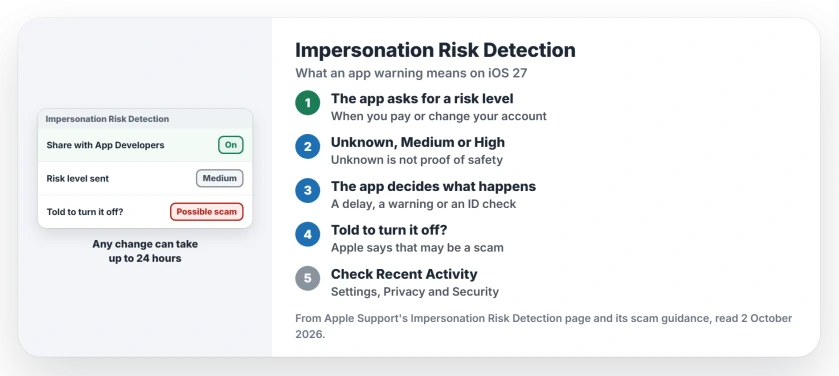
The check runs on your iPhone. Apple says it "returns a risk level to the app", and that "The app receives only the risk level, not the underlying information used to generate it".
There are three levels: Unknown, Medium and High. Unknown is not an all clear, because Apple says it "doesn't mean that the action was confirmed as safe".
2. Treat a delay or warning as a reason to stop
The response belongs to the app, not to Apple. Apple says the app "might ask you to verify your identity, add a delay, or show a warning".
If that happens, ask yourself who told you to make this payment. Apple's scam advice is to consider "hanging up and dialing the vetted number for the company yourself".
3. Treat a request to turn it off as a warning sign
This is the line to remember. Apple says: "If someone directs you to turn this feature off, you might be the victim of a scam."
Apple slows such changes down on purpose, so a switch you flip today can need a full day to apply.
Its wider scam page makes the same point. Scammers, Apple says, "will ask you to disable security features like two-factor authentication or Stolen Device Protection".
4. Turn it on in Settings
Open Settings, tap Privacy & Security, then scroll down and tap Impersonation Risk Detection. Turn on Share with App Developers.
You may need your Apple Account for this. Apple says: "To turn this feature on, you might need to sign in to the App Store with your Apple Account."
The record of which apps asked
The same screen keeps a record for you. Under Recent Activity you see which apps asked for a risk check, and under Reasons for Access you see the action that set it off.
To stop one app, tap it and switch it off. Apple says a change for one app can also take a day to apply.
On privacy, Apple says: "Apple never analyzes the content of your Photos, Messages, or Mail." It adds that the data used for the check is "analyzed on-device".
If an email that claims to be from your bank looks off, the phishing signs page lists Microsoft's own red flags. And if your iPhone also uses Stolen Device Protection, the Stolen Device Protection page explains its own security delay.
Is Impersonation Risk Detection safe to turn on?
Apple says the data behind the check is analyzed on the device, and it never analyzes your Photos, Messages or Mail. Apps receive only the risk level.
Why did my bank app delay a payment on iOS 27?
If the app supports this check, Apple says it can add a delay or show a warning when it sees signs of a scam. The app picks the action, not Apple.
Should I turn off Impersonation Risk Detection?
Apple warns that being told to turn it off is itself a sign of a scam. A change to the setting can need a full day before it applies.
The Short Version
- Impersonation Risk Detection arrived with iOS 27.
- It looks for signs of an active scam on your iPhone.
- Apps get only a risk level: Unknown, Medium or High.
- The app may delay a payment or show a warning.
- Anyone telling you to turn it off is a red flag.
- Turn it on in Settings, Privacy & Security.
- Check Recent Activity to see which apps asked.
Where to Next
Open Settings, Privacy & Security, and check the switch today, before anyone calls you about your money. Then you know it is there when you need it.
If an app shows you a warning you do not understand, quote its wording in a comment. I will explain each message on this page.

Isaac Smith is the founder and editor of PC Glance, a website that covers computers, laptops, and technology. He is a tech enthusiast and a computer geek who loves to share his insights and help his readers make smart choices when buying tech gadgets or laptops. He is always curious and updated about the latest tech trends.