

Windows 11 can install WSL and Ubuntu with wsl --install from an administrator PowerShell window. Restart afterward, then open Ubuntu to create its Linux username and password.
WSL alone isn't enough to start using Linux. You'll also need a Linux distribution installed and its account setup finished before you can use the shell, the window where you enter Linux commands.
In this guide
1. Open an administrator terminal and install WSL
Save your open work first, since setup needs a Windows restart. Right-click Start, choose Terminal (Admin), and approve the permission prompt. Use a PowerShell tab for the Windows commands in this guide.
Enter this command and press Enter:
wsl --installThe command enables the needed Windows features and installs Ubuntu, the default Linux distribution. A distribution is the Linux system you'll actually use inside WSL. Keep the window open while it downloads and installs.
Microsoft says the standard installation command enables WSL's required features and installs Ubuntu. These commands also apply to Windows 10 version 2004, build 19041, and newer, but this guide follows the Windows 11 menus.
Restart from Start > Power > Restart when prompted. Closing the terminal or putting the laptop to sleep doesn't complete that part. After signing back into Windows, search Start for Ubuntu and open it if setup hasn't opened it for you.
A download percentage means setup is still running. Wait until it finishes or reports a specific error.
Write down any error before changing anything. If it says access is restricted, check your permissions rather than downloading it again.
2. Finish Ubuntu's first launch
The first Ubuntu window can take time to unpack its files. Let that finish. When it asks for a UNIX username, choose the name you'll use inside Linux, then create its password when prompted.
That account belongs to Ubuntu. Choose it separately from your Windows username or Microsoft account. Its password isn't automatically your Windows PIN. Save the Linux password securely for later use.
Nothing appears while you type the Linux password, including dots or asterisks. That's normal terminal behavior. Type it, press Enter, and repeat it at the confirmation prompt rather than assuming the keyboard has stopped working.
Once a prompt appears, enter whoami. It should print the Linux username you just created. Then enter pwd to show the current folder.
Those two quick checks tell you you're inside Linux, rather than typing in another Windows terminal tab.
For commands that need administrator access inside Ubuntu, sudo asks for this Linux password. It doesn't ask for the Windows administrator account used during installation. You'll encounter it again when updating packages.
3. Confirm the distribution and WSL version
Return to a PowerShell tab and run:
wsl --list --verboseThe table lists installed distributions, their running state, and their WSL version. A new installation made with the standard install command uses WSL 2 by default. Stopped beside Ubuntu is fine when its shell isn't running.
WSL's version number and Ubuntu's release number mean different things. VERSION 2 in this table describes how WSL runs the distribution. It isn't saying that Ubuntu itself is version 2.
To open a named distribution from PowerShell, use wsl --distribution Ubuntu, replacing Ubuntu with the exact name in your table. This is useful when several Linux systems are installed and the default opens a different one.
When the Linux window disappears immediately despite a listed distribution, use the separate WSL window closes immediately guide. That covers the default-distribution problem without replacing an installation that already exists.
4. Choose another distribution or finish a partial setup
An existing WSL installation can respond to wsl --install with help text rather than install Ubuntu. Leave WSL installed when that happens. List the available distributions first:
wsl --list --onlineUse the NAME column exactly when installing your choice. For example, wsl --install -d Ubuntu requests Ubuntu. Choosing Debian instead means using its listed name after -d, then completing Debian's own first launch.
I'd start with Ubuntu unless a course, project, or workplace asks for another distribution. Matching the system used by your instructions makes package names and troubleshooting easier to follow.
If installation stays at 0.0%, the documented alternate download route is:
wsl --install --web-download -d UbuntuThat downloads the distribution from a different place. Keep your security software on and follow your employer's installation rules.
On a managed laptop, ask IT whether WSL and its required virtualization features are permitted.
5. Update Ubuntu and keep Windows commands separate
Open Ubuntu and run sudo apt update, then sudo apt upgrade. The first refreshes its package list; the second installs available package updates. Read any confirmation prompt before accepting it.
Run those commands in Ubuntu. Use PowerShell for the wsl commands here, such as wsl --update. If you see a command-not-found message, check the window you're typing in. The command may belong in the other window.
Use exit to leave the Linux shell. Closing it doesn't erase Ubuntu or its files. When you're ready to work again, open Ubuntu from Start or enter wsl in PowerShell to start the default distribution.
For a Linux project, keep its working files in your Linux home folder when using Linux tools. Windows files are accessible too, but crossing between the two file systems can affect performance.
Decide where the project belongs before copying a large folder.
If the process named Vmmem later uses more memory than expected, the WSL memory guide explains how to stop the environment properly. It isn't necessary to uninstall Ubuntu to end a session.
When installation still fails
Keep the exact error text, Windows version from winver, and output from wsl --status and wsl --list --verbose. Use the WSL project's support and issue links in the installation documentation to send those details with your request for help.
If an error names virtualization or a missing Windows feature, follow that error's troubleshooting steps before retrying the download.
When Windows Features itself stalls on Downloading required files, check its update source separately from Ubuntu's download.
Repeatedly removing the distribution can erase its Linux files while leaving the Windows feature problem untouched.
The Short Version
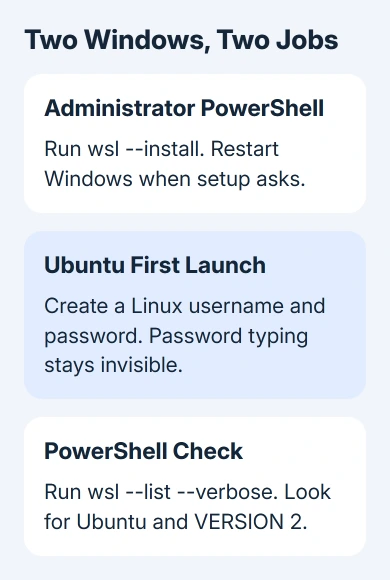
Run wsl --install in administrator PowerShell, restart Windows, and finish Ubuntu's username and password prompts. Confirm the result with wsl --list --verbose.
Use the alternate download command for a 0.0% stall, and keep existing Linux files intact while troubleshooting.
Checked November 15, 2026.
 If you have any business, I can build it online






