
Your internal SSD or hard drive turns up in the Safely Remove Hardware list, next to your USB stick. Or Windows asks what to do with a removable drive every time it sees a disk that is screwed inside your PC.
I would look in the BIOS before touching the registry. Windows only repeats what the drive controller reports. The controller is usually set up that way on purpose.
A December 2015 Super User question on it sits at 181,192 views. Microsoft Q&A has the Windows 8 version at 90+ under Same question, and the Windows 7 one at 60+.
Why Windows thinks the drive can come out
Modern SATA ports can swap drives with the power on, and when a port says it allows that, Windows offers to eject whatever sits on it.
The accepted answer on that 2009 Q&A question gives the cause.
It says "Some hardware vendors have incorrectly configured all SATA ports as eSATA ports". It also said the fault "can be ignored because it does not have an effect on your computer".
The risk is a wrong click. Eject the wrong entry, and a data drive disappears until you restart.
Ours: this laptop's only drive is an Intel NVMe SSD. It reports Fixed hard disk media at Bus Number 0. Its removal policy reads 1. That is the value for a device Windows never expects to be removed.
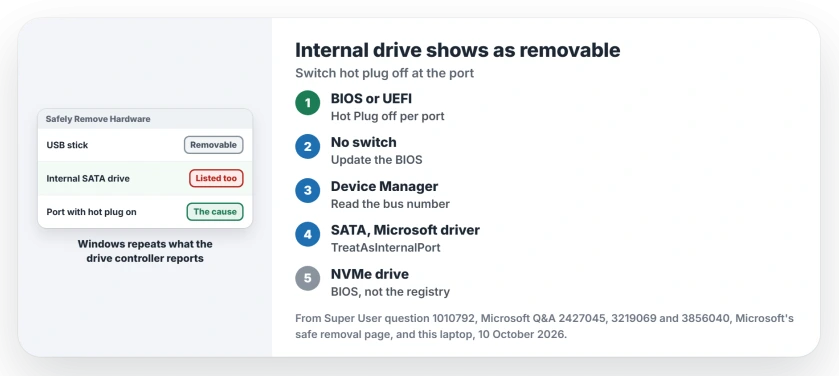
Status: Microsoft's safe removal page, this laptop's disk settings and what Super User and Q&A owners did, all checked 10 October 2026. Hot plug off in the BIOS came first.
1. Turn off hot plug in the BIOS
Restart into your BIOS or UEFI setup and look under the storage or SATA settings. Each port may have its own Hot Plug or Hot Swap switch. Set it to Disabled for every internal drive. Then save and exit.
One Super User answer says "The issue lies in your BIOS, and has little to nothing to do with Windows". An owner who tried it wrote "It worked for me and I'm glad I read this answer before messing with registry modifications".
No switch at all? Check for a newer BIOS from your board or laptop maker. An owner on Windows 11 had an NVMe drive listed as removable. Their BIOS had no hot plug option. They reported "Fixed as of BIOS 7E48v1A34" after a BIOS update.
Our page on whether to update the BIOS covers the risks before you flash one.
2. Mark the port as internal in the registry
If the BIOS has nothing to offer, Windows has a value for SATA drives. It works only with Microsoft's own AHCI driver. One answer starts "As long as you use the microsoft AHCI driver".
Open Device Manager and expand Disk drives. Open the drive's Properties and read the Bus Number on the General tab.
I would export that key in Registry Editor first. Then, as an admin, enter this in Command Prompt, ending with your bus number.
reg.exe add "HKLM\SYSTEM\CurrentControlSet\Services\storahci\Parameters\Device" /f /v TreatAsInternalPort /t REG_MULTI_SZ /d 0Two drives on buses 0 and 1 need both numbers in one value. A Q&A owner found the second command kept replacing the first, so they put both numbers in one line, which reg.exe stores as two entries:
reg.exe add "HKLM\SYSTEM\CurrentControlSet\Services\storahci\Parameters\Device" /f /v TreatAsInternalPort /t REG_MULTI_SZ /d "0\01"In their words, "I copied and pasted this exactly into an elevated Command Prompt".
Restart afterwards. An advisor on another thread added a warning about fast startup. With it on, do a full shut down. Hold Shift while you select Shut down.
On Super User, owners with setups like yours confirmed it. One wrote it "worked great for me on an older non-uefi bios with ahci but no options for hot plug".
NVMe drives: the value does not reach them
TreatAsInternalPort lives under storahci, the AHCI driver for SATA. If your drive is NVMe, it runs on a different one.
Ours: this laptop's SSD sits behind the Standard NVM Express Controller, and its service is stornvme, not storahci.
Windows ships its own entries under that same storahci key, one of them an IgnoreHotPlug line for an AMD controller. None of them touch your NVMe disk.
That matches the Windows 11 owner. Every drive there showed bus 0, the value changed nothing, and only the BIOS update cleared it. With an NVMe drive, I would skip the registry and update the BIOS.
If you have an older Intel board, the driver can matter instead. One owner found Microsoft's driver showed some drives as removable. Intel's own storage driver fixed it, and a second owner confirmed that.
Hiding the icon is not the fix
Microsoft says you can turn the eject icon on or off under Taskbar settings, Other system tray icons, on its safe removal page.
Turning it off hides the menu, but your drive still counts as removable.
You would also lose the icon for the drives that really do come out, and those need it. Microsoft still tells you to eject USB sticks and external drives before you unplug them, so the icon earns its place.
To see how Windows lays out your disks and partitions, our Disk Management guide walks through each column.
The Short Version
- A hot plug port makes a drive removable.
- Turn off Hot Plug in the BIOS.
- No switch? Update the BIOS.
- SATA on Microsoft's driver: TreatAsInternalPort with the drive's bus number.
- Two buses go in one value, separated with \0 in reg.exe.
- NVMe drives need the BIOS, not the registry.
Where to Next
Was your drive SATA or NVMe, and did the BIOS have a hot plug switch? Tell me in a comment, along with the board or laptop model, so I can list which ones need the update.

Isaac Smith is the founder and editor of PC Glance, a website that covers computers, laptops, and technology. He is a tech enthusiast and a computer geek who loves to share his insights and help his readers make smart choices when buying tech gadgets or laptops. He is always curious and updated about the latest tech trends.