
iPhone error 4013 can follow a lost connection during an update or restore. Update the computer, force-restart the phone and choose Update first. Apple says it reinstalls iOS while preserving personal data.
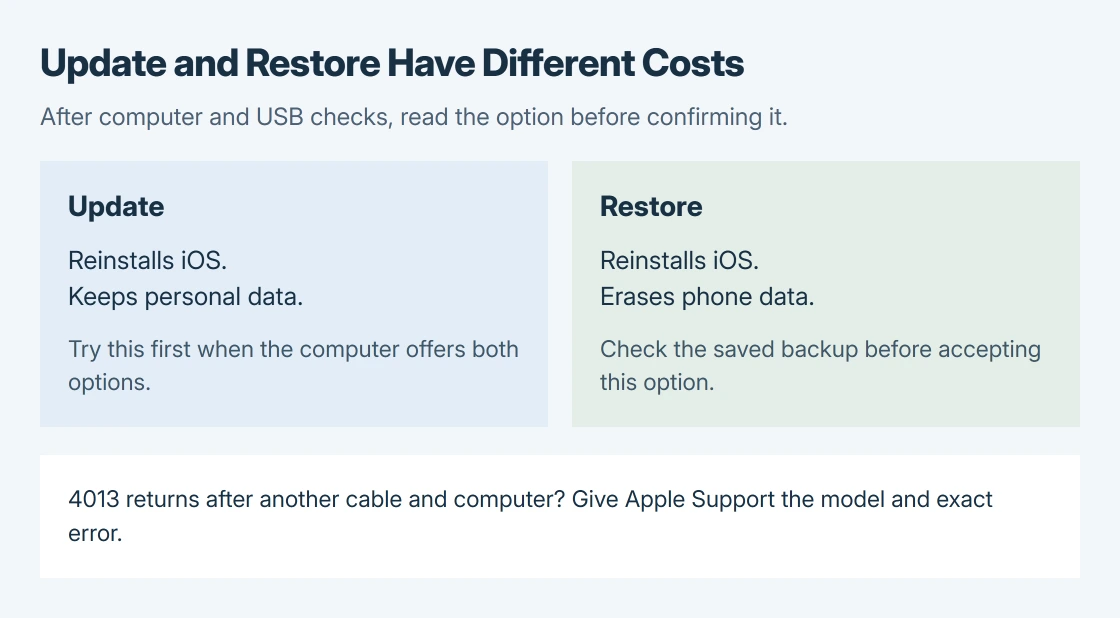
A failed update needs cable and computer checks before another attempt. Restore erases the phone, so check the available backup before accepting that option.
Bring the computer up to date and use direct USB
On a Mac, install the available macOS updates. On Windows, update Apple Devices, or iTunes if that is the device-management app being used. Restart the computer if requested, then check for any remaining updates.
Apple's general restore-error instructions say to connect the phone directly to a computer USB port. Remove a keyboard's USB port, hub or dock from this connection before retrying.
Status: Apple's 4013, recovery-mode and USB guidance checked October 28, 2026. Update preserves data; Restore erases it. No iPhone was connected, updated or restored.
Open Finder on macOS Catalina or later, or Apple Devices on a Windows PC. Select the iPhone in the sidebar. A Mac running macOS Mojave or earlier uses iTunes; select its device icon.
Unlock the phone and approve a Trust request if it can start normally. If it never appears, follow the iPhone detection checks before repeating the update.
Force-restart the correct iPhone model, then choose Update
Keep the phone connected. Apple documents the model-specific buttons in its 4013 procedure:
- iPhone 8 or later, including iPhone SE 2nd generation or later: quickly press and release Volume Up, then Volume Down. Then keep the side button pressed until Apple's logo is visible.
- iPhone 7 or 7 Plus: hold the side button and Volume Down together. Release them when the Apple logo appears.
- iPhone 6s or earlier, including the original SE: hold Home and the side or top button together until the Apple logo appears.
When the computer offers Update or Restore, choose Update first. Apple says this reinstalls the software while retaining personal data. Leave the cable connected while the operation runs.
Check the actual result: the update should finish and the phone should start normally. A disconnected progress window or the same 4013 message is a failed attempt, even if part of the progress bar filled.
If the phone starts and its information is accessible, make a computer backup before another disruptive recovery step. A phone already stuck in recovery may not allow a new backup.
Change the USB connection and the computer
For a repeated error, Apple's next checks include another USB cable and another computer. Try a different Apple USB cable and a different USB port, keeping the connection direct.
Retry the update after changing the connection. If the phone completes it, retain that working setup until the job finishes. A cable swap that changes nothing has not established a broken iPhone component.
Next, use another updated Mac or PC. Apple's general guidance specifies a different network for that computer as well. Record whether 4013 returns there; that result gives support more information than repeated attempts on one setup.
Read the number again after each failure. Error 4013 alone does not name a failed storage chip, sensor or logic board, and these support instructions do not justify choosing a replacement part.
Use recovery restore only after reviewing the data loss
Apple says to restore if the device starts up in recovery mode during the update. Apple states in its recovery-mode guide that Restore reinstalls iOS and erases the data on the phone.
Confirm which existing backup can be used afterward. Without a usable copy, erased local information may be lost. If the data matters more than immediately restoring operation, stop and discuss the options with Apple before erasing.
For recovery mode, connect the phone and open Finder or Apple Devices. Use the same model-specific sequence and keep holding the final button or buttons. Release at the Connect to computer screen, continuing past the Apple logo.
Choose Restore when ready to accept the erase. If the software download takes longer than 15 minutes and the phone leaves recovery mode, let the download finish, then enter recovery mode again. Do not restart the download unnecessarily.
After restoration completes, follow setup and select the intended backup. For a failure that survives the connection and computer checks, give Apple Support the exact error, computer app and iPhone model.
A stuck or broken button that prevents recovery mode is also a reason for service. Explain that limitation when requesting an assessment.
The Short Version
Choose Update first after updating the computer and force-restarting the iPhone. For recurring 4013, try another cable, port and computer. Review the backup before Restore; persistent failure needs Apple Support.

Isaac Smith is the founder and editor of PC Glance, a website that covers computers, laptops, and technology. He is a tech enthusiast and a computer geek who loves to share his insights and help his readers make smart choices when buying tech gadgets or laptops. He is always curious and updated about the latest tech trends.