
You have just read the words "Face ID has been disabled" on your own iPhone. Disabled is a horrible word to see on a phone you paid a lot of money for, and I know how worrying that is when it lands with no warning.
Your phone is probably fine. It switched Face ID off on purpose, and one of the reasons it does that is free to put right.
Work down this list in order. The first two are quick and free, the third decides everything, and the last is where the good news runs out.
What the alert actually says, before you start
The full alert names the part, and it is easy to stop reading at "disabled" and never get that far.
Apple, on the alert itself: "A problem was detected with the TrueDepth Camera. Face ID has been disabled."
One sentence further down explains why your phone acted on its own instead of just warning you. Apple: "The TrueDepth camera contains lasers, which might be disabled for safety reasons if the device malfunctions or is damaged."
Lasers. The camera fires thousands of invisible infrared dots at your face from a few inches away. When Apple's diagnostics decide that system is misbehaving, the phone cuts its power rather than let it keep firing.
And the scope is smaller than the word suggests.
Apple: "This won't prevent you from using your iPhone or iPad, but until your iPhone or iPad is updated or serviced, you might not be able to use Face ID, Animoji, Memoji, and some other features that use the front camera."
Fix 1: Update iOS, because the check lives inside iOS
This reads like the throwaway advice every page gives. It is not, and Apple genuinely puts it first.
The check that disabled Face ID is a diagnostic Apple ships inside iOS. Apple says so, describing it as using "diagnostics available in iOS 14.6 or later". A diagnostic can be wrong, and a diagnostic can be revised.
Go to Settings, then General, then Software Update. Install whatever is offered, restart, and try Face ID again.
If the alert clears, you were on the wrong side of a software check and nothing was ever wrong with the camera.
Fix 2: Force restart, then rule out the cheap physical things
Two minutes, and free.
Force restart first. Volume up, volume down, then hold the side button until the Apple logo appears. Not a normal restart.
Then take the case and any screen protector off, and wipe the top of the screen with a soft dry cloth. Grease and sun lotion sit right over the dot projector.
None of this clears a TrueDepth diagnostic. Do it anyway: it rules out the far commoner problem of Face ID simply not recognizing you, which produces no alert at all.
Our Face ID troubleshooting guide covers that case properly.
Fix 3: Read one line in Settings, and it can turn a repair bill into nothing
Do this before you go any further. It takes thirty seconds and it decides your next four moves.
Open Settings, tap General, tap About, then scroll to Parts and Service History. That section only appears if your iPhone has been repaired.
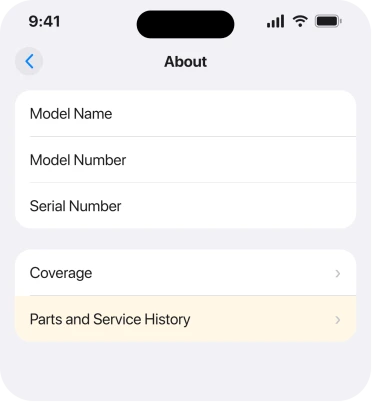
Look for the camera row. Apple names it two different ways on two of its own pages, so it may read Front camera or TrueDepth camera depending on your model and version. Same row either way.
This check only works on some phones. Apple's table gives front camera information for iPhone 12 models and later, and on an iPhone 11 or older there is no camera row at all, so skip to fix 6.
The word beside that row decides everything that follows.
Fix 4: If it says Finish Repair, the repairer can end this for free
Stop here if you see those two words. No part has failed.
Apple, on genuine front cameras: "Your device will show Finish Repair next to TrueDepth Camera until you complete the repair with Repair Assistant."
A genuine Apple part went in. The calibration step was simply never completed. Apple: "You won't be able to use Face ID to unlock your device, authorize payments, or sign in to apps until the calibration process is complete."
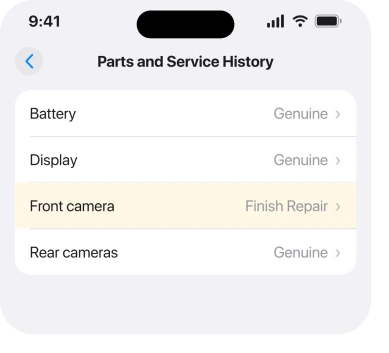
Repair Assistant is run by the repairer, not by you. So take the phone back to whoever did the work and ask them to complete the calibration. On a job you have already paid for, that conversation is usually free.
Our page on what those part labels mean covers Genuine, Unknown and Used, because each one means something quite specific.
Fix 5: On an iPhone 14 or later, a restore can finish the job instead
This one is documented and it is almost never mentioned, so it gets its own paragraph.
Apple, on the same page: "If you replace the front camera on an iPhone 14 or later, it won't work unless you complete the repair or restore your iPhone."
Complete the repair, or restore. So on an iPhone 14 or later, where a genuine camera went in and calibration never happened, a restore is a second route to the same place.
Back up first and understand what you are agreeing to. A restore wipes the phone and puts your backup back, which is a far bigger operation than asking a shop to run a tool.
I would only reach for this if the repairer has gone out of business or will not help.
It will not help at all if the part is nongenuine. A restore completes a calibration. It cannot authenticate a part that was never Apple's.
Fix 6: Work out which of the four causes is yours before you book anything
This is the part that gets you a useful conversation with a technician rather than a shrug.
Apple lists four separate reasons for a Face ID Issue message: "The part was replaced with a nongenuine part", "The part was already used or installed in another iPhone", "The part isn't functioning as expected", and "The part calibration was incomplete".
Two of those are repair history. One is a genuinely failed component. One is paperwork. The alert is identical for all four, and they cost wildly different amounts.
So work through it plainly. Never repaired, and the update did not help? That is the failed-component case. Repaired recently at a third-party shop? Very likely one of the first two. Repaired with a genuine part? Then you are back at fix 4.
One more tell, and this one is ours: if Face ID died and your Memoji died on the same day, that is one hardware fault rather than three separate bugs, because they all run on the same front cluster.
Apple's own list of casualties tells you that much.
Fix 7: Book service, and know what the repair trade says before you go
The good news runs out at this point, and I would rather tell you that than pad the page.
Apple: "Only a trained technician should service your device." No setting in iOS reaches this. Not Reset All Settings, not re-enrolling your face, not a fresh install on a phone that was never repaired.
What the repair community says about shop-level workarounds is worth reading before you ring around. On iFixit's two long threads about Face ID after a screen or camera replacement, the accepted answers on both say the same thing.
Matthew Clark, chosen answer: "Face ID components are paired to your logic board on the phone, the only way to get it back would be potentially repairing the original Face ID components."
Jerry Wheeler, chosen answer on the other: "Apple has begun pairing the front camera itself to the logic board, so it is no longer possible to replace the front camera if it's damaged."
One technician on the first thread disagrees, saying a shop "should be able to copy the chip ID of the old display and transferred to the new display via a programmer computer".
Nobody in either thread confirmed that working, and across fourteen answers between them not one person reported getting Face ID back by any method. I am telling you that because it is what the evidence actually shows.
So book it with Apple or an Apple Authorized Service Provider, and say the alert named the TrueDepth camera. That sends the diagnostic straight to the right component.
What does not work
- Resetting Face ID and enrolling again. The enrolment screen refuses, because the camera it needs is powered down.
- Erasing a phone that has never been repaired. A clean install finds the same hardware. This is different from fix 5, which only applies after a genuine camera was fitted.
- A cheap third-party camera swap. Apple's safety wording is about exactly this, and both iFixit threads say a swapped camera does not restore Face ID at all.
- Waiting. Unlike the temporary Face ID Unavailable message after failed attempts, this one does not time out.
Status: iOS 26.6, checked 17 August 2026. Apple documents four causes for a Face ID Issue message and gives two remedies for this alert: update, then service.
Why does my iPhone say Face ID has been disabled?
Apple's diagnostics found a problem with the TrueDepth camera and cut power to it. That camera contains a laser projector, so the phone switches it off for safety rather than leaving it running.
You keep using the iPhone with your passcode, but Face ID, Animoji and some front-camera features stop until it is updated or serviced.
Can I fix Face ID has been disabled myself?
Sometimes. A software update clears it if the diagnostic was the problem.
If Parts and Service History says Finish Repair, the repairer completes the calibration with Repair Assistant, and on an iPhone 14 or later a restore can do the same job. Everything else is a service booking.
Does this mean my front camera is broken?
Not necessarily. Apple lists four causes for the message and only one of them is a failed part.
An incomplete calibration, a nongenuine part and a used part from another iPhone all produce the identical alert, which is why the Parts and Service History row is worth reading before you accept a quote.
If the front camera also shows a black screen, and it started after an update, the front camera checks start with Software Update.
On an iPhone 18 Pro that will not finish Face ID setup at all, the setup page starts with better light and taking your glasses off.
The Short Version
- Update iOS first. The check that disabled Face ID ships inside iOS and can be revised.
- Force restart, then take the case and protector off, though neither clears a real diagnostic.
- Read Settings, General, About, Parts and Service History. The camera row decides everything.
- Finish Repair means calibration was never completed, and the repairer can finish it, usually free.
- On iPhone 14 or later, Apple says a restore completes that calibration too.
- Apple lists four causes and only one is a broken part, so find yours before booking.
- On iFixit's two threads, fourteen answers, nobody got Face ID back by any shop-level method.
Where to Next
The difference between an unfinished calibration and a dead camera is one line on one settings screen, and almost nobody knows to look at it before handing the phone over.
Read that row first. Thirty seconds, and it decides whether this is a conversation with your repairer or a booking with Apple.
Face ID can also be switched off on purpose in two seconds, which helps under pressure. How that squeeze works, and what it does not do.
If yours says something other than Genuine or Finish Repair beside the camera, tell me the exact word in the comments and I will tell you what it means for your case.

Isaac Smith is the founder and editor of PC Glance, a website that covers computers, laptops, and technology. He is a tech enthusiast and a computer geek who loves to share his insights and help his readers make smart choices when buying tech gadgets or laptops. He is always curious and updated about the latest tech trends.