Iriun Webcam needs its phone app and computer server running together over a working connection. Open both, put the phone and computer on your home Wi-Fi, and check the phone's permissions before reinstalling anything.
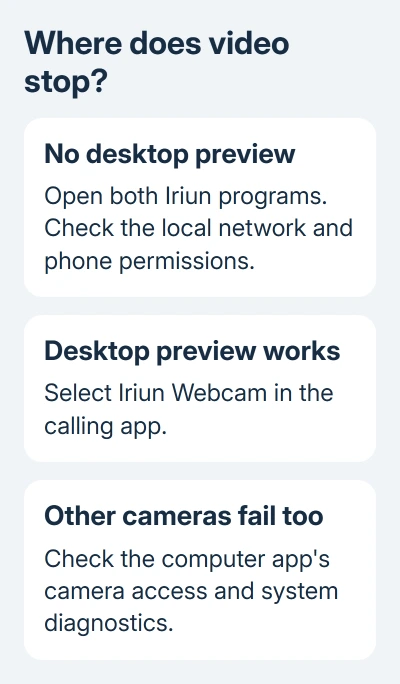
A phone that never appears in the computer preview has a connection problem. A working Iriun preview with no video in Zoom, Teams, or another app needs the camera source checked inside that app instead.
In this guide
1. Open the phone app and the computer server
Launch Iriun Webcam on your phone, then open Iriun Webcam Server on the computer. Installing the phone app alone doesn't create a usable webcam on Windows or macOS; the computer software makes the phone's camera available to other programs.
Get the computer download from iriun.com, choosing the download for your operating system. The phone app's official store listing points to that address for the required desktop software.
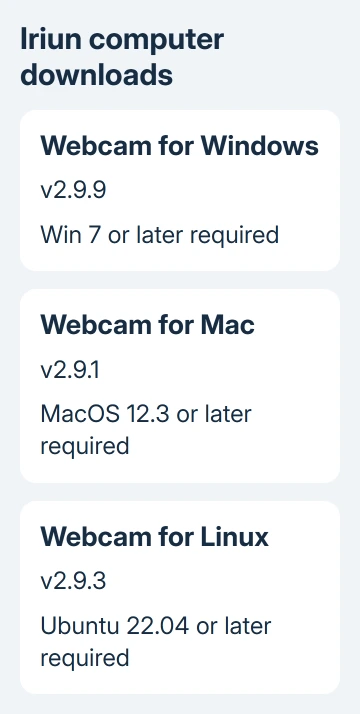
On Android, check the Google Play listing for Iriun 4K Webcam for PC and Mac. On an iPhone, use the corresponding Iriun Webcam App Store listing. Avoid downloading a different webcam app with a similar name.
The Android app's setup instructions put the phone app first, then the computer server. Once connected, you can choose the camera in video apps on your computer.
Leave both windows open while checking the first connection. Look at the desktop preview before opening a meeting app. If it already shows your phone's camera, skip to selecting Iriun inside the calling app.
2. Use the same local network
Connect the phone and computer to your own Wi-Fi network, then reopen both Iriun programs. Cellular internet on the phone doesn't put it on the computer's home network, even when both can load websites.
Read the Wi-Fi name on both devices. On Windows 11, open Settings > Network & internet > Wi-Fi. On a Mac, open the Wi-Fi menu or System Settings > Wi-Fi. Check the phone's Wi-Fi settings too.
Try your main home Wi-Fi; avoid a guest, hotel, or school network for this check. Those networks can stop connected devices from communicating with each other even while ordinary internet browsing works.
If your phone is using a VPN, briefly disconnect it and reopen the app to see whether that changes anything. Do the same on the computer if you're allowed to. Restore it afterward if there is no change.
Don't change a work network's restrictions to make the webcam connect. Test a private network you control or ask IT whether communication between the phone and computer is permitted.
If the desktop preview works on your private network, tell support that. It tells support to examine the original network's restrictions rather than treating the phone camera as broken.
3. Check the phone's camera and network access
Allow camera access when Iriun first requests it. A denied camera permission can leave the app unable to supply a picture even though both devices are connected. Grant microphone access too if you're using its audio feature.
On Android, open Settings > Apps > Iriun Webcam > Permissions and inspect Camera. Choose the option allowing access during app use. Phone makers use different wording. Look for Iriun's app-permission controls on your own phone.
On an iPhone, check Settings > Privacy & Security > Camera and enable Iriun if listed. Then open Privacy & Security > Local Network and allow Iriun there too, if it appears.
Apple's local-network permission steps explain that separate network control. Camera permission lets an app use the lens; local-network permission lets it communicate with nearby devices.
Reopen Iriun after changing a permission and check the computer preview again. If no Iriun entry appears in a permission list, launch the phone app and look for its request before assuming the missing switch is a fault.
Try the phone's normal Camera app if its own Iriun preview is also black. If the normal Camera app works, check Iriun's permissions and setup. If it fails in other phone apps too, follow the phone maker's camera troubleshooting steps.
4. Check firewall access without turning protection off
On Windows, search Start for Windows Firewall, then select the result for allowing an app through it. Check whether the installed Iriun server is allowed on the trusted network you're using.
Use Change settings when needed, then review the app entry and its network selection. Approve only the genuine installed program. On a managed PC, ask IT to check the rule if those controls aren't available.
Allowing a known app is preferable to opening a permanent port or switching the whole firewall off. The firewall app guidance explains that distinction.
Third-party security software can have its own network controls. Check its blocked-app list for Iriun and use that product's instructions. A change in Windows Firewall won't override a separate security package's decision.
After making an allowed change, restart both Iriun programs and check the preview. If it remains disconnected, keep the firewall's normal protection in place and move on rather than disabling unrelated security features.
5. Select Iriun in the meeting app
When the desktop server shows video, open your calling or recording app's camera settings. Choose Iriun Webcam as its video source. A built-in camera may remain selected after Iriun connects successfully.
Use the app's own preview before joining the call. For audio, select Iriun only if you intend to use the phone microphone. Your laptop microphone can remain the audio source while the phone supplies video.
If Windows blocks the calling app's camera access, use the desktop camera permission checks. Those settings control camera access for the calling app on your computer, separately from the phone's permissions.
For Windows 11 failures affecting other cameras too, the camera troubleshooter route covers the wider system check. Don't keep changing Wi-Fi when the Iriun server already has a live picture.
6. Check expectations when using a USB cable
The Android listing supports USB as well as Wi-Fi. The cable must carry USB data. Keep both Iriun programs running and check the phone for a connection request. Power can reach the battery even when USB data isn't getting through.
The iPhone listing describes wireless setup. Don't assume that plugging in a cable has switched its video connection to USB. Get the Wi-Fi preview working using the iPhone permissions in step 3.
7. Check router software when the network is the difference
One owner fixed this by updating their eero routers after restarting, reinstalling, and updating the computer app had failed. Their App Store review includes that later result.
For eero, open its app's Home tab, select an eero, and tap Software updates. If an update is available, choose Install now. The update applies to the network, so schedule it outside a call.
For another router, use its maker's update instructions. Reopen both Iriun programs after the network returns. If the preview stays disconnected, tell support what happened on each network before considering a factory reset of the router.
If connection still fails, use the support contact in Iriun's store listing. Include your phone model, software and app versions, computer system, and what each preview showed. Say whether trying another private network made a difference.
The Short Version
Run the phone app and desktop server together, check their local network, and allow the phone's camera and network access. Review firewall permission for the server. Once its preview works, select Iriun Webcam inside the meeting app.
Checked November 13, 2026.
 If you have any business, I can build it online