

A Jabra microphone can go silent because the headset is muted or the computer and calling app have selected different inputs. Lower the boom on models that use it to unmute, then choose the Jabra microphone inside the app making the call.
Sound playing through the earcups doesn't mean that app is using the headset microphone. Check the headset, the computer's input and the calling app in that order. A microphone missing from the device list needs a connection check first.
In this guide
1. Clear the headset's own mute
Read the model from the headset label or its companion software. Jabra headsets don't all share the same buttons, and a red light isn't always a microphone warning.
On an Evolve2 65, raising the boom mutes the microphone. Lower it toward your mouth for the call. Its red busylight indicates that you're busy, so don't treat that light alone as confirmation that the microphone is muted.
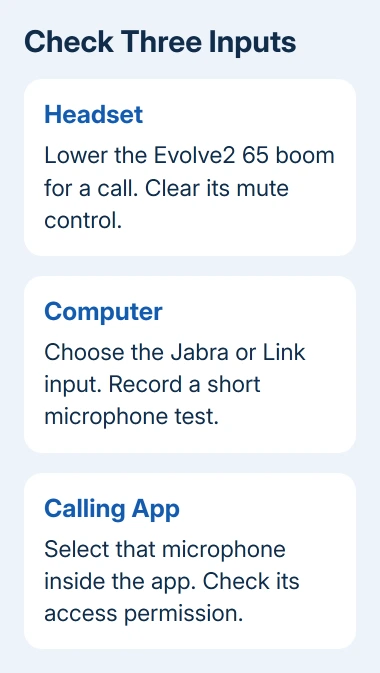
Use the model's microphone mute button if the boom control has been disabled. The Evolve2 65's Voice button controls mute during a call; outside a call, that button has a different job.
Also clear the mute button in the meeting window. A physical headset control and an app's mute control can both affect what the other person hears. Watch the app's microphone indicator while changing the setting.
For earbuds or a Speak speakerphone, use that product's mute control rather than looking for a boom. I'd confirm the model before using any reset buttons. A button sequence for another Jabra can disconnect a working pairing.
If people can hear you now, the audio path is working. If they still can't hear you, check whether the Jabra appears in the computer's input list.
2. Reconnect the audio connection you're actually using
Unplug a wired USB headset and reconnect it at the computer, leaving hubs and docks out. Open the computer's sound settings and see whether the headset appears again.
For a headset supplied with a Jabra Link adapter, connect that adapter and turn the headset on. The input may be listed under the Link adapter's name rather than the headset's name. Choose the input for the connection you're using.
Pairing directly to the computer over Bluetooth is different from pairing to the Link adapter. Stick with one connection while checking the microphone so you can keep track of the calling app's selected input.
The original Evolve2 65 package uses a Link 380 adapter for its computer connection. Other packages and models differ.
Use the supplied adapter or one listed as compatible. Small Jabra receivers can look alike without being interchangeable.
If the device appears only when connected directly, check the dock or hub separately. If it doesn't appear through the supported connection, continue with the computer's input list before changing meeting settings.
3. Make a recording with the chosen computer input
In Windows 11, open Start > Settings > System > Sound. Under Input, select the Jabra headset or Link device. Open its properties, find Microphone test, choose Start test and say a short sentence.
End the recording and play it back if that option is available. Clear speech means Windows receives your voice from that input. If it's silent, keep checking the headset, connection and Windows before changing call settings.
In Windows 10, open Settings > System > Sound, then choose the headset under Choose your input device. Speak and watch Test your microphone. The test bar should respond to your voice.
Microsoft says to select the intended input before testing it in the Windows microphone instructions.
Increase the input volume if the device is selected but your voice is very quiet.
On a current Mac, open Apple menu > System Settings > Sound > Input. Select the Jabra or Link entry, speak and watch the input level. Adjust Input volume if that control is available for the selected device.
For a Mac with System Preferences instead of System Settings, use its Sound > Input pane. Check that the input level responds to your voice before returning to the call.
For help interpreting the result, the microphone test guide explains what a moving level meter tells you. If this test works, leave the connection alone and check app access next.
4. Give the calling app access and select its input
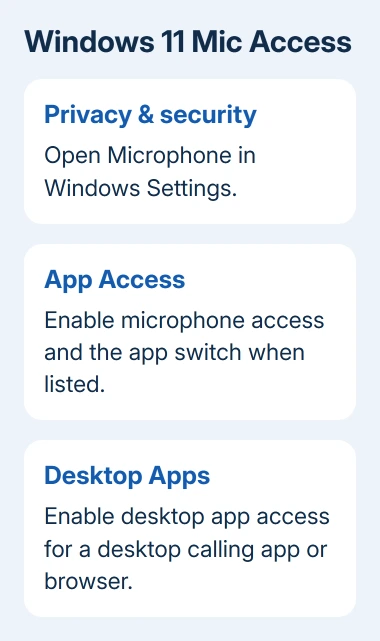
In Windows 11, open Settings > Privacy & security > Microphone. Enable Microphone access. Also enable Let apps access your microphone.
Turn on the calling app's own switch when one is listed.
For a desktop calling program or browser, also enable Let desktop apps access your microphone.
The Store app list doesn't give desktop programs their own switches. Your program can still use the microphone without its own switch there.
For Windows 10, go to Settings > Privacy > Microphone. Review permissions for the device, Store apps and desktop programs on that page.
On a current Mac, open System Settings > Privacy & Security > Microphone. Allow the calling app or browser. Quit and reopen the program when a macOS permission prompt requests a restart of the app.
Inside the call program's audio settings, select the Jabra microphone by name. Check Microphone separately from Speaker. Choosing a Jabra speaker doesn't automatically correct an input that still points to the laptop microphone.
For a browser call, the website also needs microphone permission. Open the site's controls beside the address, allow microphone access and reload the meeting page. Keep the same headset connected while doing this.
If only one app fails after the computer's recording test passed, focus on that app's permissions and input choice.
The general microphone repair guide covers a microphone that fails throughout Windows.
5. Check model software, then take the result to support
For a supported business headset, open Jabra Direct and check whether it recognizes the headset and its adapter. Review the available device settings and firmware updates for those specific products.
Follow the update prompts and keep the device connected until the update finishes. Don't start an update just before a meeting; the headset can be unavailable while it runs. Recheck the same computer recording test afterward.
If the input remains silent, try the headset on another supported computer connection. A working result there points back to the original computer. If it's silent on both computers, repair of the headset or adapter becomes more likely.
Use your model's Jabra support page and select its contact option. Give support the model, connection type, firmware version and whether the computer's own microphone test records anything.
Also describe whether the speakers work and how the headset behaved on the second computer.
For a work headset, give your IT team the same results. They can check managed permissions and approved firmware without replacing a headset that already passes a local recording test.
The Short Version
Clear headset mute, confirm the supported connection and test the selected input in the computer's sound settings. When that test works, correct the calling app's microphone choice and permissions.
Take a silent result on two supported computers to Jabra support.
Checked November 15, 2026.
 If you have any business, I can build it online






