KB5019980 may no longer be needed because later cumulative updates include its fixes. Check what Windows offers now before repairing anything. KB5019980 itself was for Windows 11 22H2 in November 2022.
The original owner eventually confirmed that newer updates replaced the failing one. Another owner got KB5019980 installed after an in-place repair. Start with the current update, then repair Windows if cumulative updates keep failing.
In this guide
1. Check the installed build and the update offered now
Press Windows+R, enter winver, and save the displayed version number together with its build. Then open Settings > Windows Update > Update history and find the failed entry. Save the failure date, error and KB number together.
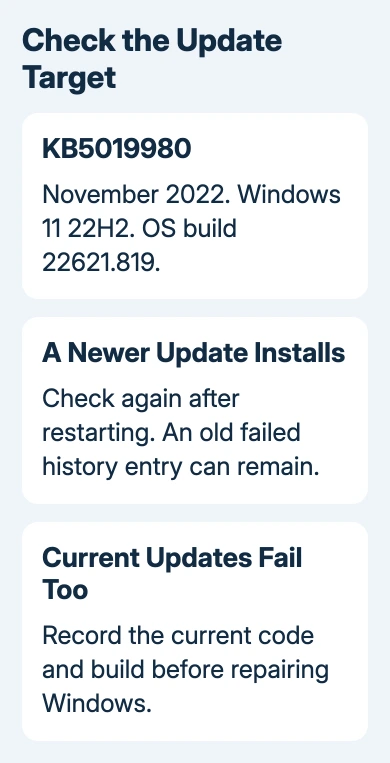
Microsoft's KB5019980 release notes identify the package as OS Build 22621.819, released November 8, 2022. It belongs to Windows 11 22H2, not every Windows 11 release.
An update-history failure can refer to a package you no longer need. On the Windows Update page, choose Check for updates and check which update it offers now. Don't fetch an obsolete installer to correct an old history entry.
After a newer cumulative update installs, restart and check again. Its successful installation matters more than the old failed row, which can remain in history. Confirm that Windows stops requesting the failed package.
Windows 11 22H2 has ended servicing. A PC still on that version needs a supported Windows release, not just the 2022 package. For a company-managed machine, give IT the version and ask which supported release it should move to.
2. Finish the restart and record the current failure
Save your work and select Start > Power > Restart. Once signed in, return to Windows Update. If a restart was already pending, wait for that restart to complete, then retry the offered update.
Note the stage that fails: downloading, installing or restarting. Write down the new error rather than assuming an old history entry still describes the current attempt.
For an error other than the original package failure, use the Windows Update error-code checks to choose the matching repair. A download failure and a rollback after installation don't necessarily need the same remedy.
The original discussion contains failed attempts at component resets, file repair and an in-place installation that wasn't completed correctly. A single command didn't fix all the affected PCs.
I'd stop retrying the same standalone package if the current update screen offers a newer cumulative update. Getting Windows onto the correct supported release is more useful than making an old history row look successful.
3. Repair Windows' system files when current updates fail
Search Start for Command Prompt, choose Run as administrator, and approve the prompt. Run this command first and let it finish before starting the next one:
DISM.exe /Online /Cleanup-Image /RestoreHealthDISM repairs the component store, the files Windows uses to restore damaged system files. If it completes successfully, run the system-file check:
sfc /scannowKeep the completion messages. If SFC repairs files, restart and retry the currently offered cumulative update. If files couldn't be repaired, save that message to discuss with support before reinstalling.
Save the full error code if DISM can't get repair files. The same command won't replace them while its repair source is unavailable. Support can supply matching files or help choose suitable installation media.
These tools repair damage to Windows components. They can't make an update install on a Windows version it wasn't built for. Return to the recorded winver details if an installer says the update doesn't apply to this computer.
4. Use the repair reinstall option when available
Open Settings > System > Recovery. Locate the section titled Fix problems using Windows Update. Use its Reinstall now button if offered. This repair keeps applications, files and settings while replacing the current Windows installation.
Save a backup before beginning. Leave power and internet connected while Windows downloads and installs the repair. Restart when prompted, then check whether updates now install.
To use it, Windows must include its 2022 annual release and the February 2024 optional package, or newer updates. Your workplace's update settings can hide this repair option. An installation still stuck on 2022 updates won't have it.
The Windows repair-install guide explains how the available methods handle apps and files.
If the option is missing, don't confuse Reset this PC with the repair reinstall. A reset can remove installed applications even when it keeps personal files. Continue with installation media or ask IT for the organization's repair process.
5. Run an in-place repair from matching installation media
Start Setup from the working desktop
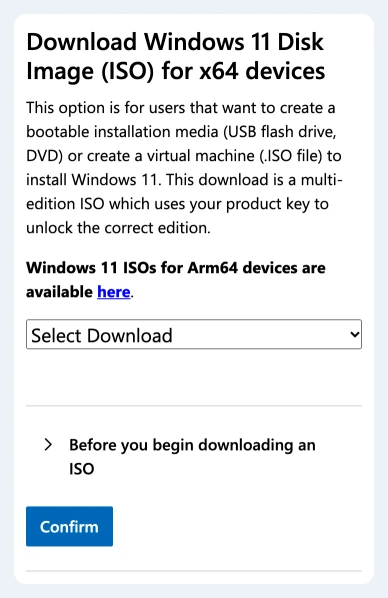
For an x64 PC, open Download Windows 11 Disk Image (ISO) for x64 devices. Select the multi-edition x64 ISO from the list and click Confirm.
Choose the language used by your installed Windows, confirm it and download the ISO. Choose installation media for a supported Windows release that's compatible with your PC.
For an Arm-based PC, follow the page's Arm64 ISO link for matching media. The Installation Assistant and media creation tool on the x64 page don't support Arm PCs.
Right-click the ISO and choose Mount. Open its virtual DVD drive in File Explorer and launch setup.exe while Windows is running. Don't boot from the USB installer for this repair.
At Change what to keep, select the option labeled Keep personal files and apps. Confirm that choice in the final summary before Install. If that choice isn't offered, cancel Setup.
Have support review the media's language and compatibility with your installed Windows version before continuing. The upgrade needs to support keeping your apps.
One owner got KB5019980 installed after a repair installation. They stressed following the Setup choices carefully, after an earlier attempt failed. That makes a repair a reasonable next step instead of forcing an outdated package today.
If the repair also fails, open Get Help and request Windows Update installation support. Provide the current KB number, full error, Windows build and both repair-command results. On a managed computer, have IT examine those setup logs.
The Short Version
Check today's offered cumulative update instead of chasing KB5019980. Repair damaged Windows components if that package also fails. Consider a repair installation that keeps your apps, and move from 22H2 to a supported release.
Checked November 26, 2026.
 If you have any business, I can build it online