KB5055523 can remain on Pending restart after a reboot, leaving the April 2025 update unfinished. Choose Restart now in Windows Update once, then read Update history. If Windows keeps offering it, try Windows 11's built-in repair reinstall.
A failed download, a restart loop and an update that rolls back are different failures. The result in Update history helps you choose a repair instead of restarting the same failed update again.
In this guide
1. Check whether the restart actually finished the update
Save your work, connect the charger and open Settings > Windows Update. If KB5055523 shows Pending restart, choose Restart now there. Let Windows finish its update screens and return to the desktop.
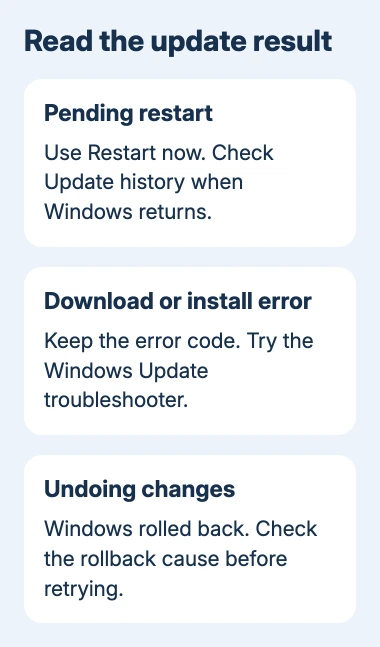
Open Windows Update > Update history > Quality Updates. Look for the KB number and the result beside it. A successful entry means the installation finished; an older failed attempt doesn't cancel a later successful one.
Press Windows+R and enter winver. Read the Windows version and its build number. KB5055523 was the April 8, 2025 cumulative update for Windows 11 version 24H2, build 26100.3775. It isn't a Windows 10 package.
That old build isn't today's target. If Windows already has a later cumulative package for that Windows version, check its successful installation before trying to force the April package onto the computer.
Windows Update can retain a failed attempt in its history after newer updates install. Check whether the PC still offers the failed package. Its name can remain in the list even when a newer update has installed successfully.
If the page still says Pending restart after this restart, move to the troubleshooter. If it downloads again and ends in an error, record that code too. The error code tells support more than the percentage where installation stopped.
2. Run the update troubleshooter for a repeating offer
Open Settings > System > Troubleshoot > Other troubleshooters. Find Windows Update and choose Run. Follow its prompts, including opening Get Help if Windows sends the troubleshooting session there.
Return to Windows Update afterward and retry the offered update. When Windows asks you to restart, use that prompt and check Update history again. Look for a successful installation to see whether troubleshooting helped.
Try this for a download or installation failure, then check the result. In the original discussion, owners reported that troubleshooting hadn't helped. One couldn't even run the diagnostics.
If the tool won't start, write down its own error and continue to the repair option. Repeatedly launching a failing troubleshooter won't finish the pending installation.
For a code such as 0x800f081f, the missing-source repair steps explain the file-repair branch. Use the code Windows actually shows; different codes aren't interchangeable.
3. Reinstall the current version to repair Windows
I'd use the built-in repair before resetting update folders. Microsoft supports reinstalling the current Windows version to replace damaged Windows files and components while keeping apps, files and settings.
Save your important work to a separate backup first. Open Settings > System > Recovery and locate Fix problems using Windows Update. Select Reinstall now. This is a separate option from Reset this PC.
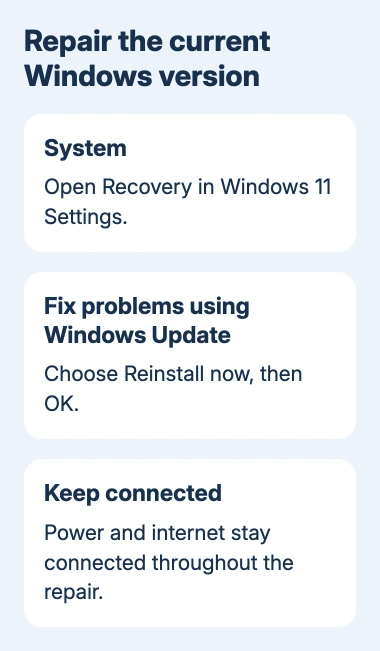
The confirmation lets you choose an automatic restart 15 minutes after the repair finishes. Choose your preference and select OK. Windows Update then downloads the repair copy, based on the last OS update that installed successfully.
Keep both the charger and internet connection in place during this repair. If automatic restarting wasn't selected, restart when the repair completes. Afterward, revisit Windows Update to install the current packages it offers.
The repair replaces Windows components, but the April package can still fail to install. Check the new installation result rather than assuming that reaching the desktop means every pending update succeeded.
If the same code returns, keep it together with the repair's result. Stop repeating that repair and have support examine the failed installation logs.
4. Check a rollback separately on a managed PC
A PC that displays an undoing-changes message and returns to its previous build has rolled back. That differs from a Settings page that keeps saying Pending restart without an obvious rollback screen.
The KB5055523 release notes list an installation problem involving Citrix Session Recording Agent 2411. Updating the agent to version 2503 or newer fixes that issue. A Citrix browser shortcut alone doesn't mean the agent is installed.
For a work PC, give IT the KB number, rollback message and Session Recording Agent version. Ask about this compatibility issue before another deployment. A home PC without that component doesn't need a Citrix repair.
Don't remove an organization's recording software yourself. Ask its administrator to update the affected component through the organization's usual process, then retry the Windows update.
5. When the repair option is missing or the loop continues
The repair option can be unavailable when work or school manages updates. It requires at least the 2022 Windows 11 annual release, plus an installed update dating from February 2024's optional release or later.
If this is a personal PC on 24H2 and the option is absent, send Microsoft Support a screenshot of System > Recovery, the winver result and the exact update error. Ask for an in-place repair that preserves apps and files.
For an organization-managed machine, ask IT about its deployment status and update policy. Keep the current Windows edition and management settings unchanged while IT checks why the recovery option is missing.
Keep C:\Windows\Logs\CBS\CBS.log available if support asks for installation details. Attach it to your support case alongside the failed KB and attempt time, so the technician can match the relevant entries.
For a PC stuck before reaching its desktop, use the stuck Windows startup guidance instead of trying Settings steps that you can't reach.
The Short Version
Read Update history after restarting through Windows Update. Try the troubleshooter, then the repair reinstall if installation still fails. Ask IT about an affected Citrix agent; give support the error and logs if the loop remains.
Checked November 26, 2026.
 If you have any business, I can build it online