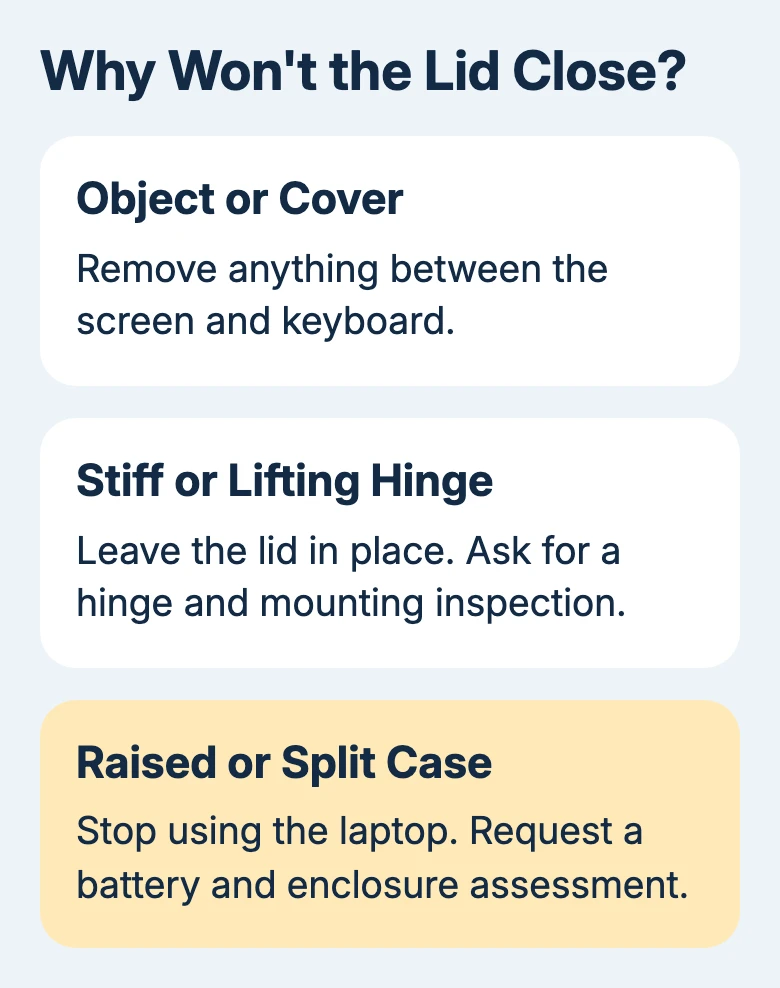
An object, damaged hinge or swollen battery can prevent a laptop lid from closing. Clear the keyboard first. Don't force the lid shut if the case bulges or a hinge pulls apart.
The location of the gap helps choose the next step. A removable obstruction is a simple fix; a raised palm rest, splitting case or stiff hinge needs repair, not a Windows setting.
In this guide
1. Clear the space between the screen and keyboard
Power off the laptop, then unplug the charger. Put it on a firm, level surface with the lid where it rests without resistance. Check for a cable, earbud, pen, memory card or other object resting on the keyboard or palm rest.
Take off any removable keyboard cover, palm-rest cover or camera cover before trying to close it. A thin accessory can still use up the small clearance between the display and keyboard.
The Mac notebook cover instructions call for removing those covers before closing the display. Leaving material inside can damage the screen. That applies even when the cover looks too thin to matter.
For a Windows laptop, check the accessory maker's fitting instructions and the laptop manual. If a clip-on shell catches at a corner, follow its removal instructions instead of squeezing the lid harder.
If the lid now moves freely and rests evenly, the obstruction was the immediate problem. Keep that item out of the closing gap. If it still stops at one side, inspect the outside of the case before moving the screen further.
2. Look for a raised palm rest or separating case
Check the laptop's sides, trackpad area and bottom cover without pushing them back into place. Look for a new gap in the case, a raised surface, or a base that no longer sits evenly on the desk.
Those changes can happen when a battery expands, though you can't confirm that just by looking outside. If the lid problem started as the case changed shape, have the battery and casing checked before using the laptop again.
Microsoft's battery care guidance says to stop using a device if the battery expands beyond its enclosure. Avoid pressure on the damaged area or puncturing the battery.
Tell the manufacturer or its authorized repair center how the laptop has changed shape. Ask how to get the battery checked and how to transport the laptop. Follow their instructions for your model.
This applies to a Windows laptop and a MacBook, with Intel or Apple silicon. The processor doesn't change how to handle swelling or a bent case. Where you take it for repair depends on the maker and your exact model.
Don't restart it just to run a battery-health report when the case is visibly distorted. A battery-capacity reading won't answer why the case has changed shape and needs attention.
3. Check whether a hinge is stiff, loose or lifting
If the case isn't bulging, examine both rear corners where the display meets the base. A crack, lifted hinge cover or gap that opens as the screen moves points toward the hinge or its mounting area.
Dell's hinge guidance lists stiffness, cracking sounds, loose screens and visible gaps among signs that a hinge may need repair. Have those symptoms checked even if the display still works.
Stop moving the lid when resistance increases or the casing starts to separate. Take photos with the lid in that position to show the repair shop. Repeatedly opening and closing it keeps moving parts that are already failing.
A repair shop needs to check the hinge and its mounts. The quote should cover the hinge, its attachment points and any damaged casing around the display or base. Replacing only the outer cover may leave the broken parts inside.
I'd arrange that inspection before ordering a hinge online. Similar-looking laptop models can use different parts, and the hinge itself may not be the only part that needs replacement.
If the screen has also developed lines, flicker or a dark section, include that in the request. For an HP model, the display and startup checks explain the difference between a screen problem and a Windows-only picture fault.
4. Compare the gap with the laptop's original shape
Some laptops have a shaped rear edge, visible hinge covers or a small space between the closed halves. A consistent gap that has always been there isn't the same as a new twist or a corner that suddenly won't meet the base.
Compare the laptop with the maker's product pictures or model manual. Find your full model number on the laptop label or purchase record. A photograph of a different size or generation can make a normal design look wrong.
Record whether the problem followed a drop, a new case, travel in a packed bag or a change in hinge resistance. Give support that history along with clear photos of both sides. Support can plan the inspection using that history.
Don't adjust hinge screws by guesswork. Access, tightening instructions and replacement parts differ between ordinary notebooks and 360-degree convertibles. Use the exact service manual if the manufacturer offers a supported adjustment.
For a new laptop with an uneven lid and no removable obstruction, ask the seller about its return or exchange process. Get that answer first; attempting repairs could make it harder to show how the laptop arrived.
5. Separate a physical gap from a sleep problem
A lid that closes normally but leaves the laptop awake has a different problem. Sleep behavior is controlled by the operating system and hardware settings; changing it won't straighten a lid or free a stiff hinge.
Use the laptop lid power settings when the physical movement is normal and only the power behavior is wrong. That guide addresses sleep behavior once you've checked that the lid itself moves normally.
If the lid still resists closing, give the repair shop your model number, photos and a history of the problem. Describe the visible changes and request checks of the casing, hinges and battery. Get a written quote before approving parts.
The Short Version
Remove objects and covers first. A raised case needs a battery assessment; a stiff or lifting hinge needs a mechanical repair. If the lid closes evenly but the laptop stays awake, check its power settings instead.
Checked November 27, 2026.
 If you have any business, I can build it online