The libScePad runtime missing error can mean the game's PlayStation PC SDK is incomplete or can't load its library. Repair the supplied runtime, then verify the game files if the warning stays.
God of War Ragnarok owners also reported success copying the library from their installed SDK into the game's folder. Keep that as a game-specific fallback after the normal installer, rather than downloading an unrelated DLL.
In this guide
1. Check the PlayStation runtime installation
Close the game and open Windows Start. Search for Add or remove programs, open it and search the installed-app list for PlayStation PC SDK Runtime.
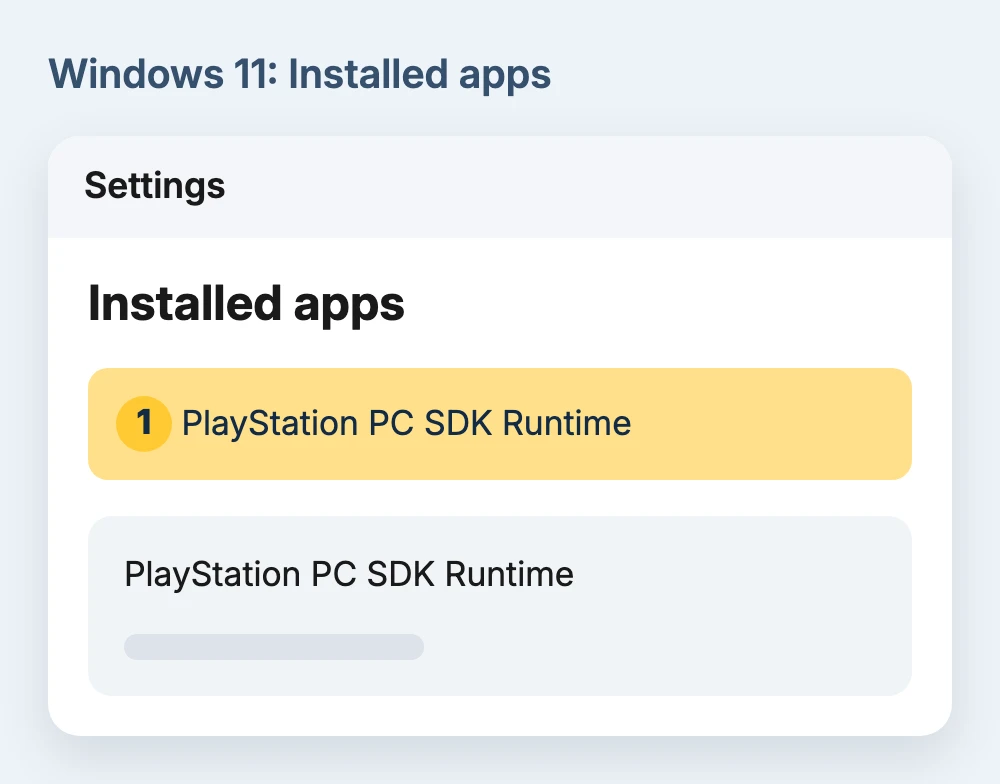
If the runtime is listed, make a note of it. If it's missing, check C:\ProgramData\Sony Interactive Entertainment Inc\PSPC_SDK\ in File Explorer. Paste the path into the address bar because ProgramData is normally hidden.
If neither the app entry nor the SDK folder exists, the installation may not have finished. An existing folder means there are runtime files to check, but the game might still fail to load the required version.
Write down the game's exact error too. A missing-runtime message at launch is different from a PlayStation account sign-in error after the game opens. Repairing files won't resolve an incorrect account password.
Nixxes recommends checking and reinstalling the SDK using files supplied with the game. The SDK supports online features and the PlayStation overlay.
If the app entry is absent, go to the game's installation folder next. If it's present and the game still complains, use that same supplied installer to rebuild the installation.
2. Run the installer that came with the game
Open the game's installation folder, which might be on D: or another drive instead of C:. In Steam, right-click the game in Library, choose Properties > Installed Files, then select Browse.
For Epic Games Store, open the game's management options in Library, select Manage, then use the folder icon beside Installation. That opens the installed copy even when you chose another drive.
Look for install_pspc_sdk_runtime.bat. The vendor's reinstall procedure is to remove PlayStation PC SDK through Windows' installed-app list, then run that supplied file to install it again.
Use the file included with your legitimate game installation. Don't substitute a script or DLL downloaded from a file-sharing page. The installer and the files it uses need to match your game.
Windows 11 removes an app through Settings > Apps > Installed apps, its three-dot menu and Uninstall. Windows 10 uses Settings > Apps > Apps & features, then the app and Uninstall.
The Windows app-removal instructions cover that part. Remove the named runtime, rather than deleting the entire Sony folder by hand.
After installation completes, launch the game through its usual launcher. If it opens without the runtime warning, check the controller and any online feature you need. If the installer is missing, recover the supplied files next.
3. Verify the game's files through its launcher
In Steam, right-click the game in Library, open Properties > Installed Files, then select Verify integrity of game files. Let the check finish before starting another repair or launching the game.
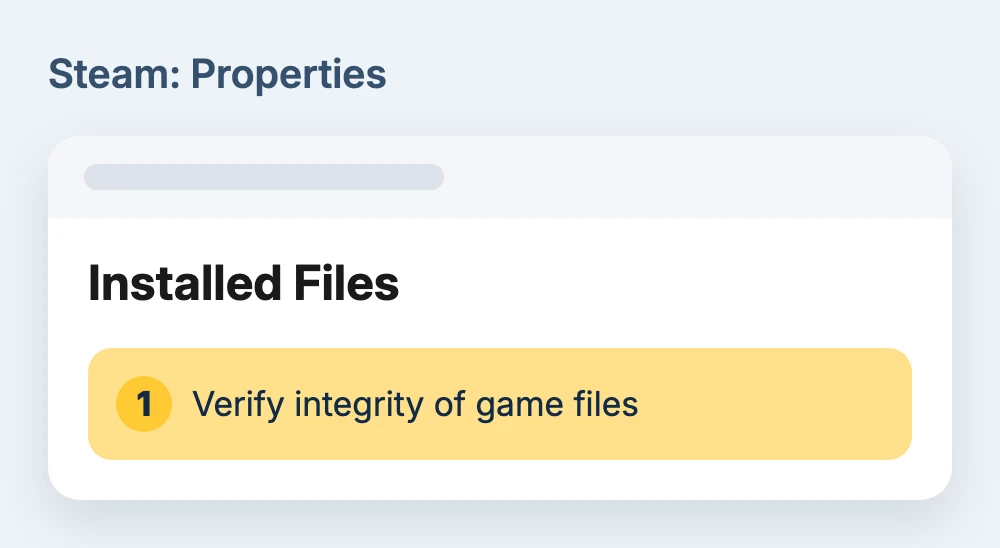
Verification compares your installed files with the game's supplied files. It can replace a missing or damaged game file; it doesn't check whether Windows correctly installed a separate runtime.
Return to the installation folder after the check and look for the supplied SDK installer again. Run it if the runtime still isn't installed, then retry the game.
In Epic Games Launcher, use the game's three-dot menu, Manage > Verify. Wait for verification to finish. If you need the installer, open the game folder from that same management area.
In Epic Games Launcher Preview, select the game in Library, open the three-dot menu beside Play, then choose Manage > Verify.
If verification repeatedly replaces files and the warning returns, check your security software's history. If a file keeps disappearing, check whether your security software blocked it before running the installer again.
For a separate MSVCP140.dll message, use the Visual C++ runtime repair. That is a different component, so installing it isn't a substitute for the PlayStation SDK.
4. Check the security program's blocked-item history
Open the security program protecting the PC and review its recent blocked-item or quarantine history. Look for the game or PlayStation PC SDK at the time the failure started.
If a record names one of those files, save its full path along with the security program's detection label. Ask the game's support team or your security provider to confirm the detection before restoring anything.
Keep the PC protected while checking the game. The saved record tells support which file was flagged.
If the history doesn't mention the SDK, continue with the check for your game instead of excluding a whole folder from security scans. The missing-runtime wording alone doesn't mean antivirus caused it.
5. Use the God of War Ragnarok fallback carefully
Several owners on Steam reported fixing this exact warning by copying libScePad.dll from their installed SDK into the main God of War Ragnarok folder. One owner had already reinstalled the entire game without success.
Their source was C:\ProgramData\Sony Interactive Entertainment Inc\PSPC_SDK\S22\2.50.00.10\. That version number belongs to their January 2025 installation. Your installed version can have a different folder name.
For that game, after reinstalling its SDK, check the installed version folders under S22 for libScePad.dll. If the current installation supplies it, copy the file into the game folder opened through Steam's Browse command.
Before copying, back up an existing game DLL and use only this PC's installed SDK library. Put the copy in the game's folder.
Try launching Ragnarok again and watch for the same warning. If the DLL isn't present or you're unsure which runtime belongs to the game, stop and ask game support to identify the correct installer instead.
For another game, ask its support team which SDK library build it expects. The DLL troubleshooting guide covers a different initialization error that needs its own diagnosis.
Send game support the installer result
Use the affected game's official support page. Include the exact error, launcher, game version, runtime app entry, installer result and whether verification replaced files. For a Nixxes-supported game, use its Submit a request form.
If the warning disappears but PlayStation sign-in fails, send that new message to PlayStation account support. Explain that the runtime warning is gone so you aren't repeating a repair for an account problem.
The Short Version
Reinstall the game's supplied PlayStation SDK and verify game files. Review blocked items if files keep disappearing. God of War Ragnarok owners also confirmed a workaround using the library from their installed SDK.
Checked November 27, 2026.
 If you have any business, I can build it online