
The LifeCam VX-1000 can appear in Windows 11's Device Manager without a working picture. Look for a matching driver through Windows Update first. Its name alone doesn't mean video works, and you don't need a taskbar icon to use it.
Two owners revived this model with an older-driver walkthrough, but that isn't a verified current Windows 11 download. Check whether your problem is the driver, the USB connection or access in one app before changing anything.
In this guide
1. Check whether Windows sees the camera correctly
Connect the VX-1000 directly to the computer, leaving a USB hub or dock out of the connection. Try another USB port if Windows doesn't react. This checks the connection before you change drivers for a camera Windows hasn't detected.
Press Windows-X > Device Manager. Expand Cameras, Imaging devices and Other devices. Look for the LifeCam, an unknown camera or a yellow-marked LifeCam entry.
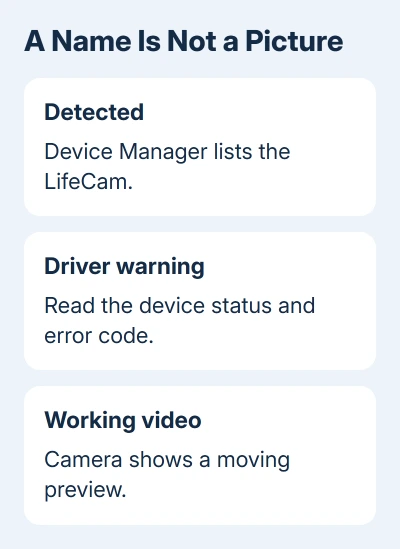
Right-click the camera and select Properties. Read Device status on the General tab. Note the error code and the full status message. If a driver is missing, work on installing it. If the status is normal, check the preview next.
Open Start, type Camera, and open the app. If another camera supplies the picture, use Change camera to select the external one. Look for a moving preview. Seeing the LifeCam's name alone doesn't mean it can send video.
The original owner couldn't use the camera even though its name appeared in Computer Management. They also expected an icon elsewhere in Windows. Launch Camera yourself instead of waiting for the old LifeCam software to show a taskbar icon.
2. Look for a matching driver through Windows Update
Open Settings > Windows Update > Check for updates. Then open Advanced options > Optional updates and expand Driver updates, if that section is available. Install a camera driver only when it matches the connected hardware.
Restart after installation and check Camera again. If no matching update appears, Windows Update hasn't offered a driver for this device on your system. Repeated checks won't turn a driver for a different LifeCam into the right package.
Microsoft's camera troubleshooting steps include optional driver updates and Device Manager checks. These are built-in ways to repair camera problems, but they can't supply a compatible driver for every older camera.
In Device Manager, try right-click the LifeCam > Update driver > Search automatically for drivers. If the search finds no better driver, return to Camera and check its preview. That message doesn't mean an old camera will work.
I'd use these built-in routes before searching for a download by model name. You won't have to choose a download just because its filename mentions LifeCam, a name used for several different cameras.
3. Separate camera access from a missing driver
When Device Manager reports normal operation, open Settings > Privacy & security > Camera. Enable Camera access. Also switch on Let apps access your camera. Check the individual permission for your app if Windows lists it.
For meeting software and browsers, also check Let desktop apps access your camera. Close the calling app completely, reopen it, and select the LifeCam in its video settings. The laptop's built-in camera may still be the selected input.
When Camera has a live picture and a call stays blank, leave that functioning driver installed. The webcam access checks explain the app-permission side of that result. Changing the driver could break the part that already works.
If neither application receives video and Device Manager shows a driver error, permission switches won't install the missing component. Continue with the driver question rather than repeatedly toggling access.
Once video works, make a short saved webcam recording and play it. This checks that the app can save a usable clip, including your voice if you plan to use the LifeCam microphone.
4. Understand what the older-driver workaround confirms
In the support discussion, one owner reported that an older-driver walkthrough restored their VX-1000 on Windows 11. A later reply confirmed a working picture on a desktop running Windows 11 Pro, 64-bit, through USB 2.0.
The owner discussion links the older-driver walkthrough. The walkthrough couldn't be opened when checked, so there aren't verified installation steps to follow here. Those successful reports don't mean a new Windows 11 driver was released.
The same owner had tested the camera successfully on Windows 10, but all available Windows 11 updates hadn't restored it. A camera can still work physically while its old driver fails on a newer system.
Don't force USB Video Device onto this model because another webcam uses it. Windows' built-in camera driver needs compatible USB Video Class hardware. Generic USB camera steps won't necessarily work for the VX-1000.
If a repair shop offers to reuse an old package, ask which driver it is, whether Windows accepts its signature, and whether they can demonstrate a moving preview on your Windows 11 installation before charging for the work.
5. Decide when another camera is the practical repair
If a matching driver can't be installed, open Get Help from Start and describe the VX-1000 model, Windows 11 edition, Device Manager error and failed preview. Ask whether a supported driver route exists for that hardware.
For an urgent call, I'd use a working built-in camera or borrow a current USB webcam. Ask its maker for Windows 11 support before buying. That is more useful than buying another old LifeCam on the assumption that all models share a driver.
Keep the old camera if you still use a computer where it works. If it works there, that helps you tell a compatibility problem from a failed cable or camera, but it doesn't make an unsupported driver suitable for your new computer.
The Short Version
Check Device Manager and Camera, then look for a matching Windows Update driver. Fix app permissions when the driver works. Owners revived the VX-1000 with older drivers, but the walkthrough isn't a verified current download route.
Checked November 17, 2026.






