

Distorted or uneven M4A playback after Windows 11 22H2 can come from the Windows audio decoder rather than damaged music files. Update Windows first: owners reported success after KB5035942 in March 2024.
If playback improves but tracks remain much too loud, your DJ app may also need to analyze those tracks again.
Compare how another player handles that exact original file. Distortion in every app, a file that won't open, and incorrect gain saved in a DJ library aren't the same problem.
In this guide
1. Update Windows before changing the music library
Open Settings > Windows Update > Check for updates. Apply the available updates for this Windows release. After any requested restart, listen to an affected M4A in the application that had the fault.
An owner in the original M4A discussion reported improvement after KB5035942. A later owner reported full success, while another still heard large differences in track volume.
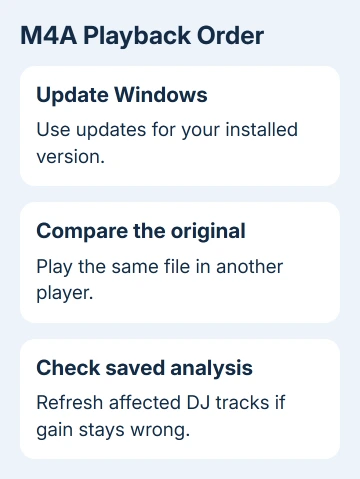
Updating Windows can fix playback while leaving your DJ library's saved settings unchanged. Listen to a short familiar passage at a low playback level.
Listen for distortion during the track, then check whether the next track starts much louder or quieter.
KB5035942 is a historical update for Windows 11 22H2 and 23H2, not a package to force onto every Windows 11 PC. Its release page identifies builds 22621.3374 and 22631.3374.
Press Windows + R, enter winver, then read its release and build information. On a newer Windows release, use the updates offered for that release. Don't downgrade to 22H2 to install an old preview package.
If updates won't install, fix the update problem before checking whether M4A playback has improved. For trouble affecting all computer audio, the broader computer sound checks are a better starting point.
2. Compare the same original file in another player
Choose one affected local M4A file, not a streaming copy of the same song. Open that exact file in the affected player, then in an already installed player that can play it, such as VLC or iTunes.
Keep the output device and approximate volume the same. If the same file sounds normal in one player and distorted in another, the player or its decoder is the place to look.
The decoder, sometimes called a codec, reads the audio stored in the music file.
The original report described trouble in programs using Windows' built-in decoding, while VLC and iTunes played the files normally. That is why changing headphones wasn't the useful first move for this particular failure.
If the file sounds wrong in both players, try another known-good file. A damaged download, a bad recording, or a problem affecting all sound needs different checks from this old Windows bug.
Keep the original music files unchanged while comparing. Renaming .m4a to .mp3 doesn't convert the audio, and it won't replace the decoder that reads it. You'll just have a file with the wrong format in its name.
If an existing player handles your originals correctly, use it for listening while you repair the main setup. I'd keep a small set of known-good tracks ready for comparison rather than changing an entire library at once.
3. Refresh analysis if your DJ tracks are still too loud
Once the Windows update is installed, test an affected track inside your DJ app. If the rapid changes or distortion have stopped but the whole track is unusually loud, check its saved gain and analysis.
DJ analysis can store a loudness adjustment along with information such as tempo and waveform. A track analyzed while decoding was faulty can retain an unsuitable adjustment after playback itself improves.
In the later discussion, the response to lingering Traktor volume differences was to select the affected tracks, right-click, and choose Analyze (Async). Treat that as a Traktor instruction, not the menu name for every DJ program.
Start with one or two affected tracks and compare them again after analysis finishes. If those tracks now play at the right levels, use your app's current analysis controls on the rest of the affected collection.
Back up the library before making collection-wide changes.
For rekordbox or Serato, use that program's own analysis command and documentation. Each app needs to refresh its saved track information, but the checkboxes, locks, and changes to existing analysis differ.
Complete analysis before a performance. Analyzing a large collection while mixing gives the app more work when you need playback to stay reliable.
Check a familiar quiet track and a familiar loud one so you're not judging the result from a single recording.
4. Check gain separately from the Windows volume slider
If excessive volume distorts a track only in your DJ app, check its levels. Turn the channel down, compare its track gain and automatic gain settings, and watch the application's level meter as the affected passage plays.
The Windows volume slider changes what reaches the speakers. It doesn't correct a bad loudness adjustment stored in a DJ library. Making the speakers quieter can hide the severity while leaving the same track adjustment in place.
In Traktor, channel gain and track Autogain are separate controls. Check which one you're viewing before making a change. Write down the starting value before comparing, so restoring it is easy.
If a newly analyzed file plays correctly while an older library entry remains wrong, report that difference to the DJ app's support team.
Include the app version and explain whether a fresh import behaves differently from the existing library entry.
5. Convert a copy only when a working format is needed
Converting was a workaround in the original discussion, but converting thousands of originals shouldn't be the first repair. It can create duplicate files and break links between a DJ collection and the files it expects.
If an urgent job needs a different supported format, export a copy using an audio tool you already trust. Keep the original and confirm that the exported copy imports, analyzes, and plays correctly in the destination program.
Choose the format for that destination rather than assuming every M4A contains identical audio. The filename ending alone doesn't tell you everything about the encoding inside it.
For media embedded in a presentation, use the separate PowerPoint playback checks.
Still hearing distortion after the update?
If updated Windows and refreshed analysis don't solve it, contact the affected DJ application's support team. Provide the Windows build, app version, one affected sample you can share, and the player that handles that same sample correctly.
Say whether the fault is distortion during playback, a fixed loudness difference, or complete failure to load. That tells support what to check, rather than leaving them to guess what went wrong.
The Short Version
Update Windows, compare the same original M4A in two players, and refresh DJ analysis if levels remain wrong. KB5035942 belongs to the historical 22H2/23H2 fix reports.
Keep your originals until playback and library gain both behave correctly.
Checked November 16, 2026.






