
You plug your iPhone into your Mac. The Mac says a software update is required to connect to your iPhone. You click Install, and it fails, or it installs and the message comes back next time.
This gets annoying when you only wanted a backup or your photos. I read Apple's page for this exact message and the MacRumors thread where iOS 27 owners ran into it.
What the message means
It is the Mac that needs the fix, not the iPhone. Apple's page for this alert puts it simply: "Older software on your Mac needs to be updated to support newer software on your iPhone, iPad, or iOS device."
So it shows up after an iPhone update, such as iOS 27. In the thread, one owner said it pops up "usually after updates to my phone" when they connect to an older iMac.
This time their install failed for a week. Another owner's install worked, but the message kept coming back.
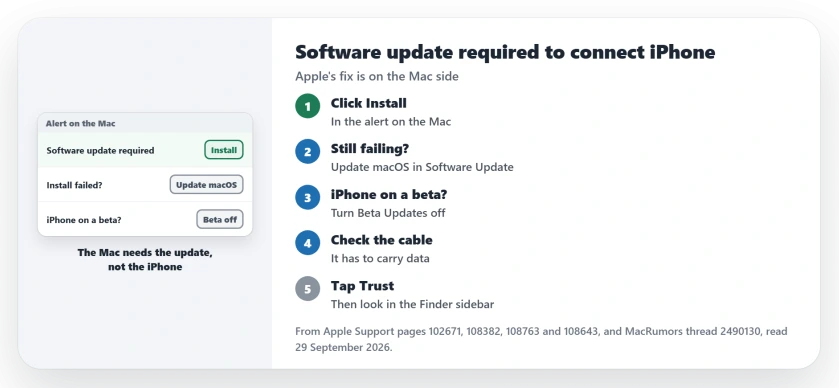
Status: checked 29 September 2026. Apple says to click Install, and to install the latest macOS if that fails or the message returns. One owner saw it stop after leaving the iOS beta.
1. Click Install in the alert
Start with the easy part. Apple's instruction is "click the Install button in the alert message." It adds that once the update is installed, "you should be able to connect to your device as expected."
Keep the Mac online and awake. Then unplug the iPhone and plug it in again.
2. If it fails or comes back, update macOS
Apple's next step covers both problems. If the update "doesn't install successfully or doesn't resolve the issue," Apple says to install the latest macOS updates on your Mac.
In System Settings, go to General, then Software Update. Install anything it offers. Then connect the iPhone again.
Software Update lists only what your Mac model supports, Apple notes. On an older Mac, the newest macOS it can get may be several versions behind.
3. On a beta? Get both onto release versions
One owner hit the message with an iOS 27 beta on the iPhone and a regular release of macOS on the Mac.
In their words: "When 27 was officially released, I turned off beta updates and installed the final version. My Mac hasn't shown that message since."
To leave the beta on the iPhone, Apple's steps are Settings, General, Software Update, then Beta Updates, then Off. Then install the release when it appears.
4. Check the cable and the Trust alert
If the update installs and the Mac still does not show your iPhone, go back to basics. Apple says the cable has to handle data as well as charging.
On the Mac, click Allow if it asks whether the accessory may connect. On the iPhone, tap Trust when it asks whether to trust this computer. Then look for the iPhone in the Finder sidebar.
5. If your Mac cannot get a newer macOS
This case, on an older iMac, was reported by an owner. They restarted both devices and turned off file sharing. The install still failed.
Apple's page offers no workaround at all for a Mac that cannot update any further. Use an iCloud backup for the iPhone instead, and bring the cable job to a newer Mac if you have one.
Update, 30 September 2026: an owner posting in the long iOS 27 thread traced why older Macs fail. Plugging in an iPhone on iOS 27 makes the Mac fetch a device support package from Apple.
In their words, the Mac finds it "from anything from the catalina to golden gate su catalogs but anything older it won't find it." So, by their account, a Mac stuck on Mojave or earlier cannot install it.
iPhone not showing up at all?
If there is no alert and the iPhone never appears, the Finder page goes through the other causes. If a backup to the Mac starts and then fails, the backup page covers that.
Why does my Mac say a software update is required to connect to my iPhone?
Apple says older software on your Mac needs an update to support newer software on your iPhone. It shows up after an iPhone update, such as iOS 27.
What if the Mac software update keeps failing?
Apple says to install the latest macOS updates on the Mac. If your iPhone runs a beta, move it to the release version as well.
Can an iOS beta cause this message?
One owner saw it with an iOS 27 beta on the iPhone and a non-beta Mac. It stopped once they turned off beta updates and installed the final release.
The Short Version
- The Mac needs the update, not the iPhone.
- Click Install in the alert first.
- If it fails, update macOS in Software Update.
- Leaving an iOS beta stopped it for one owner.
- Try a cable made for data.
- Tap Trust on the iPhone.
- On an old Mac, back up to iCloud instead.
Where to Next
Install whatever Software Update offers on your Mac today. Then plug your iPhone in again.
If the install still fails on a fully updated Mac, post your Mac model and its macOS version in a comment. I will add what works.

Isaac Smith is the founder and editor of PC Glance, a website that covers computers, laptops, and technology. He is a tech enthusiast and a computer geek who loves to share his insights and help his readers make smart choices when buying tech gadgets or laptops. He is always curious and updated about the latest tech trends.