A MacBook can power a CAC reader without letting it read data. Unlock the Mac and reconnect the reader, then choose Allow at the prompt on an Apple silicon model. Check USB detection before changing certificates or smart-card settings.
The problem can be with the reader, the card or the website. A reader missing from System Information needs a USB check, while a detected card that fails at one website needs certificate or account help.
In this guide
1. Allow the reader to connect on Apple silicon
Unlock the Mac and disconnect the reader. Reconnect it while the laptop is open and watch for a prompt asking you to approve the accessory. Choose Allow so macOS can read data from your reader.
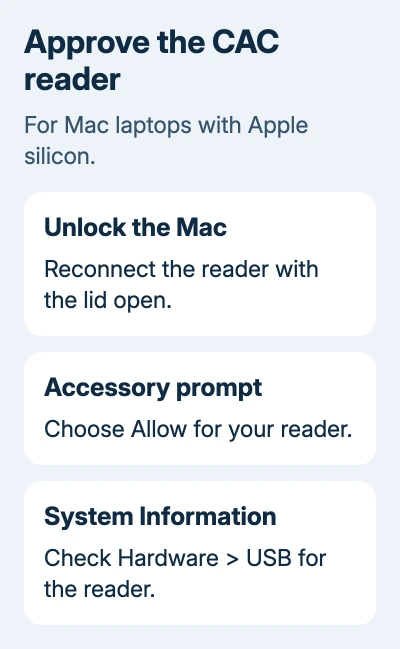
An Apple silicon MacBook can require approval for an unfamiliar USB accessory. Don't Allow blocks data access. A reader's light can still come on because power and permission to read data are separate.
Apple explains in the accessory approval instructions that you may need to reconnect a previously approved accessory after the laptop has been locked for several days. Reconnect with the Mac unlocked before assuming the reader has failed.
Review Apple menu > System Settings > Privacy & Security. On current releases, open Accessories, then Allow accessories to connect. Earlier releases may show that menu directly on Privacy & Security.
Keep approval enabled and allow the specific reader when prompted. An organization can manage this setting on a supervised Mac. If the option is locked, ask IT to approve the reader without removing its management profile.
Intel MacBooks don't use this accessory approval step. Continue to the hardware list on Intel, or after approving the reader on Apple silicon. Your Mac's processor type alone doesn't mean you need a different CAC.
2. Check whether the USB reader appears
Hold Option and open the Apple menu, then select System Information. Under Hardware, select USB and locate your reader or its manufacturer. A USB-C adapter may appear separately from the reader attached to it.
Unplug and reconnect the reader if you aren't sure which entry belongs to it. Reopen System Information if the list hasn't refreshed. Look for the reader itself; seeing only its hub or adapter won't confirm that the Mac detects the reader.
If the reader is absent, connect it directly where possible. For a USB-A reader on a USB-C MacBook, use a compatible data adapter and remove extra docks from the connection. Try another available port or a known-working adapter.
The Mac port troubleshooting guidance recommends checking the device, cable, direct connection and hardware list. If the reader isn't listed under USB, work on its connection before changing certificates.
I'd check the hardware connection first. Certificate changes can't repair a disconnected reader. Check the adapter before adding unrelated certificates.
If other devices fail on the same port, use the Mac USB and Thunderbolt checks. A wider port problem is different from one CAC reader not being recognized.
3. Confirm support for the reader and inserted card
Check the reader manufacturer's specification for USB CCID support. CCID is the standard reader interface macOS supports, while PIV is the smart-card identity standard used by its built-in card support.
Native PIV and CCID support is included from macOS 10.15 onward. Individual readers, cards and login apps can still have additional requirements. Check the requirements for your exact reader model and your organization's Mac instructions.
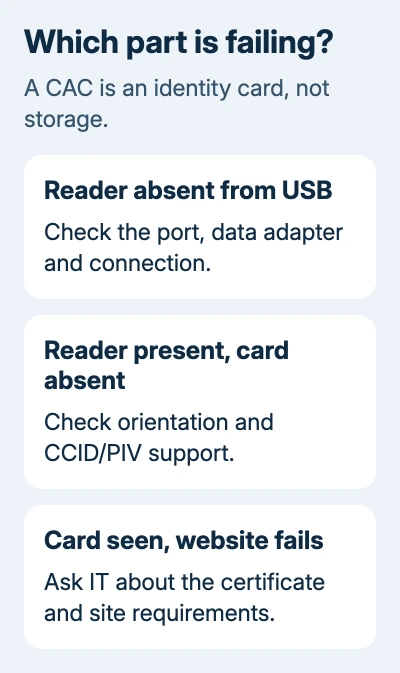
Insert the card in the orientation marked on the reader. Follow its manual for the contact side and insertion depth. A reader can appear as USB hardware even when the card isn't making contact inside it.
Ask the maker which software and firmware your macOS release needs. Follow their download instructions if required. Extra smart-card software is called middleware; another reader's old package may not suit yours.
If another approved reader is available, test your card in it. A card that works there points back toward the first reader or connection. If the same card fails on a known-working setup too, take that result to the card support desk.
A CAC isn't an SD storage card. It won't appear as a removable drive in Finder or Disk Utility. The separate memory-card reader checks concern storage cards and aren't a reason to format a CAC.
4. Check card detection without resetting smart-card policy
With the reader connected and card inserted, launch Terminal. The Mac smart-card administration guide gives this command to list connected cards:
sudo security list-smartcardsEnter the Mac administrator password when prompted. This lists available smart cards; it doesn't reset the card, remove its certificates or change the PIN. On a managed Mac, have IT run it when your account lacks admin rights.
If a card is listed, macOS sees both the card and reader. Check website access or the card's identity details next, rather than the USB connection. Keep the output private when sharing it with your organization's support desk.
If no card is listed despite a detected USB reader, ask IT to check PIV support, reader compatibility and any installed smart-card middleware. Give them the reader model and macOS version, along with the hardware-list result.
Leave PIV-disabling and certificate-trust commands to IT. They change authentication behavior. Listing the cards gives support useful information without changing your organization's security settings.
5. Separate website access from Mac login pairing
A pairing prompt connects a smart card to a local Mac user account for login. Declining that pairing doesn't automatically prevent the card from being used on websites. Website access and Mac login need different settings.
If a website rejects a detected card, note its error and any certificate or PIN request. Ask the CAC help desk which authentication certificate and browser the site supports.
For local Mac login, have IT check the intended pairing or directory configuration. A centrally managed smart-card login can use a different method from local pairing, so repeated unpairing isn't a general repair.
When the hardware checks still fail
If the reader stays missing after trying multiple working connections, ask its maker about Mac compatibility or replacement. If your card fails in approved readers, ask the organization that issued it to check the card and certificates.
The Short Version
Approve the reader on an unlocked Apple silicon Mac, then check System Information > USB. Confirm CCID/PIV compatibility and card detection before asking IT about certificates, website access or Mac login pairing.
Checked November 27, 2026.
 If you have any business, I can build it online