

Disabling Wake on Magic Packet is a reported workaround for MediaTek MT7921 Wi-Fi crashes. Turn it off in the adapter's Advanced tab if available. A vanishing card or blue screen also needs driver recovery and a hardware check.
The setting isn't present in every driver. A missing property doesn't mean the Windows menu is wrong. Use your laptop maker's driver package, even if another driver offers more settings.
In this guide
1. Turn off the wake setting when it is available
Right-click Start and choose Device Manager. Expand its Network adapters category. Open MediaTek Wi-Fi 6 MT7921 Wireless LAN Card, choose Properties, then open the Advanced tab.
Look for a property named Wake on Magic Packet or a similar wake-on-packet entry. Note its current value, change it to Disabled, and click OK. Driver wording varies, so change the matching wake property only.
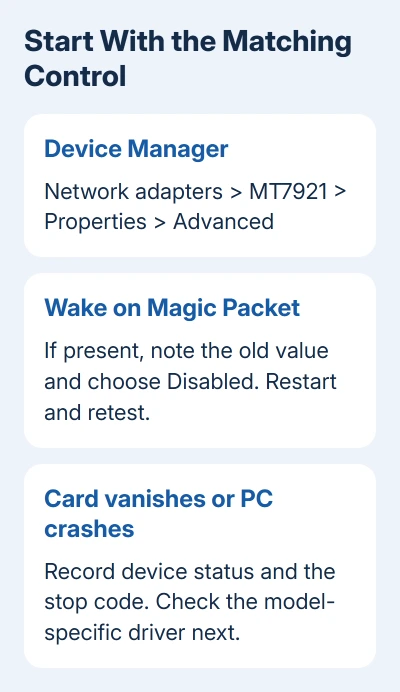
An owner in the MT7921 thread reported this fix, which the opening post now highlights. It won't repair every driver fault.
Restart Windows, reconnect to Wi-Fi and run the program that usually causes the failure. Check that the adapter stays in Device Manager and Windows keeps running. One connection isn't enough to show the crashes have stopped.
The change stops a special network packet from waking the PC. If you use remote wake on this PC, consider that tradeoff before keeping the change. Restore the original value if the crash continues and you need the feature.
If you don't see that property, move to the driver check. The separate Power Management tab is also absent on some laptops. The Wi-Fi power guide explains that difference.
2. Separate a wireless disconnect from an adapter failure
After the next failure, reopen Device Manager. Note whether the MT7921 remains listed, shows a warning, or disappears. Open its Properties > General page and record any device status code.
Losing Wi-Fi isn't the same as Windows being unable to start the card. If the card stays absent after restarting, use the missing-adapter checks before changing router settings.
For a blue screen, record its stop code, along with any driver filename shown. The MT7921 isn't necessarily responsible just because your laptop has one. The exact crash message helps support decide what to examine.
To compare events with the original report, open Event Viewer > Windows Logs > System and check the time of the failure. It included adapter events 10317 and 5002, describing an internal error and a malfunctioning adapter.
Those event numbers help when they name the same adapter. An unrelated DCOM timeout, a Windows component communication error, won't explain the Wi-Fi failure. Keep the event text and time so a technician can match them to the crash.
If only one network disconnects and Windows never crashes, compare another trusted network. If Wi-Fi fails across networks while Ethernet stays usable, focus on the wireless adapter and its driver rather than changing every router option.
3. Install the wireless driver for the exact PC model
In the MT7921 properties, open Driver and note Driver Provider, Driver Date and Driver Version. The original ASUS TUF F15 report used version 3.0.1.1264; that's the version they had, not one to install on every laptop.
Find the full model on its label or in Windows + R > msinfo32 > System Model. Match the model and Windows edition on the manufacturer's support page. A name such as TUF F15 covers several machines.
On an ASUS laptop, use the Download Center to search for the complete model. For another maker, open its model-specific support page.
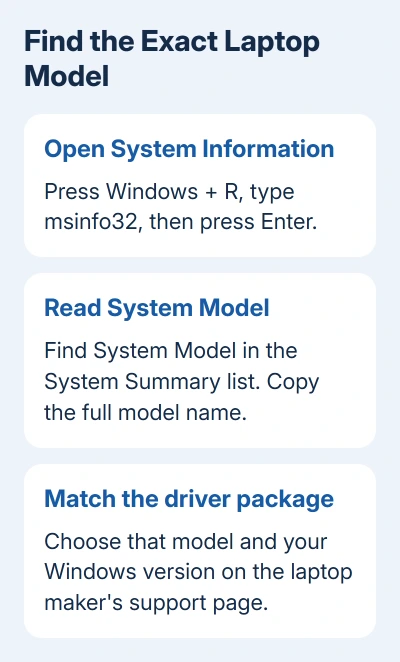
Download the installer before removing the working driver. Use Ethernet or another computer and a USB drive if Wi-Fi can't stay connected. Keep that installer locally so a failed reconnect doesn't leave you without a way to recover.
Run the maker's installer and restart. Recheck the installed version on the Driver tab before using the programs that usually trigger the crash. A newer version number is useful only if the card remains stable in actual use.
Microsoft's Wi-Fi recovery steps cover adapter removal and restart. Try that if the model-specific installer fails.
With the backup installer saved, right-click the MT7921 in Device Manager and choose Uninstall device.
Select Attempt to remove the driver for this device if offered. Confirm, then restart from Start > Power.
Windows looks for an adapter driver after restarting. Run your saved package if it doesn't restore the card. Check Device Manager and reconnect to see whether reinstalling helped.
4. Stop repeating driver resets when they don't last
The asker tried the manufacturer's driver, a newer driver, firmware changes and a laptop reset without success. They planned to seek warranty help. The thread doesn't confirm a completed replacement or its outcome.
Consider those failed fixes when choosing your next step. Repeating a full Windows reset is a large disruption when the same adapter keeps vanishing afterward. I'd collect the driver details and crash times before considering another reset.
For an ASUS laptop, open the model's support page and choose its service or repair contact. Give support the complete model, MT7921 name, driver versions tried, stop code and whether the wake-setting change affected the crashes.
Request a wireless-module and connection check, including confirmation of compatible replacements. For another brand, make the same request through its laptop support service. Warranty terms depend on the machine and purchase.
Ethernet can keep the PC online while support checks the wireless fault. If Windows still blue-screens without Wi-Fi in use, tell support that too; they need to check whether the crash has another cause.
The Short Version
Try disabling the MT7921's wake-on-packet property if present. Check adapter status and the exact crash message, then use the model-specific wireless driver. Persistent failures after driver recovery need a hardware assessment.
Checked November 17, 2026.
 If you have any business, I can build it online






