
When Messenger shows a black screen but the rest of your phone works, close the app fully and reopen it. Check for a Messenger update before you clear its data or reinstall it.
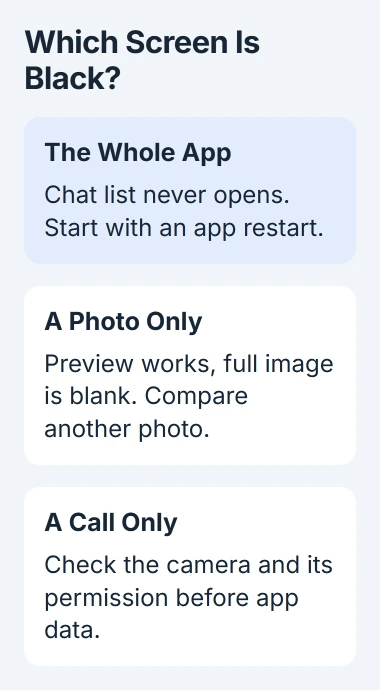
What you try next depends on what's black: the whole app, one photo, or a video call. Before going further, check how you'll recover encrypted chats. Signing into your account may not bring those conversations back.
1. Check whether the app or just one screen is blank
Return to your phone's Home screen and open Settings. If both respond normally, go back to Messenger and note whether its chat list appears. Try a different conversation if you can reach one.
A black background with a readable chat list can just be a dark appearance setting. If the buttons and messages still work, you're seeing a color change rather than a blank, unresponsive screen. That doesn't need crash repairs.
Status: reviewed November 3, 2026. Apple and Google provide the app-repair steps here. A blank photo viewer can have a different cause from an app that won't open.
If only a received photo is black, try another photo and another conversation. A Samsung Community report describes visible previews but black full-size images. That owner reported that clearing the cache and reinstalling didn't help.
If only a call goes black, check your phone's Camera app and whether Messenger has camera access. If the other person has their camera off, deleting your Messenger data won't bring their picture back.
If the Home screen is unresponsive too, use the Android freeze checks or the appropriate iPhone restart procedure first. You'll need a responsive phone to follow the app steps.
2. Close Messenger fully and reopen it
On Android, open Settings > Apps, select Messenger, and choose Force stop. Some phones put the complete app list behind See all apps. Confirm the stop, then start Messenger from its icon.
Google says force-stopping a failing app is part of its Android app troubleshooting. Just returning to Home can leave Messenger stuck in the background.
On iPhones without a Home button, swipe upward from the bottom and pause to open the app switcher. Find Messenger and swipe its preview upward. Then open Messenger again from the Home screen.
On older iPhones with a physical Home button, double-click that button to see recent apps, then swipe Messenger's preview away. Apple documents closing and reopening a misbehaving app before trying a reinstall.
If reopening doesn't help, restart the phone once and repeat the same check. Stop here if Messenger opens and messages work. You don't need to reset its storage after a restart has fixed it.
3. Install the available Messenger update
On Android, open Google Play, tap your account picture, and choose Manage apps & device. Check the available updates and install Messenger's update if one is listed.
On iPhone, open the App Store, tap your profile picture, and select App Updates. Find Messenger and tap Update. An Open button means the store isn't currently offering you a newer version.
Apple says to check the device's software updates as well if an app update isn't available. Use Settings > General > Software Update on iPhone; Android's update location depends on the phone maker.
After the update, return to the screen that was black. Try reading an existing conversation and sending a new message; seeing the opening logo isn't enough to know Messenger works again.
I'd try the update before a reinstall. You get the developer's available fixes without removing Messenger, signing back in, and recovering your messages first.
4. On Android, clear Messenger's temporary cache
Open Messenger's entry in Settings > Apps again. On Samsung Galaxy phones, choose Storage, then Clear cache. Other Android phones can label this page Storage & cache.
Choose the cache control, not Clear data or Clear storage. Those are different actions. The Android cache and storage explanation describes why the second option needs more preparation.
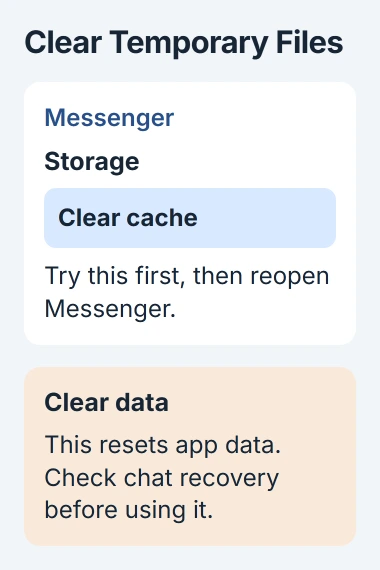
Open Messenger after clearing the cache and try the screen that failed. Google describes cached files as temporary; the app will build its cache again as you use it.
If it still opens to a black screen, move to the recovery check. Removing those temporary files didn't help, so skip further cache clearing after another failed launch.
The iPhone Settings app doesn't have Android's Clear cache button. On an iPhone, go straight to checking your chat recovery options.
5. Protect encrypted chats before a reinstall
Check that you can sign into the right account and pass any login checks. Then confirm how you'll recover your encrypted Messenger history, ideally on another device where Messenger still works.
Meta explains that secure storage can keep your encrypted chat history. Recover it with a six-digit PIN or a key saved through Google Drive or iCloud. That recovery PIN is separate from your account password.
If you have no other working copy of Messenger and you're unsure how to recover its history, leave the app installed. Ask Messenger support for help with access and recovery first.
Once you know how to recover your chats, remove Messenger and download it from your phone's official app store. Apple includes this step in its iPhone app-repair instructions, noting that deleting an app can erase its data.
Sign into the same account and follow any prompt to restore encrypted history. If the app now opens but some conversations are missing, check how to recover your history instead of repeating the black-screen repairs.
If Messenger stays black after these steps
Report the fault to Meta through Messenger on a device that works, or through the support contact in its app-store listing. Include your phone model, software version, Messenger version, and the exact screen that turns black.
Explain whether other apps work, when the problem started, and which update came before it. For a photo-only problem, mention that the preview opens into a blank viewer; for a launch failure, say the chat list never appears.
Use another device where Messenger already works while you wait for help. A whole-phone reset goes much further than repairing one app; neither Apple nor Google puts it among the first app repairs to try.
The Short Version
Check which screen is blank, reopen Messenger, restart once, and update the app. On Android, try Clear cache. Make sure you can recover encrypted chats before reinstalling. If only Messenger still fails, tell Meta exactly what goes black.

Isaac Smith is the founder and editor of PC Glance, a website that covers computers, laptops, and technology. He is a tech enthusiast and a computer geek who loves to share his insights and help his readers make smart choices when buying tech gadgets or laptops. He is always curious and updated about the latest tech trends.