

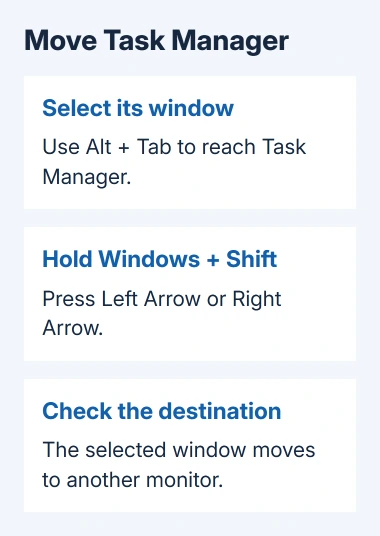
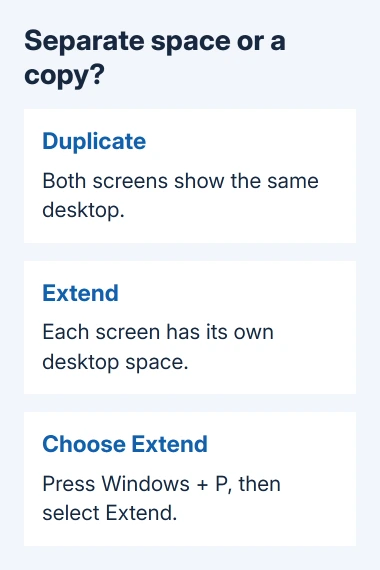
Select Task Manager and press Windows + Shift + Left Arrow or Windows + Shift + Right Arrow to send it onto another monitor. Use an extended desktop; Duplicate mode mirrors one desktop across both displays.
That shortcut also helps when a game covers the window you need. Open Task Manager, select it with Alt+Tab, then move it with the keyboard. A second monitor can keep the process list visible while the game stays on the main display.
In this guide
1. Open Task Manager and select its window
Hold Ctrl + Shift and press Esc to open Task Manager. If it was already running, check the taskbar or use Alt + Tab to select it before trying to move it.
The shortcut moves whichever window you've selected. If your browser moves instead, it was selected rather than Task Manager. Return to Task Manager through Alt+Tab and try again rather than changing the monitor arrangement immediately.
For other ways to open it, the Task Manager shortcut guide covers Start search and the security screen. Once its window is selected, the monitor shortcut is unchanged between Windows 10 and 11.
On Windows 10, a small Task Manager window may show only running apps. More details expands that view if you need Performance or the complete process list. Expanding it isn't required just to move the window.
Newer Windows 11 releases give Task Manager a navigation sidebar. That layout doesn't change the desktop shortcut. Select its window rather than hunting inside Task Manager for a Move to monitor button.
2. Send the window across with keys or the mouse
With Task Manager selected, hold Windows + Shift and press Right Arrow once. Release the keys and check the other display. Use Left Arrow to go the other way through your screens.
Microsoft lists this combination in its Windows keyboard shortcuts. Keep Shift held: Windows + Left Arrow on its own snaps the window on the current screen instead of moving it between monitors.
With three or more displays, use single shortcut presses and check each destination. The arrangement in Settings matters: a screen physically to your right can act like the left-hand screen when Windows has them reversed.
A mouse works too. Drag a free part of Task Manager's title bar across the desktop edge toward your other monitor. Release it once the window reaches the screen where you want to keep it.
If dragging a maximized window is awkward, click Restore Down beside its close button first. Move the smaller window, then maximize it on the destination screen. Avoid starting the drag on a column heading or a process row.
I'd use the keyboard when a game covers most of the desktop. It saves trying to grab a thin strip of window behind the game. Check that the moved window is Task Manager before using any process controls.
3. Change Duplicate to Extend when both screens match
Press Windows + P and choose Extend. This gives each connected display its own desktop area. Duplicate mirrors the same content, so there isn't a separate area where Task Manager can stay while another app fills the first screen.
Windows 10 uses the same projection choices as Windows 11. After choosing Extend, move the pointer toward the other screen. It should cross into that screen rather than showing an identical copy of the first desktop.
If Extend isn't available or the second display stays dark, open Settings > System > Display. Windows needs to detect the monitor before it can move windows there. Check the monitor's power, selected input and cable connection.
On Windows 11, expand Multiple displays and select Detect when the connected display is missing. Windows 10 also places Detect in its Display settings, under the multiple-display controls.
If detection still fails, give the PC or dock maker the monitor model, cable type and connection path. Ask about the missing display connection. Reopening Task Manager won't create a second desktop when Windows sees only one screen.
4. Match Windows' display arrangement to your desk
In Settings > System > Display, select Identify. A number appears on each detected screen. Compare those numbers with the numbered display boxes in Settings before moving the boxes.
Arrange the numbered boxes like the monitors on your desk, then choose Apply. Put the right-hand screen's box to the right, for example. If one monitor sits higher, match that position too.
Test by moving the pointer across the shared edge. A correct arrangement makes the crossing feel natural. When the boxes meet only along part of an edge, the pointer has to reach that shared part before it crosses.
Try moving Task Manager again after applying the arrangement. This check is especially useful when the window seems to disappear in the wrong direction, or a keyboard command sends it to a screen you weren't expecting.
Changing your main display affects other parts of the desktop too. Moving one window doesn't require changing that choice. Start with the window shortcut and arrangement controls so the rest of your workspace stays familiar.
5. Handle a covering game or a disconnected monitor
For a game hiding Task Manager, use Alt + Tab to select Task Manager, then the monitor shortcut. If you can't switch apps while the game takes over the full screen, try its windowed or borderless setting if you can reach it.
Keeping the window in front is a separate choice. If another app covers Task Manager, check Always on top. Windows 10 puts it in Options; newer Windows 11 layouts place it in Settings.
If Task Manager is frozen rather than hidden, the Task Manager recovery steps address that failure. A window that ignores input needs a different repair from one sitting behind another app.
Windows 11's Remember window locations based on monitor connection is under Display > Multiple displays. Review it if docking changes your layout. It helps Windows remember window positions, though some apps may still open elsewhere.
Tell support whether other windows move, whether Display settings shows both screens, and whether it happens only with the game running. Support can then narrow the problem to the display, Task Manager or the game.
The Short Version
With Task Manager selected, use Windows + Shift + Left Arrow or Right Arrow. Choose Extend for separate desktop space. Correct the display arrangement if movement goes the wrong way; use Always on top for a covering app.
Checked November 15, 2026.
 If you have any business, I can build it online






