

Outlook and Word can crash after a Windows update because of Office add-ins, damaged program files or shared Windows components. Update Office first, then compare normal startup with Office Safe Mode to choose the next repair.
A crash naming ucrtbase.dll deserves a Windows system-file check if Office repair fails. That name in the crash event doesn't mean Windows files are damaged. Keep the error details instead of downloading a replacement DLL.
In this guide
1. Restart Windows and install the Office fixes
Save work in any app that still opens, then use Start > Power > Restart. A full restart gives pending changes a chance to finish. When Windows returns, open Word without double-clicking an existing document.
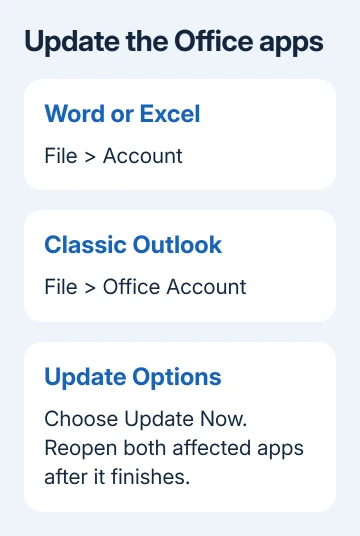
If Word stays open, create a blank document. Choose File > Account > Update Options > Update Now. If the menu offers Enable Updates, select it first. In classic Outlook, use File > Office Account.
When both apps close too quickly, try another installed Office app, such as Excel, to reach that update menu. For a company-managed installation or a missing update button, give IT the Office build and ask which update channel supplies it.
Reopen both affected apps after the update finishes. Even if Word opens normally, check Outlook too. Write down which app still crashes and whether it happens before a file or mailbox finishes loading.
Microsoft's Office startup guidance puts updating before add-in and installation repairs. Don't reinstall an old build simply because it worked before the Windows update.
2. Compare Word and classic Outlook in Safe Mode
Close Office windows. Press Windows + R, enter winword /safe, then press Enter. For classic Outlook, repeat with outlook.exe /safe. Keep the space before /safe in each command.
Look for Safe Mode in the application's title bar. Open a blank Word document or let Outlook load the mailbox. This is an Office startup mode, separate from starting Windows itself in Safe Mode.
If an app now stays open, check its add-ins next. In that app, choose File > Options > Add-Ins. At Manage, select COM Add-ins, then Go. Note which entries are checked so you can restore the original selection.
Clear one add-in's checkbox, choose OK, quit and launch the app normally. A normal launch that works after disabling that entry points to the add-in. Leave it disabled until you've checked for a newer version with its maker.
If it still crashes, try the other checked entries one at a time. Word can also offer Word-specific add-ins in Manage. Each app has its own add-in list, so checking Word doesn't finish the Outlook comparison.
These commands apply to classic Windows Office apps. New Outlook has neither these COM add-ins nor this classic /safe startup route. If Word and new Outlook both fail, record them as separate apps when reporting the problem.
For a failure confined to Word, the Word startup checks cover its templates and startup options. When several desktop Office apps keep closing, continue with the Office and Windows repairs in this guide.
3. Repair the installed Office suite
An app that also crashes in Safe Mode needs more than an add-in change. Close all Office apps before repairing the suite, including any Excel or PowerPoint window you've used for the update check.
On Windows 11, open Settings > Apps > Installed apps. Find Microsoft 365 or the installed Office product, open its three-dot menu and select Modify. Approve the administrator prompt if requested.
On Windows 10, open Settings > Apps > Apps & features. Select the Office product, then Modify. Choose the suite entry rather than trying to repair a single Word document.
For a Click-to-Run installation, try Quick Repair first. If the same launch failure remains, return and choose Online Repair. Online Repair is more thorough. It needs internet access, and you might need to sign into Office again.
An older MSI installation shows Repair instead of those two choices. Follow that installer and restart if it asks. Check a blank document and Outlook again when the repair finishes.
The original asker reported that online repair failed and Outlook continued crashing even in Safe Mode. Repeating the same repair wasn't the next useful step for that particular computer.
4. Check Windows files when ucrtbase.dll appears
To capture a crash detail, search Start for Event Viewer and open Windows Logs > Application. Select the Application Error event matching the crash time. Note the application, faulting module and exception code.
The historical report named ucrtbase.dll for both Outlook and Word. It's a Windows runtime component shared by programs. The crash report tells you this component was involved, but not what made it fail.
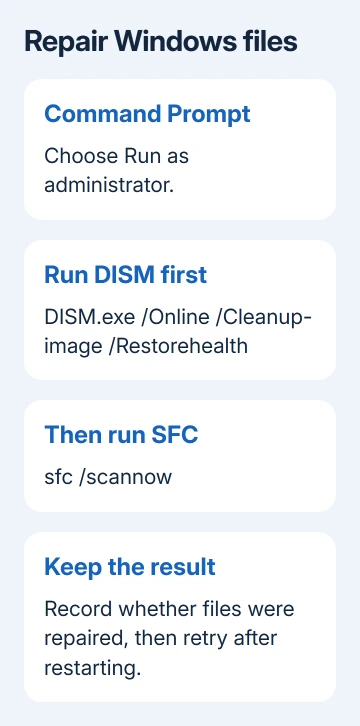
Follow the official System File Checker procedure: search for Command Prompt, choose Run as administrator, then run these commands in order:
DISM.exe /Online /Cleanup-image /Restorehealth
sfc /scannow
Wait for DISM to finish successfully before running SFC. Let the second scan finish too. Note whether SFC repaired files, found no integrity problems or couldn't repair everything. Give support that result to guide the next repair.
The asker later said SFC repaired files, but both apps still crashed with the same module. This checks Windows for damage; it wasn't a confirmed cure for their crash.
Restart and retry the apps. Send IT any unrepaired-file result or continuing crash event. Do not replace ucrtbase.dll using a download from a DLL website.
5. Check printer management for recurring workday crashes
Try this check if crashes keep interrupting your work, especially when Windows reapplies your company's settings. One owner stopped crashes during policy refreshes by disabling automatic default-printer management.
On Windows 11, open Settings > Bluetooth & devices > Printers & scanners. Set Let Windows manage my default printer to Off, open the printer you actually use and select Set as default.
On Windows 10, use Settings > Devices > Printers & scanners, switch automatic printer management off, then select the printer and Manage > Set as default. If a company policy restores the switch, ask IT to inspect that policy.
The printer change failed for another owner with no printer installed. The original asker didn't confirm it fixed their startup crash. A crash only when opening Draw also has a separate Office Draw fix.
When both apps still close
For a company installation, have IT request assistance from Microsoft 365 support. For a personal copy, use Microsoft Support's Office repair help. Include your Windows build, Office version, crash event and the checks you've completed.
I'd keep those details together instead of removing the latest Windows security update without a matching known issue. Support can compare the exact builds and failing component before recommending a rollback.
The Short Version
Update Office, compare Safe Mode and repair the suite. A continuing shared ucrtbase.dll crash needs Windows file checks. Recurring crashes during printer-policy changes deserve the separate default-printer check.
Checked November 17, 2026.
 If you have any business, I can build it online






