
A OneDrive workbook that won't open in the browser may contain damaged content, even when other files open normally. Download a copy and open it in desktop Excel; a repair warning points to the workbook rather than your OneDrive connection.
A workbook that opens without trouble in desktop Excel needs a browser compatibility check: it may contain features Excel for the web can't display. Don't delete the shared original while working out which case applies.
In this guide
1. Check whether only this workbook fails
Open another Excel file from the same OneDrive account in your browser. Use a file you already have permission to edit. If it opens, your account can reach OneDrive and launch the browser editor.
Try the affected workbook again and note the exact message. A workbook-opening error and a request for access aren't the same fault. A permission request needs the owner to check sharing before you attempt file recovery.
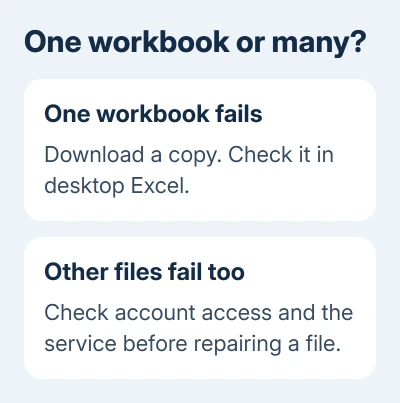
In the original forum report, other Excel, Word and PowerPoint files opened normally. The affected workbook failed for several people and in several browsers, so repeatedly clearing one person's browser wasn't a useful next step.
Ask one existing collaborator to try the same file. If all collaborators get the same workbook error, continue with a downloaded copy. If only your account fails, give the owner the access message and request a review of your access.
This comparison is useful before you change anything. A single damaged spreadsheet doesn't call for unlinking OneDrive, reinstalling Office or moving every shared folder to a different account.
2. Download a copy and read Excel's response
In the signed-in OneDrive file list, select the workbook and choose Download. Save it in a local folder with a recognizable name. Keep this copy separate from the shared file so a repair can't overwrite the team's working version.
Open desktop Excel, choose File > Open, and select the downloaded workbook. On Windows, use Browse if Excel shows its start screen rather than the file picker. On a Mac, choose the local file through File > Open.
Read any warning before accepting it. If Excel reports unreadable or damaged contents, continue to the Windows repair command. If it opens without a repair warning, check browser compatibility instead.
In the old forum thread's accepted reply, an adviser opened the supplied file in desktop Excel and found damaged content. It recommended repairing and uploading the copy; the author didn't post a later success confirmation.
I'd let the warning from your own file guide what you try next. The same browser message can appear for different workbooks, and the old thread doesn't mean every workbook with this error is damaged.
If Excel can't open the copy at all, keep the exact desktop error. The broader Excel file-opening checks cover app failures as well as damaged files.
3. Repair the downloaded copy on Windows
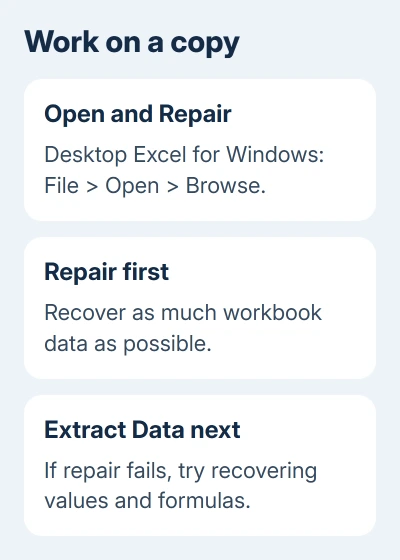
Desktop Excel for Windows has an Open and Repair command. Start Excel without opening the workbook, then select File > Open > Browse. Find the downloaded copy and click its filename once.
Use the small menu beside Open, then choose Open and Repair. Select Repair first. Microsoft recommends this first in its workbook recovery steps.
If that attempt fails, repeat the same route and choose Extract Data. That option tries to recover values and formulas. The workbook's formatting, charts and other contents might not all survive.
Save a recovered file under a new name. Check important formulas, totals, sheets and charts against a known good copy or records. Even if the workbook opens, check its contents before your team starts editing it again.
This command is available in desktop Excel on Windows. The web and Mac apps don't provide this repair dialog. On a Mac, ask a trusted colleague with Windows Excel to repair the copy.
If the file contains private business data, use your organization's approved support route for that handoff. Keep the untouched download available in case recovery needs another attempt.
4. Check browser features when desktop Excel opens it
When desktop Excel opens the workbook without trouble, check its browser compatibility. Compare the workbook against the current browser and desktop feature differences.
Digital signatures and XML maps can stop a workbook displaying in the browser. Some data connections can also prevent display, depending on the environment. Ask the workbook's creator about those features before changing its design.
Don't remove controls just because an old answer lists them as a blocker. Current Excel for the web can display and edit workbooks containing controls, although the controls themselves aren't shown on the grid.
Macros also don't run in the browser. If a workflow depends on a macro, opening the workbook online won't make that automation available. Use the desktop app for that work rather than treating the missing macro behavior as a sync failure.
Keep a separate browser-friendly copy only when the owner agrees and has checked what it loses. A spreadsheet used for reporting or approvals may depend on features that shouldn't be removed casually.
5. Test the recovered copy before replacing shared work
Upload the newly saved file to the same OneDrive account with its new name. Open that upload in the browser, then ask a collaborator to open it. This checks the actual online result rather than only the desktop recovery.
If both people can open and edit it, agree on which file the team will use. Share the working file's link and retire the broken copy through your normal document process so people don't keep editing two separate versions.
If recovery loses essential data, check Version history from the original file's menu. Review a previous revision before choosing Restore, since restoration makes an older revision current and affects other collaborators.
For files that never finish uploading, use the OneDrive sync checks instead. Repairing workbook contents won't resolve an upload rejected because of its filename or path.
When the browser still refuses the file
Ask your organization's Microsoft 365 administrator to request help with Excel for the web. Send the exact error, whether other workbooks open, what happened in desktop Excel and whether a newly uploaded repaired copy fails too.
Send the failure time and file location through the support channel. With just one failing workbook, request file recovery or a compatibility review. Resetting the team's OneDrive accounts is a different job.
The Short Version
Compare another workbook, then download the failing file and open it in Excel. Repair a copy if damaged; check browser features if it opens cleanly. Test the new upload with a collaborator before replacing shared work.
Checked November 16, 2026.





