A changed work sign-in can leave OneDrive using old account details, so new files stay on the computer instead of uploading. Let the account change finish first, then refresh the saved sign-in details if files still won't sync.
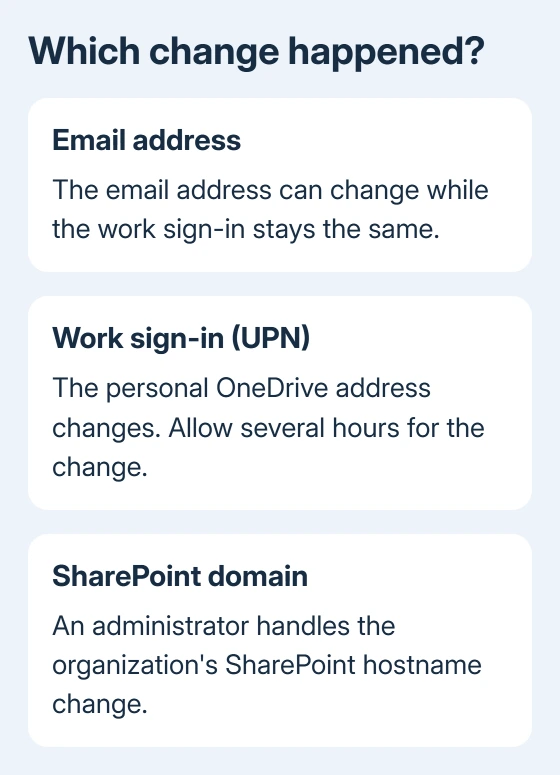
An email change, a Microsoft 365 sign-in change, and a SharePoint domain rename are different changes. Ask your administrator which happened. Their answer tells you whether to wait, reconnect, or have IT fix the move to the new account.
In this guide
1. Confirm what changed before reconnecting
Ask IT for your current Microsoft 365 sign-in address. Its technical name is the user principal name, or UPN. A company can change your email address without changing this sign-in, even when both addresses used to match.
Check the account listed in OneDrive. On Windows, select the cloud in the notification area, then the gear and Settings > Account. On a Mac, select its menu bar cloud, then the gear and Preferences or Settings > Account.
An old company name on the folder doesn't mean uploads have stopped. Look at the cloud's activity list and the account address. If the filenames keep changing, OneDrive is still syncing, even while the folder label looks outdated.
Save a copy of any recently edited, unsynced document outside the OneDrive folder before changing account connections. Choose a folder that isn't backed up by OneDrive. This protects the version that hasn't reached your work storage yet.
If only one file fails and the account address is correct, use the checks for a file that won't sync. A bad filename calls for a different remedy than a company-wide sign-in change.
2. Allow the new sign-in address to reach OneDrive
A UPN change also changes the personal part of your work OneDrive web address. Old bookmarks can stop working. Open OneDrive from your organization's Microsoft 365 app launcher using the sign-in IT confirmed, rather than an old saved link.
Microsoft's guidance on how UPN changes affect OneDrive says the change can take several hours. The Windows and Mac sync apps should automatically switch to the new location once it reaches them.
During the change, the app can report that libraries couldn't be synced, followed by a permission error. Tell IT when the address changed and what the message says. Don't treat that temporary message as a reason to delete the synced folder.
If IT is still making the change, let them finish before you unlink devices again. If it finished hours ago and every new file remains pending, continue with the account check rather than waiting indefinitely.
When only a browser bookmark fails, replace that bookmark with the working address. Reinstalling the desktop app won't repair a saved web link. Owners may also need to update shared links and apps using the old location.
3. Check whether the work account can upload
In the correct work OneDrive website, open the intended folder and upload a small, harmless test document. Give it a distinct filename you can spot easily. A successful upload tells you that account can add files to the cloud folder.
If the upload fails there too, send IT the exact error. Ask them to review OneDrive access, available storage and whether the account move has finished. A local app reset can't restore permission that the web account itself doesn't have.
If the upload works, compare that destination against the desktop app's account. Files in another organization's OneDrive won't appear in this work library. Confirm where those edits belong.
For a queue that keeps stopping on one document, the Preparing to upload checks explain how to distinguish a busy queue from a file that needs attention.
4. Refresh cached work credentials on Windows
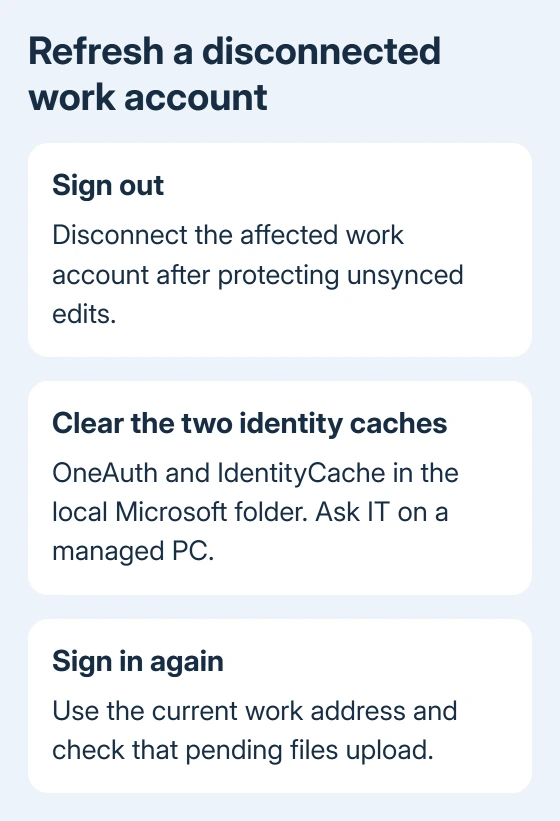
If syncing still fails after an account move, UPN change or password update, the current work-account credential fix is to sign out, clear two identity caches, and sign back in.
On a managed computer, ask IT to do this with you. Other work apps may request a fresh sign-in. Have your current password and normal verification method ready.
Close your documents, then open OneDrive Settings > Account > Unlink this PC to disconnect the affected work account. Press Windows + R, enter %localappdata%\Microsoft, and press Enter.
Remove the OneAuth and IdentityCache folders from that Microsoft folder. These are the two folders the support steps tell you to clear. Leave the OneDrive document folder and unrelated folders alone.
Open OneDrive from Start and sign in with the current work address. Follow setup, checking the account and local folder it offers. Check that pending uploads finish and a fresh test file reaches the correct cloud folder.
These Windows cache paths don't apply to macOS. For a Mac that stays disconnected after the address change has finished, give IT the current address, OneDrive version and error rather than searching Finder for Windows folders.
5. Have IT check a domain rename or migration
A SharePoint hostname change needs an administrator. It differs from changing your sign-in address. Ask whether the organization renamed its SharePoint domain or moved to another Microsoft 365 tenant.
I'd stop reconnecting the app once the same account fails on several computers. That pattern helps IT more than another reinstall. Include whether the browser upload worked and which address each device shows.
If syncing still fails, ask IT to request help: open the admin center for Microsoft 365 and select Help & support. Give support the affected site's address so they can review permissions and the account change or migration.
The Short Version
Confirm the work sign-in, allow a recent UPN change to finish, and test the cloud folder. Persistent Windows failures can need the identity-cache refresh. Take browser failures or several affected devices to your administrator.
Checked November 16, 2026.