

Copying a OneDrive sharing link again can return the existing link with its old expiration date. Open the item's Manage access controls on the OneDrive website, then change the link's expiration or remove that link and create a replacement.
The folder owner can fix a link they control. A recipient who only received an expired invitation needs the owner to renew access, and a work account's sharing policy can limit the new date.
In this guide
1. Open the item's sharing controls online
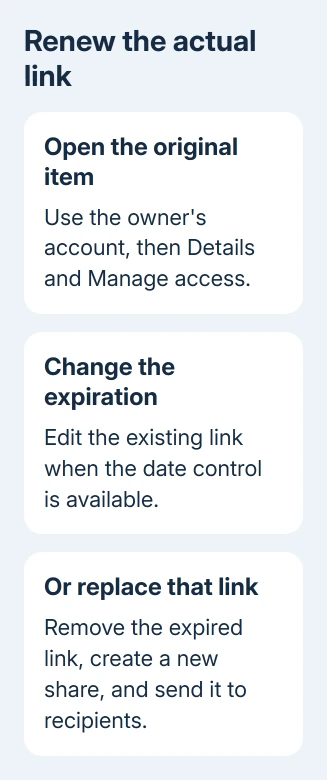
If you own the file, sign into your OneDrive account in a browser. Locate the original file or folder in your own file list. Select that single item, open its Details pane, and choose Manage access.
Starting from the item matters. Opening the expired invitation only takes you through the broken access route. Likewise, copying the address from your browser's address bar doesn't create a new invitation with a later expiry.
Look through the links shown for that item. Check who the link is for, whether recipients can view or edit, and its expiration date when shown. A file can have several links, so choose the one the recipient actually received.
Personal OneDrive's sharing guidance uses the link menu and Edit link page. Work and school dialogs can differ. Find the settings for the existing link instead of expecting every sharing panel to look the same.
A colleague who owns the file needs to open these controls from their account. Editing the document doesn't necessarily give you control over its invitations. If the item itself is missing, confirm the owner and account first.
2. Give the existing link a later expiration
Open the settings for the affected link. When Edit link offers an expiration field, replace the past date with the intended future date and apply or save the change. Then copy that link and send it to the recipient again.
Microsoft's sharing and link-management instructions describe changing the expiration on an existing link. They also explain that expiration controls depend on the account, subscription and sharing option.
The link doesn't have to look different for the change to work. After saving the date, have the recipient open the item and check their agreed permission.
Have the recipient try the message you just sent. If sign-in is required, they need the account the invitation was meant for. Opening it in your own account checks your access, not theirs.
If the date control is unavailable or the saved date stays in the past, continue to the replacement-link route. Repeatedly pressing Copy link from Word or File Explorer can keep returning the link you were trying to replace.
An entirely empty desktop dialog calls for the blank Copy Link checks, rather than changing an existing invitation's expiry.
3. Remove the expired link and create a replacement
In Manage access, select the expired link's removal control and confirm Remove link. All recipients lose access through that link, so notify anyone who will need its replacement.
Return to Share on the original item. Choose the intended audience and viewing or editing permission. Set an expiration if the option is offered, apply the settings, then use Copy link or send the invitation directly.
The folder sharing steps explain the audience and permission decisions. Keep those choices consistent with the access you're renewing; creating a broader Anyone link changes who can use it.
Send the replacement in a fresh message with the document's name. Ask the recipient to use that message instead of an older bookmark. If the replacement opens, the old invitation was the route that needed changing.
Removing a link leaves the document in place. People may still have access through other links or permissions listed in Manage access. Check the full access list if you're ending someone's access rather than renewing an expired invitation.
I'd replace the link through the owner's web controls before renaming or copying the document. A second document can leave collaborators editing different copies, while the actual problem is the invitation attached to the original.
4. Check the organization's expiry rules
If your work account won't offer the date or audience you need, ask IT to check the site's external-sharing and expiration policy. Its administrator can control those choices; personal account settings don't apply to every business site.
The old report described a 30-day expiration, but that wasn't a universal OneDrive limit. Don't assume every business link should last 30 days or that every owner can remove its expiration. Use the limits shown for your organization.
There are also two different access questions: whether the link is still valid and whether the person outside your organization is still allowed into the site. Ask the recipient for the exact message if a new link still fails.
For a business guest, ask the site owner to review the guest's access as well as the link. A new invitation won't override a policy blocking the recipient or sharing type. Give them the exact access message to check.
If the document opens through the replacement but the sharing email never arrives, use the OneDrive notification-email checks. Missing email and expired access need different repairs.
5. Report a link that still keeps the old date
One owner in the expired-link discussion confirmed that Manage Access and Grant Access produced a fresh link. Desktop Word also worked when Word Online and File Explorer reused the old one.
The report dates to 2017, so use the current web controls rather than hunting for its exact button arrangement. Manage the item's access instead of repeatedly copying the expired invitation.
If the saved date is still expired, record the account type, link audience, intended date and actual saved date. Include the recipient's error and ask IT to send these details to Microsoft 365 sharing support.
For personal OneDrive, open the website's help option and describe the failed expiration change. Keep the sharing URL private: depending on its audience, that link can grant access to the document.
The Short Version
Manage the item's access online. Update the expiry or remove the expired link and issue a replacement, then have the recipient try it. Ask IT about sharing policy if the required date or audience is blocked.
Checked November 17, 2026.






