

OneNote on Android has its own alphabetical sort on the home page. Open Sort & Filter there and choose Alphabetically; sorting a page list on your laptop doesn't mean you're looking at that same list on your phone.
A section inside a notebook is a different view. For that list, you can rearrange pages by holding and dragging their names. Start with the home-page setting if you simply want to find all your notes by title.
In this guide
1. Set the Android home page to Alphabetically
Return to OneNote's home page, where notes appear as cards or a list. Tap Sort & Filter at the top right. In the panel that opens, choose Alphabetically instead of Updated date or Created date.
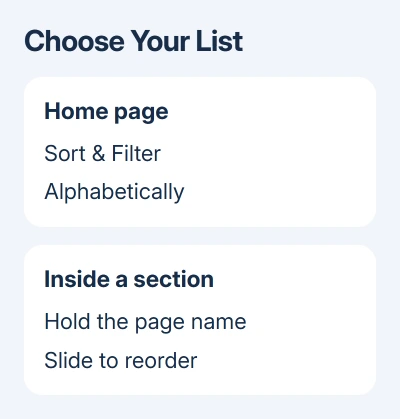
Look for a few familiar titles and check their order. A recently edited note shouldn't lead the list just because you changed it today. That's the Android setting for showing your home-page notes alphabetically.
Microsoft's Android home-page guide shows the control on the home page. It doesn't apply that choice to every section and notebook across your devices.
That's an important difference when the laptop already looks right. Sorting the computer's page list again won't change which list you're viewing on your phone. I'd set the phone's own sort before rearranging the notebook itself.
If the titles now appear in the order you wanted, keep working in that view. If the list is alphabetical but contains the wrong collection of notes, check its filters next.
2. Filter out notes from other accounts and note types
The Android home page can combine notebook pages, Sticky Notes and Samsung Notes from connected accounts. Two notes with similar names may belong to different notebooks or even different accounts.
Open Sort & Filter again. Use the account filter to show the account that owns the notebook you want. Use the note-type filter to choose Notebook Page if Sticky Notes or Samsung Notes are making the results confusing.
Check a title you recognize after applying the filter. Open the note and confirm its content, rather than relying on the title alone. Check whether the titles are out of order or the list includes notes from several places.
The account filter can't select an individual section. Hidden notes stay in their original accounts; filtering doesn't move or delete them. Change the filter again whenever you need those notes.
If a page is absent even with the correct account and note type selected, go to its notebook directly. Missing content needs a different check from content that's present but out of order.
3. Open the notebook when you need one section's order
At the home page's top, tap Notebooks. Choose the notebook, then its section. Now you're looking at the pages stored in that section rather than the combined home-page collection.
Check that all your pages are there, then look at their order. Reordered titles and missing pages need different checks.
For example, a laptop may show a class section alphabetically while the phone's home page shows notes from several classes by modification date. Both screens can have the right notes, even though they're showing different lists.
If the notes themselves are missing, check the Android notebook sign-in before spending time moving page names. A sorting change can't give the app access to another account's notebook.
If all the expected pages are present in the section, continue with manual ordering. If it's a different device that can't see the notebook at all, the OneNote device-sync checks explain the account and cloud-location distinction.
4. Drag page names to arrange a section manually
Press and hold a page name in the section's page list until a colored circle appears. Keep holding the name and slide the title to its intended spot, then release it. Watch the page list to confirm the title moved.
Repeat for the pages you need to arrange. For a short section, putting the important notes in a useful order can be quicker than trying to make every device's presentation match a desktop sort mode.
Dragging changes the page's position in the list. You don't need the Move command, which is used to send pages to another section or notebook. Keep the page in its existing section for a simple change of list position.
For a long alphabetical collection, the home-page Alphabetically option is the practical first choice. Dragging means arranging the pages yourself. It won't automatically put each new page in alphabetical order.
After moving one title, open it once to confirm you moved the intended page. If dragging doesn't work in the screen you're using, return to the section's actual page list rather than the combined home-page cards.
Why the old missing-menu advice no longer fits
In the 2020 report, the phone lacked the desktop's sorting dots. Suggested links didn't help. The owner's final reply said they understood the explanation; they didn't report that a fix had worked.
The current home page does have the alphabetical option described earlier. The old discussion described the app as it was then. The newer interface has its own home-page controls.
If your app doesn't have that home page, check OneNote's Google Play listing for an update. After installing it, launch OneNote again and find Sort & Filter on the phone. The laptop's three-dot menu isn't the control you need.
If the setting is still missing, send the OneNote and Android versions using the app's feedback controls. Include whether you're on the home page or inside a section, and which sorting choices actually appear.
For a managed phone, ask its Microsoft 365 administrator whether the approved OneNote build includes this home page. Include a screenshot showing the controls you can see.
The Short Version
Choose Alphabetically in the Android home page's Sort & Filter panel. Filter the account and note type if the collection looks wrong. For a section's manual page order, hold a page name and drag it within that section.
Checked November 22, 2026.
 If you have any business, I can build it online






