A green sync check in OneNote doesn't rule out the cannot-pack-sections error. Export each section separately to find which one blocks the package. Try a small edit to the affected page before removing saved page history.
Owners reported that a damaged subpage or older page versions could stop the export. These steps apply to desktop OneNote for Windows and its .onepkg notebook package, including the older File > Save As workflow.
In this guide
1. Check the notebook's actual sync result
In current desktop OneNote, open File > Info > View Sync Status. Select Sync All and read any section-specific error. In older OneNote, use File > Info > View Sync Status to check the shared notebook's progress.
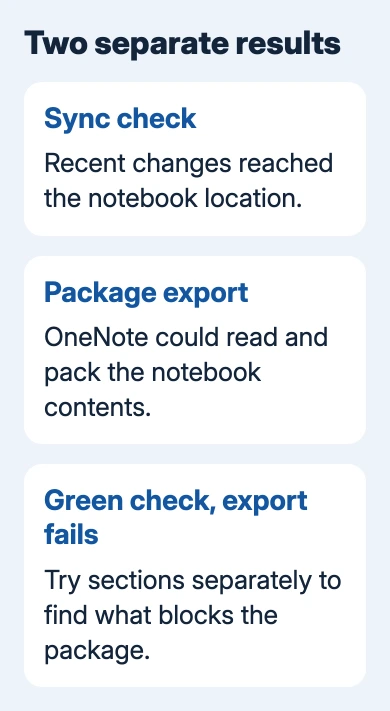
Sync and export do different jobs. Sync keeps notes in step with their storage location. Export has to read and pack the notebook's contents, and some of that material can still cause an error.
For cloud notes, sign into the matching account in the browser and check recent pages. Keep the desktop copy open if changes haven't reached the cloud. Save a separate copy of those changes before closing or rebuilding the notebook.
If the sync window names a section that won't finish, deal with that error first. The OneNote sync repair steps explain how to check sections individually when part of a notebook stops syncing.
A local notebook can show this packing error too. If the notebook lives only on your PC, don't spend the afternoon troubleshooting a cloud account it doesn't use. Try exporting its sections separately next.
2. Export sections separately to find the failure
In current OneNote for Windows, choose File > Export. Select Section, choose an available OneNote section format, and export the current section to a folder where you can save files. Repeat with the notebook's other sections.
In OneNote 2010, use File > Save As and select the section rather than the whole notebook. The goal is the same: discover which section refuses to save on its own, without moving or deleting your notes.
Record each section's success or failure while exporting to the same destination. Using one folder helps you tell whether the section is the problem, rather than different permissions on each destination.
If every section fails, check the destination's free space and try saving an ordinary document there from another app. For a single failed section, work inside it next. Keep the sections that already export intact.
One owner fixed export by removing history after locating the troublesome section. Another found a subpage that looked normal but blocked the save. A page can remain readable while export fails.
If all sections export but the notebook reports a permissions or disk message containing |0, use the separate OneNote section-order workaround. That is a different reported failure from the fully-synced message here.
3. Make a small edit to the troublesome page
Open the section that failed. If it contains only a few pages, try exporting those pages separately using Page in the export controls. Include subpages, which are indented under another page in the page list.
On the page that fails, add a little temporary text. Let OneNote save the change, then try exporting the section again. An owner reported that changing a troublesome subpage let the notebook save without deleting that page.
If export succeeds, remove the temporary text and test once more. Check the export before discarding any part of your original notebook. This gives you a usable result without sacrificing a page just because it was difficult to export.
For a large section, check groups of pages in a separate copy. Keep the working notes intact while testing. Compare the copied text and attachments with the originals before removing any original content.
A page edit won't fix every case. If the same section still blocks export after its current pages have been checked, the older versions stored with those pages are the next reported cause to consider.
4. Remove old page versions only after saving what matters
Page versions are earlier copies of a page. Before deleting them, review any versions you might need and preserve important older material separately. Removing history takes away those earlier copies, even though the current page remains.
In current Windows desktop OneNote, open History > Page Versions. Review the available versions for the affected pages. The Page Versions menu offers choices for deleting old versions and shows which pages each choice affects.
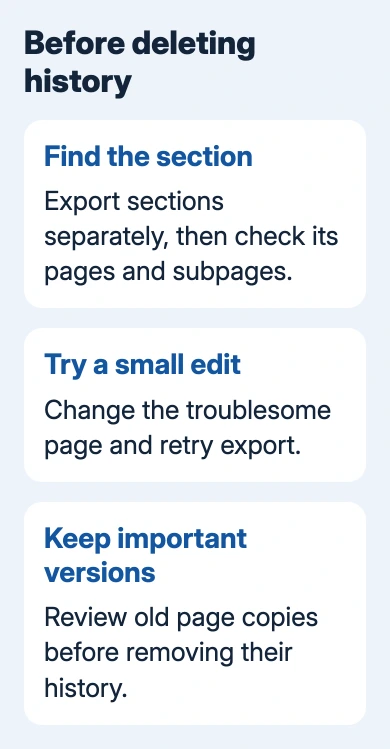
In OneNote 2010, the equivalent Page Versions control is on Share. Choose the option that affects only the pages or section you need to fix. Check whether the confirmation says page, section or notebook.
After removing the unwanted versions, retry the section export. Then export the whole notebook as OneNote Package (*.onepkg). The owner who reported the history fix could create the notebook package afterward.
Don't disable future history just to test this. Keeping useful recovery versions and removing the old material that blocks this export are different decisions. If deleting history doesn't help, stop repeating it and use the support route.
If the package still won't save
Closing and reopening the notebook was the accepted suggestion, but it didn't work for later owners. I'd preserve recent notes before trying it, particularly when the browser copy is incomplete or OneNote crashes while closing the notebook.
For managed notes, send your packing message to the Microsoft 365 administrator, with the app version, storage location and failed section names. Ask them to examine a notebook copy for a damaged page or old version.
For personal notes, request support through OneNote's Help menu and include those details. State whether individual pages, sections and the complete notebook can export. Keep private notebook contents out of public forum posts.
A package also needs the right receiving app. Someone transferring it to an iPad must open the .onepkg on Windows first. Successful export doesn't make the package an iPad-readable document.
The Short Version
Check sync, export sections individually, and make a small edit to the page that blocks export. Review and preserve important older content before deleting page versions. Keep the original notebook while checking the finished .onepkg.
Checked November 27, 2026.
 If you have any business, I can build it online