

A OneNote section that flips back to "New Section 1" a few seconds after you rename it is being overwritten by another copy of the notebook. That copy is usually an old local version left on the PC when the notebook moved to OneDrive.
Rescue any section that's gone missing first, from the Notebook Recycle Bin or OneNote's backups. Then move your sections into a brand-new notebook. That's what finally let one owner rename sections again.
In this guide
Why the name keeps snapping back
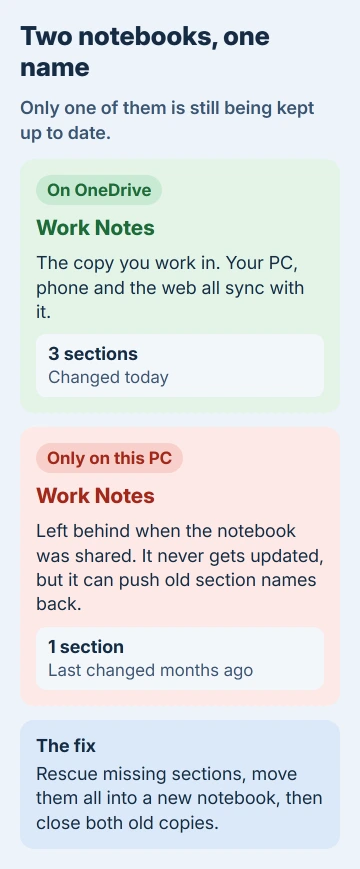
Each OneNote section is a .one file in the notebook's folder, and a synced notebook keeps its main copy on OneDrive. When two copies share a name, the older one can sync its version back over your change.
That's exactly what happened to one OneNote 2010 owner who synced to SkyDrive, which is OneDrive's old name, and to an Android phone. Their PC still had the original local notebook folder, untouched since about the time syncing began.
Renaming the section on the web version stuck for a moment. Then the PC synced and put "New Section 1" back. A few clicks later the whole section was gone, with nothing in the Recycle Bin or on SkyDrive.
An adviser who answered them explained where the second copy came from. Sharing an existing local notebook to SkyDrive uploaded a copy, and the local original stayed behind as an orphan that never got updated again.
1. Get the missing section back first
Don't experiment while a section is missing, because the next sync can take more with it. OneNote has three places that can still hold it, and they're quick to check in this order.
- Notebook Recycle Bin. On the History tab, select Notebook Recycle Bin. Sections you've deleted in the last 60 days sit there. Right-click the one you want, choose Move or Copy, pick a notebook and select Move.
- Misplaced Sections. Scroll to the last entry in the notebook list. OneNote puts a section there when it tries to sync it but can't find its file. Right-click it and use Move or Copy to put it somewhere safe.
- Backups. Go to File > Info > Open Backups, open the folder for your notebook and choose the newest copy of the section. It opens on its own, outside your notebooks, so you can copy from it.
With the backup open, right-click its tab, choose Move or Copy and send it into a notebook that works. Close the backup section afterward. Microsoft's own steps to restore notes from a backup follow the same route.
If Open Backups shows nothing useful, look in the folder itself: C:\Users\your name\AppData\Local\Microsoft\OneNote\16.0\Backup on Windows 10 and 11, with 14.0 in place of 16.0 for OneNote 2010.
The owner got their section back by copying the backup file from there into the notebook folder.
2. Work out which copy is the real one
Open File > Info. Every open notebook is listed there with its location under the name: a OneDrive web address for a synced notebook, a C:\ path for one that only lives on this PC.
If two entries show the same name, the OneDrive one is normally the copy you've been working in. The local folder is the orphan. Its Date modified in File Explorer gives it away, because it stopped changing when syncing started.
The duplicate doesn't have to be open, either. The owner first spotted theirs in the recently closed notebooks list, pointing at a folder that held one section where the notebook they used had three.
3. Move the sections into a new notebook
Taking the old copy out of the picture wasn't enough on its own. When the owner moved the local duplicate to another folder, the rename still reverted. What worked was a fresh notebook that no other copy can overwrite.
- Select File > New, choose your OneDrive, and give the notebook a different name from the old one, such as the old name plus the year. Select Create.
- In the old notebook, right-click a section tab and choose Move or Copy.
- Select the new notebook in the list and select Move. Repeat for every section.
- Press Shift+F9 to sync all notebooks, and give it a minute to finish.
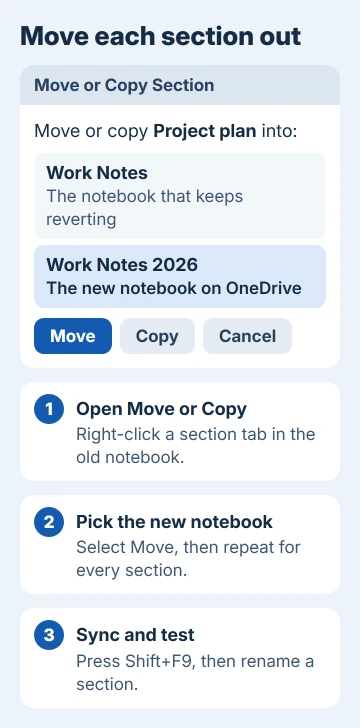
Now rename a section in the new notebook and wait a little. The name should stay put this time. The owner's words were simple: "Now I can rename the sections."
If you share the notebook with anyone, send them the new one, because OneNote doesn't tell people who still open the old location that anything has moved.
4. Close the old copies and park them
Once every section is in the new notebook and synced, right-click each old notebook in the list and choose Close This Notebook. Closing only takes it out of OneNote's list, and the files stay where they are.
Don't delete the old folders straight away. Move them to a folder such as Documents\Old OneNote, so nothing opens them by accident, and delete them after a week or two, once you've checked every page.
If your notebooks sync to a NAS or network drive
Another owner lost a chart from a notebook that synced to a NAS, a storage box on their home network. The adviser blamed the Linux-based file sharing many NAS boxes use, which doesn't cope well with the way OneNote syncs.
Their advice was to move the notebooks away: close them in OneNote, move the folders in File Explorer, then open them again from the new place. I'd pick OneDrive, where OneNote handles the syncing itself.
If OneNote also shows a sync error on that notebook, the steps for OneNote error 0xE000002E help you save unsynced pages before you move anything.
When the name still won't stick
Look through the notebook list for a third copy, including notebooks other people shared with you under the same name. Once the names stick, keep working in that one notebook and organize your sections and pages in OneNote inside it.
If a fresh notebook still reverts names, contact Microsoft support from Help > Contact Support in OneNote, or ask IT on a work account. Tell them which notebook it is, where each copy lives and what you've tried.
The Short Version
A section that keeps reverting to "New Section 1" means another copy of the notebook is syncing over it, usually an old local copy left behind when the notebook went to OneDrive.
Get any missing section back from the Notebook Recycle Bin, Misplaced Sections or File > Info > Open Backups. Then move every section into a new notebook with a unique name, sync with Shift+F9, and close the old copies.
Checked November 20, 2026.
 If you have any business, I can build it online






