

Ink to Text lives in the full OneNote app for Windows, on the Draw tab, and it works only after you've selected handwriting with Lasso Select. In OneNote for the web or on an iPad, iPhone or Android tablet, the button isn't there.
So before anything else, check which OneNote you're in. Several owners on Microsoft's forum who couldn't find the button turned out to be running a lighter OneNote app, and it showed up as soon as they switched to the full desktop version.
In this guide
Which OneNote has Ink to Text
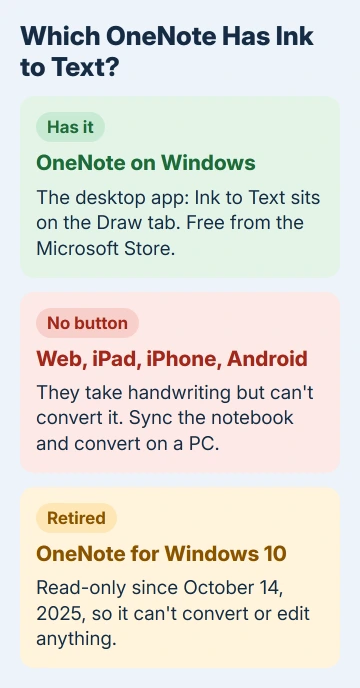
Several apps share the OneNote name, but they don't share the same features. For handwriting, they line up like this:
- OneNote on Windows (the desktop app): has Ink to Text on the Draw tab. It comes with Microsoft 365 and is also free from the Microsoft Store.
- OneNote for the web: can take handwriting but can't convert it.
- OneNote on iPad and iPhone: converting handwriting to text isn't supported, and the iPhone app doesn't offer Lasso Select at all.
- OneNote for Android: no Ink to Text button either, as an adviser pointed out.
- OneNote for Windows 10: retired. It went read-only on October 14, 2025, so it can't convert or edit anything now.
Not sure which one you opened? Type OneNote in the Start search. The desktop app is listed simply as OneNote, and it has a File tab at the left of the ribbon.
1. Select the handwriting first
Ink to Text needs something to convert, so select the ink before you go looking for the button. Microsoft's own steps go like this:
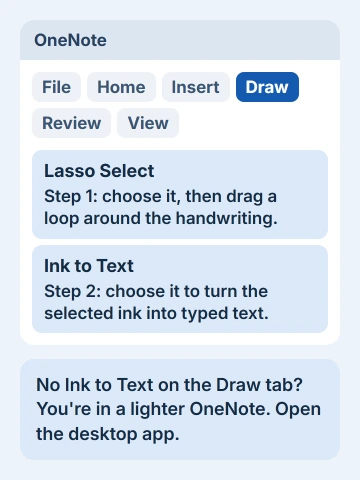
- On the Draw tab, choose Lasso Select.
- On the page, drag a loop around the handwriting you want to convert.
- On the Draw tab, choose Ink to Text.
The typed text replaces the handwriting on the page. Check it right away, because messy letters can come out as different words.
2. Open the full OneNote app
If the Draw tab has no Ink to Text at all, you're probably in a lighter version. In one owner's chat with support, it turned out they'd been running the wrong OneNote; once they installed the Microsoft 365 desktop version, it worked.
Another owner put it bluntly: make sure you're using the full OneNote program, because the app they'd been running didn't support the feature.
- Open the Microsoft Store, search for OneNote, and install it if the PC doesn't have it yet.
- Sign in using the account your notebooks belong to.
- Open your notebook and let it sync, then try the steps in section 1.
Installing the new app doesn't remove OneNote for Windows 10 if it's still on the PC, so keep both until your notebooks show up in the new one. Setting up the current Windows app walks through choosing where a notebook lives.
3. Converting notes written on a tablet or phone
Handwriting from an iPad or Android tablet isn't stuck there. The notebook syncs through OneDrive, so open the same page in the desktop app on a PC, lasso the writing and convert it there.
That's the route an adviser suggested to a Galaxy Tab owner whose app had no button.
Ink drawn in OneNote for the web is the one exception I'd plan around. An adviser who tested it found Ink to Text grayed out in the desktop app for handwriting written in the browser.
So if you'll want typed text later, do your writing in the desktop app.
4. Converting handwriting in another language
Ink to Text reads handwriting in the language OneNote expects, so notes in another language need two settings first.
- Install handwriting for that language: open Windows language settings, choose Add a language, and select Next to install it if handwriting is offered. You'll need administrator rights to add a language.
- In OneNote, lasso the handwriting, then go to Review > Language > Set Proofing Language and pick the language.
- Close the language pane, return to the Draw tab and choose Ink to Text.
5. Reinstall or repair OneNote
One Surface owner couldn't find the button after trying every help page. Removing OneNote and reinstalling it overnight did the trick: the next morning, the button was right where it belonged.
For the desktop app, a repair is gentler, so try it first. Right-click Start, choose Installed apps, find Microsoft 365 (it may say Office), click its three dots and select Modify. Online Repair fixes more than Quick Repair.
One owner's remote repair with support changed nothing, though, because the problem was the version, not damaged files. So check section 2 before you spend time on repairs.
When the button still won't appear
If the full app shows Ink to Text grayed out even with handwriting selected, try a fresh page: write a line, lasso it and convert it. If that works, the problem is the original ink, such as strokes written in the web version.
If your work or school locks down the Store, ask IT to install the OneNote desktop app. Otherwise, contact Microsoft Support from the Help tab in OneNote and tell them which app and version you're using.
To keep handwriting moving between an iPad and the PC, syncing OneNote on iPad covers the account and notebook checks.
The Short Version
Ink to Text is only in the full OneNote app on Windows. Choose Lasso Select on the Draw tab, loop the handwriting, then choose Ink to Text. The web, iPad, iPhone and Android apps can't convert ink, so sync the notebook and convert on a PC.
Checked November 20, 2026.
 If you have any business, I can build it online






