

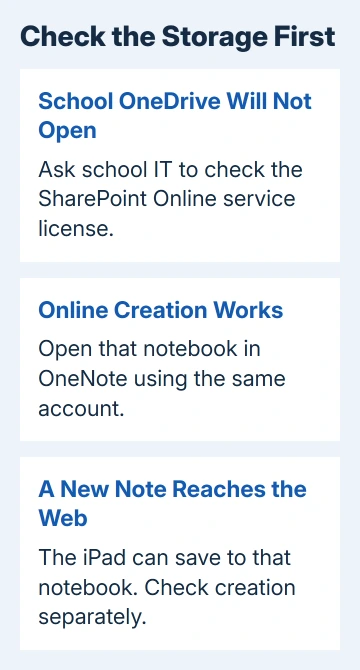
OneNote on iPad needs a usable cloud storage account before it can create your first notebook. For a student account that signs in but has no OneDrive access, ask the school to check its storage license before reinstalling OneNote.
A frozen notebook-name box can also be an app problem. Check whether online notebook creation works with that account: failure there points to the account, while successful creation gives you a notebook to open on the iPad.
In this guide
1. Check which account will store the notebook
Open OneNote and check the signed-in account before creating anything. Use the school account for school-managed storage, or your personal Microsoft account for your own OneDrive. Choose the account before creating your notebook.
OneNote can sign in without the separate OneDrive app being installed and configured first. Installing both apps doesn't supply a missing storage license, and signing into one app doesn't change the account selected in the other.
Return to the notebook list and tap + Notebook at its bottom. Enter a name and tap Create. When it works, the new notebook opens, ready for a section and page.
Microsoft's iPad notebook instructions explain that new notebooks use the signed-in OneDrive account by default.
If the name field won't accept typing, cancel that window and continue with the online account check. Don't keep uninstalling apps when the storage destination hasn't been checked yet.
2. Open the same storage account in a browser
For a school account, sign into your organization's Microsoft 365 portal in Safari or on a computer. Open the app launcher and choose OneDrive. Use the same address that appears in OneNote.
For personal storage, open onedrive.live.com and sign into your personal Microsoft account instead. A school administrator manages the school's service, not a separate personal account.
Look for a usable file list. Signing in only checks your identity; it doesn't show that your account has a working OneDrive library. Fix a setup error or missing storage service before trying to create the notebook again.
If OneDrive isn't listed in the school portal, ask IT to check which services your account includes. A missing tile alone doesn't explain the cause; IT can confirm whether you have access to the storage service.
The original iPad discussion followed this pattern. The asker could sign in and install Office, but their listed services didn't include the required work or school storage.
Their later reply said reinstalling and following the portal route still hadn't made OneNote usable. The accepted answer's first workaround didn't repair the asker's account. The missing storage service still needed fixing.
3. Have school IT check SharePoint Online access
Send IT your school email address and explain that OneNote can't create its first cloud notebook. Include whether OneDrive opens a file list online and whether an existing school notebook can be opened.
The administrator should open Microsoft 365 admin center > Users > Active users, select your account, and check Licenses and apps. The relevant license must include an enabled SharePoint Online service for school OneDrive storage.
Being able to install desktop Office doesn't mean your account includes that service. Power BI and Azure Rights Management are different services, so seeing those names doesn't answer the OneDrive question.
If the account lacks the service, ask whether the school can assign it. If the service is already enabled but storage won't open, IT should check OneDrive setup and account permissions rather than repeatedly reinstalling the iPad app.
The OneDrive provisioning guide explains the administrator checks for a library that hasn't become available. That account-side fault affects notebook creation on more than the iPad.
After IT corrects the account, open school OneDrive again. Once the library opens, you can try creating the notebook again. Desktop Office alone isn't enough; the notebook needs working storage too.
4. Create online and open that notebook on the iPad
In a working OneDrive library, use New or Add new and choose OneNote notebook if that option is available. Name it and let it open in OneNote on the web.
This lets you try creating a notebook online with that account, bypassing the iPad's creation window. If the browser can't create it either, report that result to IT before changing more iPad settings.
In OneNote on the iPad, sign into the same account, return to the notebook list and use More Notebooks to look for the notebook you created. Open the existing notebook. Don't create a duplicate with an identical name.
Add a short note to a page, allow syncing to finish, then reopen the page online. If the note appears in the browser, your iPad can save changes to this notebook as well as display its title.
The iPad OneNote sync guide covers a notebook that opens but doesn't carry later changes between devices. That's the next check if creation works and your new text doesn't arrive.
If online creation works but the iPad can't open the notebook, check the selected account again. A display name alone can't identify the storage account; compare the actual email address and the storage location.
5. Repair the app only after storage works
Close and reopen OneNote, then install OneNote updates offered in the App Store. On current iPadOS, open your App Store account picture, choose App Updates, and update OneNote if listed.
The old thread used iOS 10.3.3 and OneNote 16.4 in 2017. Those version numbers describe that report, not today's installation target. Install the compatible release offered to your device.
Before signing out or removing OneNote, copy any unsynced notes somewhere safe. If this is your first notebook and you haven't written anything, there may be nothing to save. Check before removing the app's data.
If the name box still won't respond while online creation and editing work, use OneNote's Help & Feedback controls to report the app fault. Include the iPad model, iPadOS version and OneNote version, plus the working online result.
6. Ask for the right account or app repair
For school-only failures, send those results to your school helpdesk. Ask them to check notebook storage permissions and app management restrictions, with the browser comparison attached.
I'd keep using the working cloud notebook while that app issue is checked. Don't move coursework into a former school's account unless you're sure you'll retain access; the institution controls how long that account remains active.
The Short Version
Check the notebook's account and its OneDrive storage first. School IT must fix a missing storage license. If online creation works, open that notebook on the iPad and check that a new note syncs before repairing the app.
Checked November 17, 2026.
 If you have any business, I can build it online






