A returning password prompt with OneNote error 0xE0000024 points to an account verification problem. Click the banner to refresh it; if no sign-in box opens, check the account and reconnect through the online notebook.
A changed password, a different signed-in account, or lost permission can produce this error. A section's protection password is a separate issue. Save unsynced notes before signing out, closing a notebook, or removing credentials.
In this guide
1. Refresh the prompt and protect notes that haven't synced
Select the password or sync-error message near the top of OneNote. This asks OneNote to refresh your sign-in. If a sign-in window appears, use the notebook's storage account to sign in and complete verification.
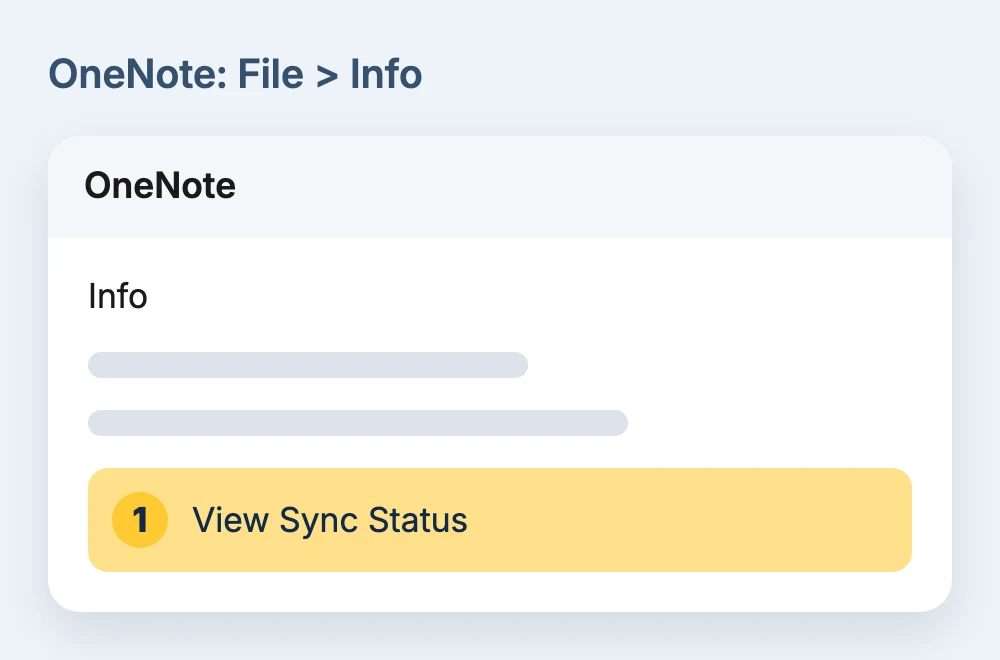
Wait for the notebook's sync status to change. On desktop OneNote for Windows, open File > Info > View Sync Status to check it. A disappearing banner alone isn't enough if the notebook still reports an error there.
Microsoft's account authentication guidance lists expired account information, a recently changed password, the wrong account, and changed notebook permissions as causes of this code.
If clicking the banner only makes it disappear and return, continue to the account check. That happened in the original Surface RT/OneNote 2013 discussion: the app keeps requesting a password without giving the owner a place to enter it.
Before changing accounts, copy important recent notes that are only in the app to a separate safe document. Open attachments you need and save separate copies too. Check that the saved material is readable before continuing.
The general sync instructions warn against signing out or reinstalling while troubleshooting unsynced data. Although the authentication section includes signing in again, that isn't a reason to discard the only current copy of your work.
2. Match the account to the notebook's online location
Open the notebook through its normal OneDrive or SharePoint location in a browser. Sign in as the owner or the account granted access. Personal and organizational sign-ins can look similar, yet lead to different storage.
Check the actual notebook, not just whether OneDrive's home page opens. Find a recent page and compare that page against the desktop copy. Successful website sign-in doesn't show that you have access to every shared notebook.
If the notebook opens online, the account can reach that copy. Keep that browser page open for the next step. If the notebook is missing, use the OneNote storage-account checks to find its real location.
If access is denied, ask the owner to share the notebook with your exact sign-in email address. Your workplace or school helpdesk can review SharePoint access for that notebook. A password refresh won't restore access that was removed.
If recent pages are absent online, keep their local copies before reconnecting. The OneNote refresh-error guide explains comparing the server copy and preserving changes when sync has fallen behind.
3. Reconnect from the online notebook or Connected Services
Once you've saved copies of your unsynced work, close desktop OneNote normally. In the browser, open the correct online notebook and choose Open in OneNote if that command is available. Accept the prompt to launch the desktop app.
An owner in the original password-loop discussion restored syncing by opening a notebook online and launching desktop OneNote from there. They had already tried credential deletion without success.
When OneNote opens, confirm that it's the intended notebook and request a sync. Check the sync status before reopening other notebooks or making further account changes. This route helps reconnect the app to a working online location.
In OneNote 2013, another successful route is File > Account > Connected Services. Select the affected storage account and follow the dialogs to enter its current credentials. This helped an owner after their OneDrive password changed.
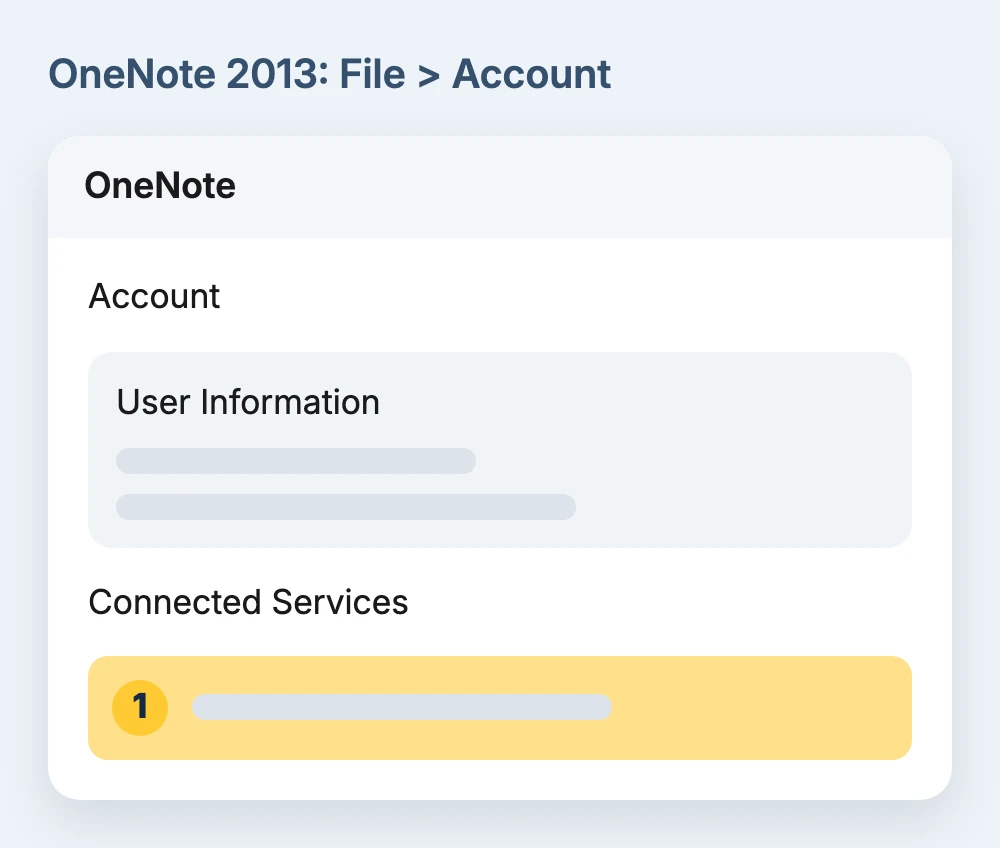
Current OneNote interfaces can differ from that old Account page. Use your edition's account or sign-in control; its label may have changed. The error code matters more than matching an old screenshot exactly.
I'd try a working online notebook before clearing Windows credentials. It checks that the destination and account still work, and it avoids making several Office applications ask for their passwords again.
4. Treat old credential and notebook-location fixes carefully
Owners in the legacy discussion cleared an Office or SkyDrive entry in Control Panel > Credential Manager and recovered syncing. Others report that this failed, stopped working later, or caused a temporary-server-error message.
Don't clear the entire credential store. Those fixes don't call for deleting unrelated Windows, email, or network passwords. Give IT the notebook's account so they can find any outdated sign-in details.
Another OneNote 2013 owner found an old docs.live notebook location and restored sync by choosing File > Info, then the notebook's Settings > Properties > Change Location, and selecting its actual OneDrive destination.
That is a location change, not a password-entry box. Use it only for that legacy notebook after confirming its correct location. A modern shared notebook shouldn't be moved just because it shows this error.
If the banner changes into a server or connection error, record the new wording. Stop repeating the password fix as though the screen hadn't changed. The next repair must address the message the app now shows.
Get account or storage help when syncing still fails
For a work notebook, send IT the exact code, OneNote edition, storage address, and whether the same notebook opens online. Explain whether the failure began after changing the password or adjusting sharing permissions.
For a personal notebook, use OneNote's Help or feedback/support route and include the same results. Ask for help with notebook authentication, rather than a section password reset. Keep account passwords out of screenshots and public posts.
Surface RT and OneNote 2013 are legacy systems. If online access works while the legacy app can't authenticate, use a supported device or the web version while planning a move. Save device-only notes before you stop using that installation.
The Short Version
Refresh the password banner, check the notebook with its storage account online, and protect unsynced notes. Reopen from the online copy or refresh Connected Services in legacy OneNote. Credential deletion has mixed outcomes and comes last.
Checked November 27, 2026.
 If you have any business, I can build it online