

English menus don't make OneNote check spelling in English. For a wrong-language spell checker, correct the text's proofing language and check the language attached to your Windows keyboard; a Danish keyboard can be used with English text.
OneNote for Windows 10 needs special care: support ended October 14, 2025, and it is transitioning to read-only use. Keep editing in supported OneNote on Windows rather than reviving the retired app's settings.
In this guide
1. Check which OneNote app has the language problem
Look for File at the top of the OneNote window. The supported Windows desktop app has that menu. OneNote for Windows 10, the retired application, used a Settings and More menu instead, so instructions for File > Options didn't fit it.
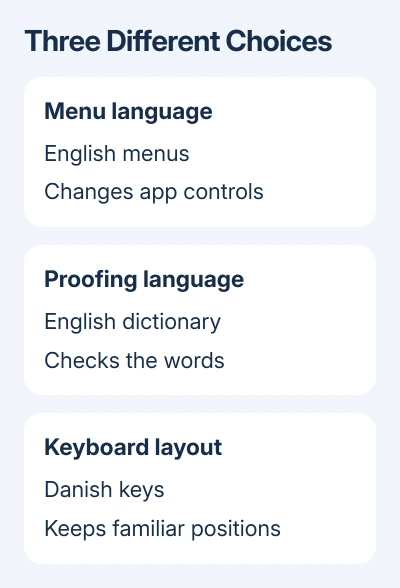
The owner had English menus and a Danish keyboard. They could set paragraphs to English, but each new paragraph needed changing again. The problem kept returning with new writing, even though the menus were already in English.
If you're still opening the retired app, Microsoft's current OneNote transition guidance explains its read-only status. Open supported OneNote with the accounts that contain your notebooks.
Compare recent notes before removing the old app. For unsynced content recovered during migration, desktop OneNote's File > Options > Save & Backup shows the backup folder; open recovered .one sections and copy them into the right notebook.
Once the notebook is available in supported OneNote, check the proofing choices there. Section 4 explains what worked in the old app. Keep using supported OneNote for your current editing.
2. Separate spelling language from display language
In desktop OneNote, open File > Options > Language. Check the Office authoring languages and proofing area. Select your writing language, such as English (United States), and choose Set as Preferred.
If the language needs proofing tools, follow the installation option offered there. An English display-language choice changes menus; it doesn't supply every dictionary or change the language already assigned to each passage of notes.
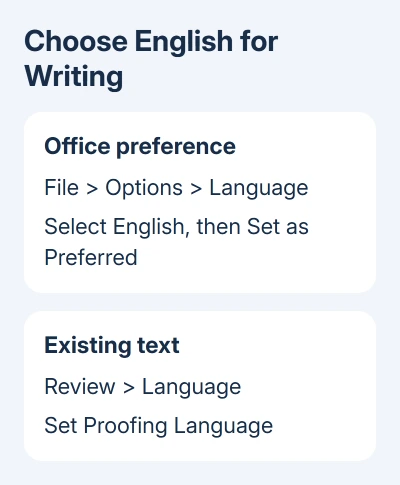
For existing text, select the passage and choose Review > Language > Set Proofing Language. Choose the English variant you need. Check that correct English words stop receiving foreign-language suggestions.
Try a new paragraph too. If the selected text now checks correctly, its language setting was wrong. A new paragraph shows whether OneNote keeps using the right language as you type.
For the retired Windows 10 app's historical controls, right-click a marked word, open Proofing > Set Language, and select the desired language in the pane. Those were the controls used in the old report; that app didn't have File > Options.
I'd correct a small passage first. It gives you a clear result without changing a whole notebook full of mixed-language notes. If new paragraphs still switch languages, check the Windows input settings next.
3. Keep your physical keyboard layout with the writing language
Windows links the writing language and keyboard layout, but they don't have to match. An English language entry can offer a Danish keyboard layout, so you don't have to use US key positions to check spelling in English.
On Windows 11, open Settings > Time & language > Language & region. Find English, open its three-dot menu, then Language options. Under keyboards, choose Add a keyboard and look for the layout you use.
On Windows 10, open Settings > Time & Language > Language. Select English under Preferred languages, choose Options, then use Add a keyboard in the Keyboards area.
Choose Danish if offered under English. Otherwise, use the matching language's options as the Windows instructions describe. Keep your working layout until its replacement is available.
Use the taskbar's input-language control, or Windows key + Space, to select the intended language/layout combination. Type a few characters whose positions matter on your keyboard, then write an English sentence in a new OneNote paragraph.
Check both results. Wrong punctuation or letter positions mean the layout is wrong. Correct keys with Danish spelling suggestions mean the proofing language needs attention.
4. Understand the owner-confirmed Windows 10 workaround
One owner in the 2020 discussion fixed English spell checking by removing Danish from Windows' Preferred languages. English was already first; moving it up hadn't solved their case.
If you're checking an old installation, write down its language and keyboard choices first. Add the Danish layout under English if available, so you can retain your familiar keys.
If you don't need the separate Danish language, open Windows 10's Language settings, select Danish under Preferred languages and choose Remove.
Removing it changes Windows language preferences outside OneNote. If you regularly write in Danish, keep it instead of removing it to clear red spelling marks in English notes. Use text-level proofing in supported OneNote instead.
If the same switching affects Word, check Word's changing proofing language too. Its detection and document formatting controls differ, so don't assume a OneNote menu choice carries into Word.
Get help if new writing keeps switching languages
If new paragraphs keep using the wrong language, note the active keyboard language and the preferred Office authoring language. Give both to support; saying the computer is in English leaves out the settings that control your writing.
Use Help > Support in desktop OneNote, or ask the company's Microsoft 365 support team. Include the OneNote version, Windows version, the language chosen under Review and whether the problem returns after starting a new paragraph.
If you run into a separate app problem while checking, repairing the Office installation is a separate step. A dictionary mismatch on its own is a reason to fix language settings before repairing the suite.
The Short Version
Match the proofing language to the Windows input combination; English can keep a Danish layout. Removing Danish from Preferred languages fixed the owner's old app. Keep new editing in supported OneNote.
Checked November 22, 2026.
 If you have any business, I can build it online






