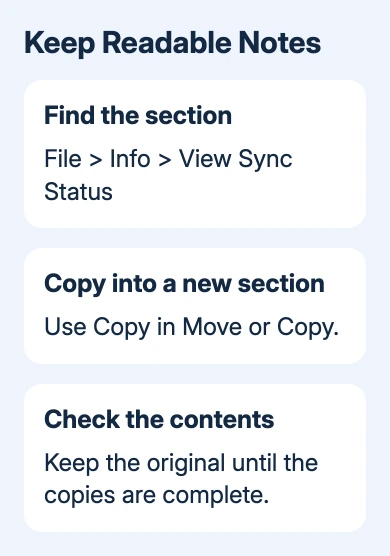
Error 0xE00000CE means OneNote can't recognize a valid section file. Find the section in File > Info > View Sync Status, save unsynced work separately, then try copying readable pages into a new section.
Other parts of the notebook can still sync while one section fails. Don't erase the notebook or reset the app just because some changes reach your phone and others don't. The useful question is which section OneNote can't read.
In this guide
1. Find the section named in the sync result
In desktop OneNote for Windows, choose File > Info > View Sync Status. Expand or select the notebook showing a warning, and read the section information and error. Record the affected notebook and section names.
Select Sync Now for that notebook once. If the same section returns with 0xE00000CE, work on that section rather than changing every notebook signed into your account. Take a screenshot of the full result for support.
The error's wording mentions a file that might have been renamed with a .one extension. That's one possible cause; it doesn't mean you renamed anything. Corruption can also make a section unreadable.
Changing a filename's ending doesn't convert its contents. If a PDF or ordinary document was renamed as a section, get the original document and attach it normally. Don't keep changing extensions to make OneNote accept it.
In the original report, the app was OneNote 2016, version 1710, build 8625.2127. The same notebook had some working synchronization. When only some notes sync, check the affected section rather than assuming the whole notebook is broken.
2. Preserve the readable content before rebuilding
Open the affected section and check what you can still read. Compare its newest page with another device or the notebook's browser version using the matching account. Titles alone don't confirm the page contents arrived.
Save a separate copy of recent text and important attachments that are only available on that PC. A Word document or another ordinary file can hold copied text while you repair the notebook. Check that the saved copy opens.
Don't sign out, reset OneNote or clear its cache while the only complete copy is inside that app. Those actions can remove local information before you've recovered changes that never reached the server.
If the section won't open at all, skip page copying and check backups in the next section. A notebook that opens elsewhere gives you another recovery source, but compare the date and content before assuming it's current.
The OneNote corrupt-cache guide deals with a different error. Its recovery precautions are relevant, but error 0x26 and 0xE00000CE point to different problems.
3. Give readable pages a working section
Create a new section in a notebook that you can edit. Use a label such as CE recovery to keep original and copied pages easy to tell apart. Add a short test page and check that this new section syncs.
Return to a readable page in the affected section. Right-click its page tab and choose Move or Copy. Choose the destination section and click Copy to retain the original page.
Microsoft's section sync repair steps use a fresh section with copied pages when one section won't sync. This gives readable content a new destination.
Start with one page, then press Shift+F9 to sync the current notebook. Read the result in View Sync Status. If the copied page appears on another device with its contents intact, continue with the remaining readable pages.
If one particular page makes the new section fail, leave that page out temporarily and preserve its contents separately. Note its title for support. Copying smaller groups helps you see which page made the error return.
Keep the original section until the recovered pages and their attachments have been checked elsewhere. A new section name appearing on your phone isn't enough if its pages are still empty or missing recent changes.
4. Check desktop backups when pages won't open
Desktop OneNote for Windows can have local notebook backups. Choose File > Info > Open Backups and look for the affected notebook and section. You'll only find backups if that copy of OneNote created them.
Open an available section backup and check its date against the missing work. Restore the readable pages into a working section using Move or Copy, choosing Copy while you compare the recovered contents.
An older backup can recover earlier notes while missing your newest edits. Add any recent content you saved separately to the notes you recover. Keep track of which pages came from which copy to avoid replacing newer work.
If Open Backups isn't available, check which OneNote app is installed. Backup controls differed between desktop OneNote and the OneNote for Windows 10 app. If the command is missing, don't assume a hidden backup exists.
Support ended for that app in October 2025, followed by a transition to read-only access. Keep unsynced content safe during migration to supported OneNote; don't remove the old app first.
For a different code specifically involving a stuck section, the OneNote 0xE40200A8 repair guide covers that separate sync failure. Follow the actual code shown by your app.
5. Escalate the unreadable section with its details
If a fresh section fails too, or none of the section's pages can be opened, request OneNote help through Help > Feedback or the support service for your Microsoft 365 account. On a managed account, give the details to IT.
Provide 0xE00000CE, its message, the section name and app version. Include results from opening it elsewhere, checking backups and syncing a new section. This describes what failed more clearly than saying OneNote is broken.
The original discussion didn't confirm a complete fix for this exact problem. One owner re-entered a missing item in the browser and saw it reach the computer, but the report didn't confirm that the invalid-section error disappeared.
I'd keep the recovered notes in the working section while support checks the original. If the section file is invalid and you have no readable copy or backup, trying to sync it repeatedly can't bring back the missing content.
The Short Version
Identify the invalid section using View Sync Status. Preserve unsynced work, transfer readable pages into fresh sections and recover unreadable pages from backups. Keep the original until you've verified the recovered contents elsewhere.
Checked November 26, 2026.
 If you have any business, I can build it online