

When Sent Items shows the right attachment but your recipient gets no attachment or the wrong one, try sending from that mailbox's webmail first. Send a fresh email with a harmless file and ask them to check what arrives.
In the Outlook 2016 report, webmail worked while the app sent missing or unexpected files. A new profile helped briefly; reinstalling Office didn't. Use webmail for urgent mail if it works, then check classic Outlook's add-ins.
In this guide
1. Send the needed file through the working mailbox route
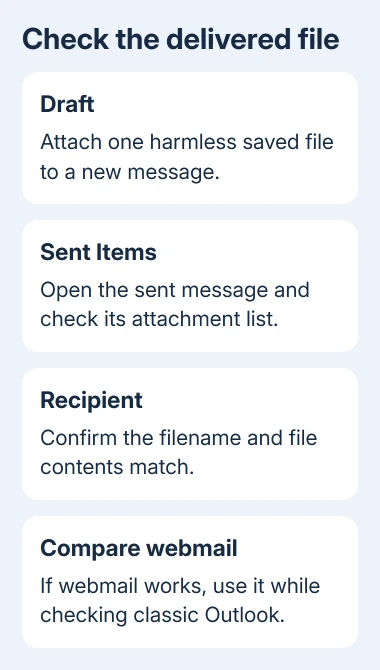
Open your provider's webmail using the same sending account. Create a new email, attach the intended saved file, and check its filename before sending. Ask the recipient to confirm that it arrived and contains the right material.
Troubleshoot with a small, nonconfidential sample. Keep the business file separate until you know which method delivers correctly, especially if Outlook has sent a removed file along with its replacement.
One owner in the original attachment discussion confirmed that webmail and an older Outlook installation on another PC sent correctly. Their desktop fault affected different recipients, not just one receiving account.
Use webmail for urgent mail if its sample arrives correctly. If it also loses the file, give the mail administrator both examples. The website failing too means the desktop app isn't the only place to check.
Don't judge the result by the paperclip alone. Open the sent message and compare its attachment list with the recipient's copy. A paperclip doesn't tell you whether the correct revision arrived.
2. Separate a missing file from a reply or sharing-link issue
Check whether the problem happens with a fresh message or only when replying to an existing conversation. Replies don't automatically include the incoming attachments, so a recipient can receive the reply without the file they expected.
Attach the saved file to that reply yourself, or create a new message for the comparison. The missing-attachment guide covers original messages, reply omissions, previews, and blocked file warnings.
A OneDrive or SharePoint link also differs from a file copy. If the recipient sees the link but can't open it, check their access to that document. That isn't a silently missing attachment.
For the fault here, the useful sign is a mismatch: the sender's copy lists a file, but the recipient's copy has none or contains an attachment removed before sending. Record which of those actually happened.
If the entire message remains unsent, use the Outbox repair steps instead. The checks here apply when the message arrives with a missing or wrong attachment.
3. Compare the same file in classic Outlook safe mode
Close classic Outlook. Press Windows + R, enter outlook.exe /safe, and press Enter. If a profile chooser appears, select the usual profile so you're comparing the same mailbox and settings.
Create a fresh test message with the same harmless attachment used earlier. Have the recipient check the file again. Keep the message simple, rather than forwarding an old draft that already showed the failure.
In safe mode, classic Outlook leaves its add-ins unloaded. If the file arrives correctly this time, check those add-ins next to see which one changes the result.
Microsoft's classic Outlook troubleshooting procedure explains the safe-mode and add-in sequence. These controls apply to classic Outlook, including Outlook 2016, rather than new Outlook.
If the attachment still fails in safe mode, note that result, then consider a separate profile. Repeating the same launch command won't narrow it further.
4. Find an add-in that changes the result
In classic Outlook, choose File > Options > Add-ins. At the bottom, select COM Add-ins in the Manage list, then choose Go. Record which entries are checked before changing them.
Clear the selected add-in checkboxes and choose OK. Close Outlook, reopen it normally, and repeat the sample attachment test. Clear the boxes rather than using Remove, so the entries remain available to restore.
If normal sending now works, reopen the COM Add-ins list and check one entry. Restart Outlook and retest after each addition. The add-in whose return brings back the failure should stay unchecked while its supplier or IT checks the fault.
On a managed PC, have IT supervise changes to required mail-security or compliance components. They can test those components while keeping your mail setup within the organization's requirements.
If disabling the entries doesn't help, restore the original selections and report that result. Don't keep unrelated features disabled while looking for another cause.
5. Treat a new profile as a comparison, not a lasting promise
A profile holds classic Outlook's account setup. The owner sent attachments correctly after creating one, but the fault returned weeks later. Keep that history in mind before syncing a large mailbox all over again.
For a profile comparison, close Outlook and open Control Panel > Mail (Microsoft Outlook) > Show Profiles > Add. Name the new profile, add the affected account, and enable the profile-selection prompt for startup.
Keep the old profile and protect local-only mail, contacts, and calendar data before removing anything. Some items in your old setup may exist only on this PC, even when the server mailbox syncs successfully.
After setup, test a new attachment from the new profile. If the right file arrives, the new setup is working for now. Tell IT if the fault returns rather than making another profile each time.
I'd use the proven webmail route while IT examines a recurring mismatch. It avoids another full resync just to discover the same attachment fault again.
When the recipient still gets the wrong file
Send your mail administrator the Outlook version from File > Office Account > About Outlook, the message times, and the webmail and safe-mode results. Include whether the attachment was missing or a removed file reappeared.
Send harmless samples privately so IT can compare them. Ask IT to compare the submitted message with the delivered copy and check any mail-processing software. That gives them the sent and received copies to compare.
The Short Version
Use working webmail while testing classic Outlook with add-ins unloaded. Keep your old profile while testing a new one. Give IT sample messages and version details when the delivered attachment differs from the sent copy.
Checked November 17, 2026.






