

Outlook replies and forwards may work in Chrome's Incognito window when they fail in a normal window. That worked for one owner, so try it first on the web. In the installed app, restart Outlook and check for gray controls or a crash.
Office 365 can refer to either version, so check whether your email is open in a browser or the installed app before making changes. Browser settings won't repair the desktop program, and repairing Office won't fix a broken browser session.
In this guide
1. Open web Outlook in a private browser window
For Outlook open in Chrome, press Ctrl+Shift+N to open an Incognito window. Visit the same Outlook website, sign in using that mailbox, then try replying to an ordinary message in your inbox.
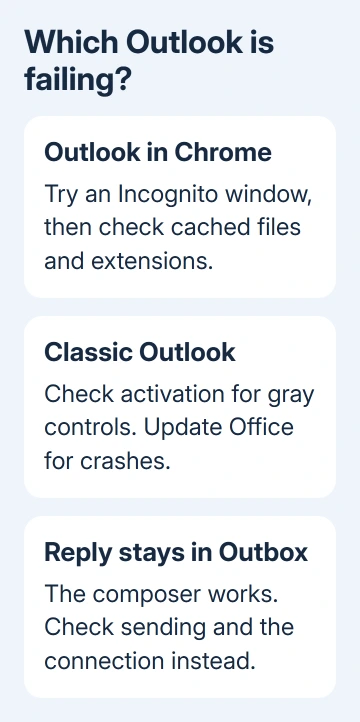
Check Forward on another message too. If both actions work in Incognito but fail in normal Chrome, check stored browser data and extensions next. You can still write mail in a fresh browser session.
One owner on Microsoft's forum said repeated restarts hadn't helped, but the problem didn't happen in Incognito. They later said it was working again, but didn't say which change fixed the normal window.
Use the private window for urgent replies while checking the regular browser. Keep it open until the reply has sent. Closing all Incognito windows ends that browsing session, so you'll need to sign in again next time.
If Incognito fails too, try another current browser with the same account. A failure across browsers is useful information for the mail administrator, particularly if several people in the organization lost the same controls together.
2. Clear cached files without deleting saved passwords
In normal Chrome, open the three-dot menu and select Delete browsing data. Choose All time, clear the other selections and select Cached images and files. Choose Delete data, then reload Outlook and test a reply.
Chrome will download fresh copies of those cached page files when it needs them. Leave passwords, autofill information and browsing history unchecked. Check the selected categories before you delete anything.
These browsing-data controls explain what each category removes. If cached files were the problem, the normal window should now open the reply editor without relying on Incognito.
If that doesn't help, note that the private window worked and check extensions next. Clearing the same cache repeatedly won't test a different cause, and signing out and back in for a few minutes isn't a lasting fix.
3. Check extensions when only the regular window fails
In Chrome's three-dot menu, choose Extensions > Manage extensions. Turn off extensions that interact with web pages, such as mail tools, writing assistants or content blockers, then reload Outlook and try Reply again.
Incognito normally excludes extensions unless you've allowed them there. That's why checking extensions helps. A working private window doesn't tell you which extension or bit of saved browser data caused the trouble.
If normal replies return, switch each extension back on separately, testing replies between changes. Keep the extension disabled if switching it on breaks replies, then look for its update or ask its maker about Outlook compatibility.
If extensions make no difference, restore the ones you need. Before clearing cookies, save drafts and check that another sign-in is possible. Cookies hold sign-in information, so removing them will affect the mailbox session.
If the account fails across browsers, tell support whether replies fail in both and whether you can still write new messages. If a reply opens and sends but stays in Outbox, use the Outlook sending checks instead.
4. Check activation and updates in classic Outlook
For the installed Windows program with a File tab, save unfinished work and restart Windows. Open Outlook and test Reply on an ordinary inbox message, Forward on another and a blank new message.
If the controls are gray, open File > Office Account > Product Information. An Unlicensed Product or subscription warning needs attention first. Sign in with the licensed Office account, or have IT review the license for your desktop apps.
If composing makes Outlook close, use File > Office Account > Update Options > Update Now. One documented crash affected Version 2412, Build 18324.20168. Updating is the appropriate first step rather than copying an old downgrade command.
Record the build under File > Office Account > About Outlook if the crash remains. When only one protected message restricts an action, ask the sender or your administrator about its permissions instead of changing protection settings.
New Outlook for Windows doesn't use classic Outlook's File menu or COM add-in controls. Check which app you have before trying the next section. If new Outlook still won't work, send support its app version and the exact error.
5. Test classic Outlook without add-ins
Close classic Outlook, press Windows+R, enter outlook.exe /safe and select OK. If a profile picker appears, select the one normally used. Try Reply again on the same ordinary message.
Classic Outlook loads without the usual add-ins in safe mode. If replies work there, open File > Options > Add-ins, choose COM Add-ins beside Manage, then select Go. Note the checked entries and clear their checkboxes.
Reopen Outlook normally and test Reply. Enable add-ins separately, restarting and testing each time. Keep an add-in off if replies break after enabling it. Send its developer or IT the symptoms and Outlook version.
I'd try that before an online repair because it's quick to undo. If safe mode fails too, stop changing add-ins. For Outlook that also fails before you reach the inbox, use the Outlook startup checks.
6. Repair the installed program or report the web fault
The Office repair steps apply to the installed suite. Close Office apps. On Windows 11, open Settings > Apps > Installed apps, find Office and use its three-dot menu to select Modify.
On Windows 10, use Settings > Apps > Apps & features, select Office and choose Modify. Try Quick Repair for a Click-to-Run installation, then Online Repair if needed. Older MSI installations offer Repair instead.
Repair affects the suite, even if Outlook alone is faulty. Keep local mail files intact during this repair. Test the same reply after repair, and give support the build, activation state and safe-mode result if it still fails.
For web Outlook, have IT review the mailbox service and account configuration. Include the browser version, Incognito result and whether another browser works. With those details, IT can focus on your web Outlook problem.
The Short Version
In Chrome, try Incognito, cached files and extensions. In classic Outlook, check activation, updates and safe mode before Office repair. Tell support which version fails and whether the editor opens.
Checked November 17, 2026.






