

Too much shared mail cached on the PC can make Outlook crash when opening a shared mailbox. Reduce Download email for the past, then restart classic Outlook. One owner cut the cached period from a year to two weeks and stopped the crashes.
The shared mailbox still needs to work online. If it won't open in webmail either, have your Microsoft 365 administrator verify access before changing desktop cache settings.
In this guide
1. Reduce the shared mail kept on this PC
In classic Outlook for Windows, choose File > Account Settings > Account Settings. On the Email tab, select your Microsoft 365 or Exchange account and choose Change.
Find Download email for the past, called Mail to keep offline in older versions. Note its current position, then move the slider to a shorter period. 2 weeks matches the successful owner's change from 1 year.
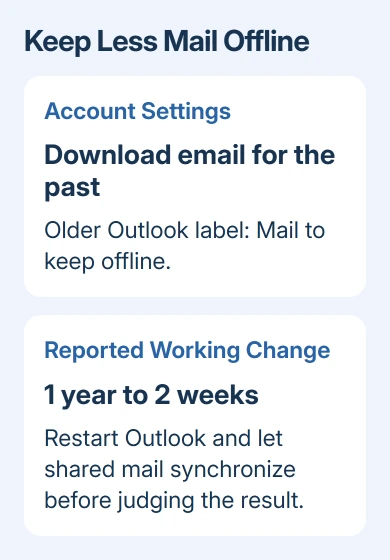
Select Next, acknowledge the restart message, then choose Finish and Close where those controls appear. Quit Outlook fully. Start it again, then open the shared mailbox.
This setting changes how much mail is kept locally. It doesn't delete the older messages from the server. It can also shorten the local mail history for your own account, so expect fewer older messages to be available offline.
Microsoft explains the shared-folder behavior in its cached-mail download guidance. In Outlook 2016 and later, the download period normally applies to shared mail folders too.
If Outlook stays open, select the shared Inbox, open a message, and let synchronization continue. Then try the same folder that caused the crash. If it opens briefly but crashes as more mail downloads, the problem is still there.
2. Keep access to older shared mail through webmail
Use your own account to sign in to the organization's webmail. Use your profile or account menu's Open another mailbox command, enter the shared mailbox address, and open it.
Use that mailbox for older messages while checking the smaller desktop cache. With a shorter download period, shared folders don't always show the link for loading older mail that your personal folders offer.
Webmail continued working for the affected owner. In their final reply, they said the shorter cache period and webmail worked, though they didn't explain why desktop Outlook was crashing.
If access is refused online, tell your administrator which shared address you opened and which account you signed in with. Use the access granted to your own account, rather than trying to sign in with a shared mailbox password.
For missing membership or a mailbox that never appears, use the shared-mailbox setup checks. Adding access and reducing a crashing mailbox's local cache are different jobs.
These desktop settings are for the classic Windows app. New Outlook doesn't expose classic Outlook's cache slider or COM Add-ins dialog. Use its web-style access and report a new Outlook crash with that app's own version details.
3. Try shared folders online if the smaller cache still fails
If reducing the period doesn't help, open File > Account Settings > Account Settings again. Select the Exchange account, choose Change > More Settings, then open the Advanced tab.
Under the Cached Exchange Mode settings, clear Download shared folders. Save the account changes, close Outlook completely, and start it again. Leave the main account's Cached Exchange Mode enabled for this comparison.
With this setting off, Outlook reads shared folders online instead of keeping copies on your PC. The status bar can show Online when a shared mail folder is selected, which helps confirm the changed behavior.
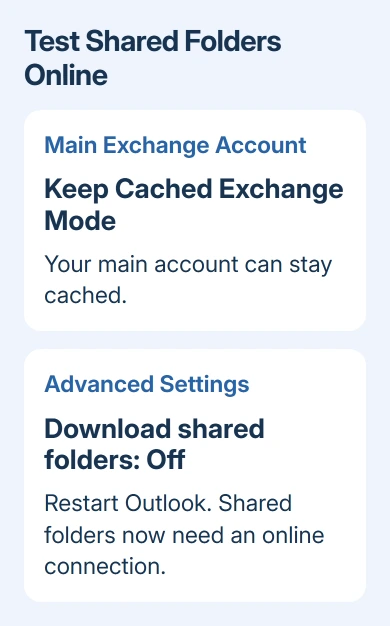
Shared folders now depend on your connection. Try this on the work network or internet. If it doesn't help and you need shared mail offline, turn the setting back on.
Open the troublesome folder and compare it with the cached result. If it now works, tell IT that the crash follows shared-folder caching. They can review mailbox size, folder count, and the policies controlling the download period.
Your organization can override the slider for shared mailboxes. Ask IT to check DisableSyncSliderForSharedMailbox if shared downloads don't shrink. Don't add registry values yourself to force the setting.
4. Compare Safe Mode when caching changes nothing
Close Outlook, press Windows + R, enter outlook.exe /safe, and select OK. Open the same shared mailbox and folder. Safe Mode loads Outlook with fewer extras. Compare how the mailbox behaves in that simpler session.
If Safe Mode works, open File > Options > Add-ins. Set Manage to COM Add-ins, choose Go, and note the enabled entries. Clear their checkboxes, quit Outlook, and reopen without Safe Mode.
If normal Outlook now works, re-enable one add-in at a time and restart after each change to find which brings the problem back. Clear checkboxes rather than using Remove, so the change can be reversed.
Safe Mode alone didn't settle the original case. The owner reported that it worked at one point but normal Outlook still crashed with all add-ins unchecked. Their eventual working change was the shorter cache period.
If that matches your result, don't keep blaming an add-in you've already disabled. Use the Outlook startup checks for failures that also occur without selecting the shared mailbox.
5. Update once, then send IT the cache comparison
In a Microsoft 365 Office app, open File > Office Account. Choose Update Options, followed by Update Now. Use Word if Outlook can't stay open long enough. Restart Outlook afterward and test the shared folder again.
Office repairs, a replacement Outlook profile, an Office reinstall, and a fresh Windows profile had all failed for the asker. Regranting permission helped only until synchronization brought more messages back.
I'd give IT the cache results before repeating larger repairs. Include the Outlook build, mailbox address, failing folder, webmail and Safe Mode results, and whether shorter caching or online shared folders stopped the crash.
Ask IT to review shared-folder caching and send the results to Microsoft 365 support through the admin center if crashes continue. If your account crashes on several PCs, report that before trying another reinstall.
The Short Version
Shorten the offline mail period, then restart. Use webmail for older shared messages and compare online shared folders if needed. Safe Mode helps check add-ins; the owner needed a smaller cache after repairs and access changes failed.
Checked November 16, 2026.






