

An Outlook EWS URL can accept one admin account and reject another because mailbox access and admin roles are separate. For Zoom Rooms on Microsoft 365, use the supported Graph API connection instead of a browser password test.
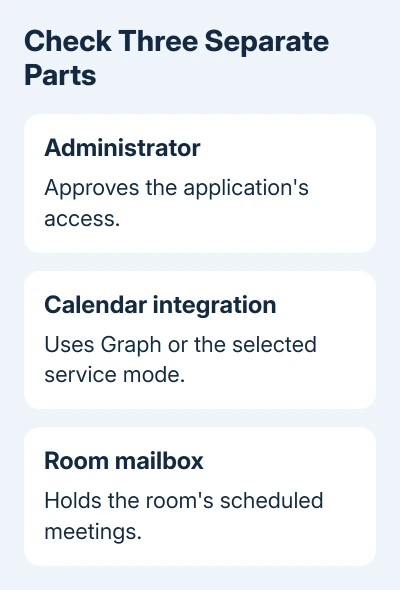
Comparing the two accounts still helps, but check the sign-in method, administrator permissions, and room mailbox separately. Each plays a different part in getting the calendar connected.
In this guide
1. Replace the old browser password test
The address https://outlook.office365.com/EWS/Exchange.asmx is an Exchange Web Services endpoint. Apps use this address to talk to Exchange. It isn't the normal page where you read Outlook mail.
A password window at that address isn't a useful pass-or-fail test for a modern Microsoft 365 calendar integration. Basic authentication, the older username-and-password method, is no longer supported for EWS connections to Exchange Online.
Microsoft recommends OAuth in its EWS authentication guidance for new Exchange Online applications. With OAuth, you sign in and approve the app's access instead of giving it your password to store.
Note where the connection fails: the browser password window, the calendar service's Authorize button, or the room's meeting display. Each needs a different check, so keep that detail before making changes.
If only the raw EWS address rejects a password, move to the integration's supported authorization process. If authorization itself fails, continue with the account and permissions checks.
2. Check which Exchange service hosts the room
Have your administrator confirm the room's hosting service: cloud-based Exchange Online or your organization's own Exchange Server. A company can also run a hybrid environment with mailboxes in different places.
The office365.com endpoint belongs to the cloud service. It doesn't tell you where every company mailbox lives. Ask your administrator to check where the room's mailbox is hosted; its email domain alone doesn't answer that.
Open the Exchange admin center's Recipients > Resources and find the room. Compare its email address and display name. Similar room names can make a working connection appear to have lost a calendar.
A room mailbox handles bookings; it isn't the person who approves an app's access. Write down the administrator's address, any integration account, and the room's address as separate entries.
If the room isn't in the expected service, have the Exchange administrator choose the integration instructions for that hosting arrangement. Changing a global administrator role won't move the mailbox between services.
3. Compare mailbox access, not just the admin badge
Two people can both be Global Administrators while the app has different permissions or mailbox access through each account. Administrative access to settings and permission to open mailbox contents aren't the same thing.
In the Exchange admin center, an administrator can inspect the room's delegation settings under Recipients > Resources. For other user mailboxes, use Recipients > Mailboxes, select the mailbox, and inspect its delegation.
The mailbox permissions controls separate Full Access for opening mailbox items from Send As or Send on behalf for sending. Granting one permission doesn't grant all three.
Don't grant broad mailbox access just to make the two accounts look alike. Compare the failing account against the requirements of the selected integration mode, then change only the missing permission with your administrator's approval.
For an ordinary shared-mailbox problem outside Zoom, opening a shared mailbox in Outlook explains the desktop side. Getting that mailbox into Outlook is a separate task from authorizing a background calendar service.
4. Authorize the current Zoom calendar connection
Zoom's Office 365 calendar setup recommends Graph API with Application Permissions for new deployments. This mode doesn't need the separate service account used by the delegate setup.
Use a private browser window so an existing Microsoft session doesn't choose the wrong administrator. In the Zoom web portal, open Room Management > Calendar Integration > Add Calendar Service > Office 365.
Keep Authorize with OAuth 2.0 selected, choose the appropriate Office 365 service, select Graph API, and set Account Permission Type to Application Permissions. Select Authorize and complete the administrator sign-in and consent.
The browser should return to Calendar Integration with the new service listed. For a domain-mismatch error, check that a Zoom associated domain matches a verified Microsoft 365 custom domain.
If your organization chose Full Access Delegate, follow the preparation steps for that mode instead. Its dedicated licensed mailbox needs room access; it uses a different sign-in from app-only administrator consent.
5. Verify the room after authorization succeeds
Approving access lets the app connect. Check that you've selected the correct room and that its calendar settings allow the meeting details to appear.
Have the room administrator associate the correct calendar resource with the Zoom Room, then schedule an ordinary meeting that invites that room. Check whether the room accepts it and whether the meeting appears on the controller.
I'd use one room and one meeting for this check. It gives IT a concrete example without changing every room's setup at once. Note exactly what's missing: the meeting, its subject, or the join control.
If the calendar appears but meeting details don't, have IT review the room's calendar-processing settings against the integration instructions. If the calendar never appears, give support the resource address and authorization result.
A separate Zoom Outlook plugin problem affects creating meetings from Outlook. Reinstalling that plugin won't repair the room calendar service's authorization.
Give support the failing stage and both account roles
Tell your Microsoft 365 administrator the room address, hosting service, integration mode, full error and the time it failed. Ask them to compare the relevant sign-in result and application consent for the failing account.
Tell Zoom support whether the service is listed and whether the selected room receives meetings. The 2017 reply mentions reallocating an email address, but it doesn't explain the steps well enough to use as a repair today.
The Short Version
Authorize Zoom Rooms through Graph, confirm the room's hosting service, and check the chosen mode's permissions. An EWS password prompt and an administrator role aren't a complete calendar-access test.
Checked November 17, 2026.






