

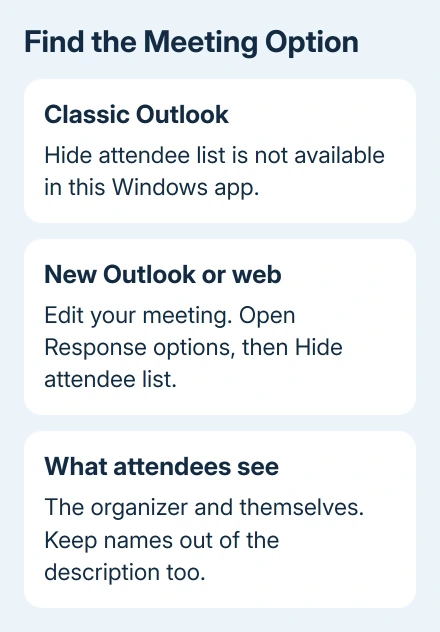
Classic Outlook for Windows doesn't offer Hide attendee list. Open new Outlook's meeting editor, or use Outlook through your browser. Choose Response options > Hide attendee list there.
Each attendee should see the organizer and themselves instead of the other invitees.
The Outlook version matters more than the Microsoft 365 subscription name on your bill. A missing control in classic Outlook isn't a damaged installation, and repairing Office won't add this particular feature.
In this guide
1. Check which Outlook is open
Check the Windows app's upper-left corner for File. That's the classic Outlook interface. New Outlook has a different settings layout. The web version opens within a browser tab.
Microsoft explains this in its meeting-recipient guidance. It also separates hiding a meeting's attendee list from adding true Bcc recipients, which meeting requests don't support.
If classic Outlook is what you use every day, you can keep using it for ordinary mail. Use the supported calendar interface for the meeting that needs its attendee list hidden, rather than changing unrelated mail settings.
When you're unsure which account owns the event, check the organizer address on the meeting. A personal calendar and your employer's calendar aren't interchangeable just because both appear in one Outlook window.
For the rest of these steps, use the mailbox and calendar that will organize the meeting. Opening a different account's calendar won't let you change the original organizer's invitation.
2. Create the invitation in a supported calendar
In new Outlook, select Calendar, then New event. Select the organizing calendar. Fill in the title, timing and invitees. Open the full event editor if a small quick-entry form is showing.
For the browser route, use your organization's normal Outlook address to open the mailbox. Select Calendar, then New event. Check the account address before entering a sensitive guest list.
Within the meeting editor, open Response options and select Hide attendee list. Confirm the selection is active before sending the invitation. The setting belongs to that meeting, not an ordinary email composition window.
Finish the event details and send when you're ready. The expected invitation view for an attendee contains the organizer and that attendee, without the other invited people listed.
Don't copy the guest list into the description. The control hides the attendee list; text you type into the invitation remains part of the message people receive.
If Response options is missing, make sure you're creating a meeting in Calendar rather than writing an email. If the menu appears without Hide attendee list, continue to the account and organizer checks instead of reinstalling Office.
3. Edit an existing meeting as its organizer
Use either supported interface to open the organizer's calendar event. Choose Edit, open Response options, and look for Hide attendee list. Set it there rather than forwarding your own received copy.
An attendee's invitation doesn't give you the organizer's controls. If someone else organized the meeting, have them update the invitation. Adding a private category or changing your own calendar display won't change other invitees' view.
After changing the option, send the meeting update that Outlook offers. Outlook treats this change as a meeting update. Until you send it, recipients still have the original invitation.
If Outlook asks whether you're editing one occurrence or a series, choose the one you want to change before editing it. A recurring meeting needs that decision so the privacy setting isn't applied to a different occurrence by mistake.
For an invitation already sent with names visible, assume recipients may have read or saved that earlier copy. A later setting change can't make people forget information they already received.
If the meeting itself is absent from Outlook, use the missing Teams meeting checks first. A hidden attendee control and a missing calendar event are separate problems.
4. Keep attendee-list privacy separate from responses
Request responses controls the request for acceptance or decline information. Hide attendee list controls whether attendees see other invitees. Turning off response requests isn't a substitute for hiding names.
Likewise, an attendee choosing not to send a response doesn't make their identity disappear from an ordinary invitation. Microsoft 365 also tracks responses differently in classic Outlook and the newer apps.
Use the privacy control that matches the result you need. For a meeting with a confidential guest list, check the attendee view instead of relying on the organizer's list, which still needs to show whom they invited.
I'd check a harmless test invitation with a colleague before sending a sensitive group event. Ask them what appears in their received invitation, using the same account type and app your guests will use.
That check is particularly useful when a delegate prepares the invitation. Confirm which mailbox is the organizer and which calendar the event was saved into before expanding the guest list.
For ordinary email rather than calendar invitations, use Outlook's Bcc field. That email feature doesn't create a private calendar-attendee field, so don't look for it in the Required or Optional meeting fields.
Still missing in a supported app?
Check that you're editing a meeting you organize through new Outlook's calendar or the browser calendar, then note your account type: work or school Microsoft 365, personal Microsoft account, or another provider connected to Outlook.
The help page lists apps with this control, but support also needs your calendar account type if it's missing. Don't assume a feature available in one organization's calendar is available in every connected calendar service.
For a company mailbox, report the absent meeting control to its Microsoft 365 administrator. Include the organizer address, Outlook version and account type. Say whether the same control appears when you open that mailbox on the web.
For a personal account, open Outlook's Help support route and give the same details. Describe the missing Hide attendee list command specifically, rather than requesting an Office reinstall.
If you also need help changing a meeting's timing or reminders, use the Outlook reminder guide for that separate control. Neither reminder repairs nor mail-folder changes add meeting privacy options.
The Short Version
Use the organizer's calendar in new Outlook or your browser. Enable Hide attendee list in Response options. Classic Outlook lacks the command. If a supported app still omits it, have support check the calendar account.
Checked November 16, 2026.
 If you have any business, I can build it online






