

Outlook 365 can forget email addresses after suggestions are disabled or cleared. In classic Outlook, check that Auto-Complete is on. In new Outlook, check which account you're sending from and whether the person is in its contacts.
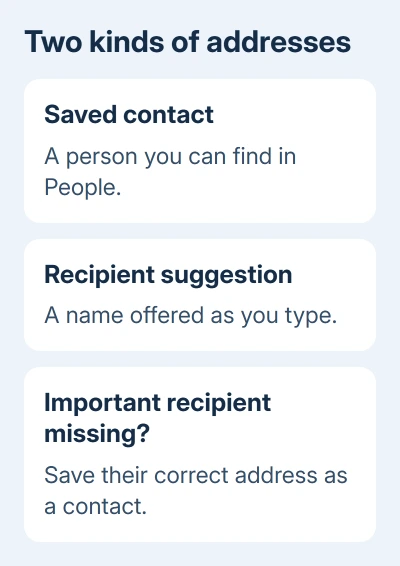
An address you've emailed isn't automatically a saved contact. That distinction matters when an address disappears after changing computers or switching Outlook apps: the message history, contacts and suggestion list aren't the same thing.
In this guide
1. Turn Auto-Complete back on in classic Outlook
Open File > Options > Mail. Under Send messages, select Use Auto-Complete List to suggest names when typing in the To, Cc, and Bcc lines, then click OK.
This is a classic Outlook setting. New Outlook doesn't have the same File > Options window, so move to the next section if that menu is missing.
A missing menu in the message-search box needs the search suggestion checks; this Auto-Complete switch controls recipient fields.
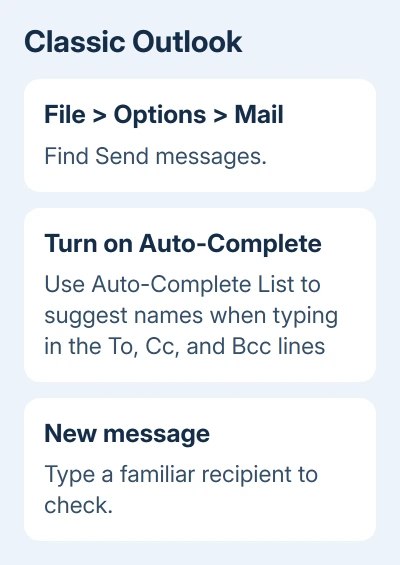
Start another email and enter several letters from a familiar recipient's name or address. Suggestions should appear beneath the address field. Try the address itself if the name doesn't match what Outlook has saved.
With the traditional AutoComplete list, sending a message adds that recipient to the list. Select the correct address for a normal outgoing message, send it, then check whether typing it in another message brings it back.
Don't send a test containing sensitive information to an address you haven't checked. Open the suggestion and confirm the full address, particularly when two people have similar names.
Note whether suggestions disappear only after Outlook closes or never appear at all. Include that detail if you need support later, rather than repeatedly switching the setting.
2. Use the right account and address book in new Outlook
Open a new message and check its From account. Suggestions depend on the account you're using. A work mailbox and a personal mailbox can offer different names even in the same Outlook window.
Type part of the recipient's first name, last name or full email address in To. If the person still doesn't appear, select To, Cc or Bcc to open Add recipients.
Choose the appropriate contact list and use Search this list of contacts. Select the recipient, then choose Save to return to the message. The people you selected should now appear in their address fields.
A work directory with more than 500 contacts can initially show an empty search list. Start typing a name or address to search it; an empty starting view doesn't mean the company's directory has disappeared.
Microsoft's suggested recipient instructions explain how contacts, company directories and previous recipients contribute to suggestions.
If a saved contact is available through To but not from a short typed name, use more of their address. If the contact is missing from the selected list altogether, check which account holds it before changing Outlook's settings.
3. Save important recipients as actual contacts
Open People and look for the person. Create a contact with their current name and email address if they aren't saved. In new Outlook, use New contact, enter the details, then save it.
In classic Outlook, open People, select New Contact, fill in the name and email address, then choose Save & Close. Check the selected Contacts folder when several accounts appear.
I'd save regular clients and important colleagues as contacts instead of relying on remembered addresses. Remembered addresses are convenient, but an address book gives you contacts you can check and update yourself.
This also helps after a computer change. Traditional desktop AutoComplete and Outlook on the web have separate lists, so a name appearing in the browser doesn't mean the desktop list contains it.
A missing contact and a missing message need separate repairs. For an inbox that isn't refreshing either, restore Outlook's email updates before judging whether newly sent addresses have been remembered.
4. Check whether Microsoft Search supplies the suggestions
Classic Outlook for Microsoft 365 with Exchange Online changed its suggestions starting with version 2202, build 14931.20604. It uses Microsoft Search instead of drawing only from the older AutoComplete list stored on your computer.
Check the version in File > Office Account > About Outlook. The type of mailbox decides how suggestions work, so knowing your subscription isn't enough to tell how it gets suggestions.
With a workplace or school mailbox, go to the account's Settings & Privacy page. Under Privacy > Data options, open the Manage contact suggestions and discovery section and inspect Discovered contacts.
Turn on Discovered contacts if you want suggestions gathered from your communications. Clearing its data removes those suggestions; your personal contacts and the organization's directory are separate.
For a personal Microsoft account, open its Privacy page, find Empower your productivity, then select People suggestions. Check whether that feature was disabled when the missing suggestions began.
These pages require your account's sign-in. On a managed work account, ask IT before changing an organization-controlled privacy choice. Give them the exact setting name rather than asking them to restore a nonexistent address book backup.
5. Reset an older list only when it won't keep new entries
A damaged traditional AutoComplete list can stop Outlook from remembering addresses. After checking the setting and saving important recipients as contacts, return to File > Options > Mail > Send messages.
Select Empty Auto-Complete List and confirm. This removes remembered suggestions, so reserve this repair for a list that won't retain new recipients rather than a single missing name.
Send your next normal message with a verified recipient address, close Outlook normally, then reopen it and check that address again. If it stays, the rebuilt list is remembering addresses again.
Don't use this reset as a general fix for Exchange Online suggestions powered by Microsoft Search. The older cache instructions don't fully apply to that system. Repeating the reset won't rebuild suggestions held by the service.
If Outlook also fails during startup, follow its opening problem checks before checking whether it remembered an address when you closed it.
When addresses still disappear after restarting
Contact your Microsoft 365 administrator or use Help > Contact Support in Outlook where available. Report the Outlook version, account type, whether To finds the saved contact, and whether the address disappears only after closing Outlook.
Ask support to check suggestions for your mailbox and Outlook edition. Explain whether contacts are missing, an older list won't save, or Microsoft Search fails to suggest expected people.
The Short Version
Enable classic Outlook's Auto-Complete or check the account and contacts in new Outlook. Save key people as contacts before resetting a broken list. Check account suggestions for Exchange Online rather than assuming a local cache failure.
Checked November 15, 2026.
 If you have any business, I can build it online






