

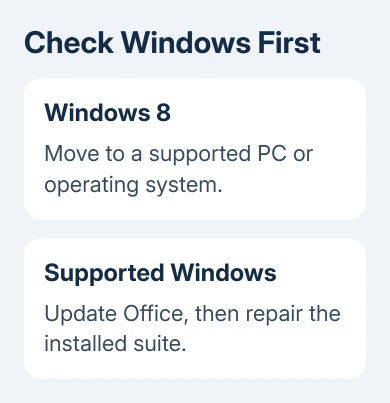
Outlook's react-native-win32.dll error can mean damaged Office files or an incompatible Windows version. Check Windows first: the original reports included newer Office builds running on Windows 8, which a reinstall won't make compatible.
On a supported PC, repair Microsoft 365 before reinstalling it. On Windows 8, a supported replacement system is the lasting repair, even when an older Office build temporarily gets Outlook running.
In this guide
1. Check Windows before replacing the DLL
Press Windows + R, type winver, and press Enter. Note the Windows version shown in the window. This matters because the same missing-file message can describe two different problems.
Microsoft's Windows 8 compatibility guidance describes problems with features and stability in Microsoft 365 Apps version 2005 and later on Windows 8. Office repair can't add operating-system features that Office needs.
A DLL is a file that supplies code an app uses. The message naming it doesn't always mean that file has been deleted. In the original reports, one owner could see the file in the Office folder while Outlook still refused to start.
On Windows 11, continue with the Office checks. For Windows 8 or 8.1, ask IT about moving the mailbox and Office installation to a supported PC. Don't treat those two Windows releases as interchangeable when reviewing old fixes.
Windows 10 also needs a current support plan and a compatible Office release. Ask IT to check the exact Windows edition and Office channel rather than copying a 2020 rollback command onto a present-day machine.
I'd check this before downloading anything. A reinstall can replace damaged Office files; it can't turn an old Windows installation into a supported one.
2. Record the Office version and update what can run
Open Word or Excel if either still starts. Choose File > Account and note the product name, version, build, and update channel shown under Product Information. In Outlook, you can find the same details under File > Office Account.
Keep the full error text too. A second message naming api-ms-win-core-version-l1-1-1.dll is different from a single Outlook file error, and it appeared alongside this fault in the original Windows 8 reports.
On a supported installation, choose Update Options > Update Now when available. Close Office when prompted, finish the update, then reopen Outlook. Check whether it reaches the mailbox without the DLL error.
If your company controls updates, send IT the recorded build instead. That policy may explain why the update button is missing. Don't change the channel yourself just to make a command appear.
If every Office app fails, skip the in-app update route and use the Windows repair options next. Repeatedly dismissing Outlook's error won't help you reach its update controls.
3. Repair the installed Office suite
Save work in every Office app and close them. In Windows 11, open Settings > Apps > Installed apps, find Microsoft 365 or Microsoft Office, select its three-dot menu, and choose Modify.
On Windows 10, use Settings > Apps > Apps & features, select the Office entry, and choose Modify. The product may use a different name from Outlook because Outlook is part of the suite.
For a Click-to-Run installation, choose Quick Repair first. If Outlook still gives the DLL error, return to the same window and choose Online Repair. The second option needs internet access to download its files.
Microsoft's Office repair procedure repairs the suite even when only Outlook is affected. An older MSI installation offers Repair instead of the two Click-to-Run choices.
Once repair finishes, open Outlook normally. Check that the mailbox loads and a message opens. If the error persists, record which repair completed successfully before moving on. That saves IT from repeating it without knowing the result.
For a different startup message, the Outlook startup checks separate a failed launch from a damaged navigation pane or a profile that won't load. Keep this DLL message with its own repair history.
4. Reinstall only after checking the account and local data
An owner confirmed that removing and reinstalling Microsoft 365 fixed this error. Others said repeated reinstalls failed. Try it after repair on a compatible PC, but keep in mind that several owners in that discussion said it failed.
Before removing Office, check that your Office license account still accepts your sign-in. Back up local Outlook data you rely on, especially POP mail or PST archives. Keep those data files when uninstalling the apps.
Use the Office entry in Windows' installed-app list to uninstall the suite, then reinstall through your licensed account or your company's software portal. A managed work installation should come from IT's approved package.
After installation, sign in and let Outlook finish setting up the mailbox. Open existing mail before importing archives or adding optional components. The important result is that Outlook starts without the original error.
If it opens only in Safe Mode, tell support that Safe Mode works while a normal launch fails. The Outlook sign-in guide is relevant when the remaining failure is a disappearing password window, rather than the DLL error.
5. Keep the old channel workaround in its original context
The 2020 discussion also includes a workaround that owners confirmed worked: moving Office to the Semi-Annual release available at the time. A later owner reported that it stopped their Outlook and Word errors after other attempts failed.
That historical success doesn't make its old Channel=Broad command a suitable repair today. The Windows 8 support page explains which old versions could run; it doesn't recommend running obsolete Office builds indefinitely.
Don't fetch replacement DLLs from download sites. Office repair supplies its files together; replacing one can leave another incompatible component. The second error reported in the discussion shows why replacing a single DLL isn't enough.
For a supported PC that still fails, send IT or Microsoft 365 support the Windows release, Office build, both errors, and whether Word or Excel starts. List the unsuccessful repairs and when it started.
The Short Version
Check Windows first. Replace an unsupported Windows 8 setup; on a compatible PC, update Office, repair it, then consider reinstalling. The old channel rollback belongs to the historical reports, not a current installation plan.
Checked November 16, 2026.
 If you have any business, I can build it online






