

A full Recoverable Items folder can stop an Outlook shared mailbox from emptying Deleted Items. If deletion fails in Outlook and webmail, have an Exchange administrator inspect hidden storage and retention settings.
If only one person's Outlook fails, check their access and whether the app is syncing. The folder list can look the same in either case, but repairing the desktop app won't free recovery space on the mail server.
In this guide
1. Confirm the failure belongs to the shared mailbox
Expand the shared mailbox and open its Deleted Items, rather than the Deleted Items under your personal account. Select one message that your team agrees can be removed and try deleting it.
Record what happens after confirmation. Does it disappear and return, remain untouched, or produce an error? Also check whether another authorized user gets the same result in that shared folder.
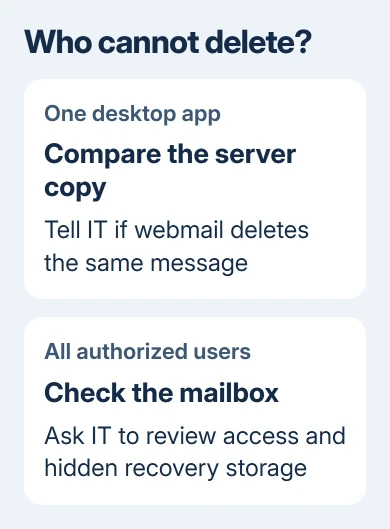
Where your organization provides webmail, ask an authorized user to compare the same shared mailbox there. It must be the shared mailbox's Deleted Items, not that person's own mailbox.
If the message disappears on the server but remains in one desktop app, tell IT about the difference. That points them toward the app's cached view rather than a deletion that failed everywhere.
If the mailbox isn't available to a user at all, follow the shared mailbox setup steps first. Seeing the mailbox in the folder pane doesn't tell you which permissions you have.
2. Have IT check deletion permissions
Ask the Exchange administrator to confirm your access to that mailbox and folder. Tell them whether the problem affects all users with access or just one person, and whether you can delete ordinary messages from other shared folders.
This matters when you can read a folder but can't remove its contents. Have the administrator review your assigned permissions, even if you can open the mailbox.
In the original shared-mailbox report, the asker said they had owner privileges. Deleting in the web app also failed, and Shift+Delete made no difference. Repeating that shortcut wasn't a successful repair for their case.
Don't treat Shift+Delete as a way around mailbox storage. Exchange can move deleted items into its hidden recovery area even when they bypass the visible Deleted Items folder.
If permission changes solve the problem, repeat the single-message check and then clear the agreed items. If the same failure affects authorized users on the web too, continue with the storage checks.
3. Check the hidden Recoverable Items folder
Deleted Items is the visible folder. Recoverable Items is a separate area used for deleted-message recovery and retention. Emptying the visible folder can still require space in that hidden area.
Microsoft explains that a full recovery folder can block deletion in both the desktop and web versions of Outlook.
That documented case can show a maximum-size error in Outlook and a server-action error in webmail. If messages silently stay in place instead, ask IT to check recovery storage before deciding on the cause.
Ask the administrator to check how much space Recoverable Items and its subfolders use, and compare that with their storage limits. The normal mailbox total and an empty user recovery list don't show how much space those hidden folders use.
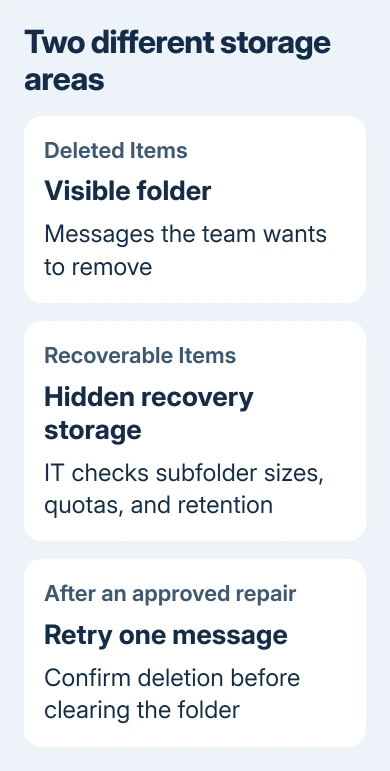
The administrator can use Get-MailboxFolderStatistics with the RecoverableItems folder scope to inspect it. This only reads folder details. Before making changes, IT should check storage use and the retention policy assigned to the mailbox.
If that area has space, IT should continue with permissions and service diagnostics. If it's full, IT needs to check for any hold that requires those messages to be kept before clearing space.
4. Match the cleanup to the retention requirements
For a mailbox without a hold, administrators have a cleanup route for Recoverable Items. For one under a hold, the correct route can involve archiving and retention processing while preserving the required content.
Don't remove a legal or compliance hold just to make Delete work. The administrator and the person responsible for retention must decide what can be purged and what must remain preserved.
One documented Exchange case involves a mailbox with archiving enabled whose recovery folder fills after a retention-policy change. Its archive tag sets when items move to the archive, but leaves them in recovery until space runs out.
In that specific configuration, the supported remedy is to shorten the recovery archive tag's age and run the Managed Folder Assistant, the service process that applies the mailbox's retention instructions.
Ask IT to check that the tag applies to this mailbox before changing it. An organization-wide tag change isn't the same as emptying one folder, and a mailbox without an archive needs a different plan.
After the approved action, the administrator should verify that recovery storage has room. Then retry deleting one agreed message from the shared mailbox before emptying the rest of its Deleted Items.
5. Give support the mailbox results before recreation
I'd ask support to check the mailbox before considering recreating it. In the original thread, an owner eventually deleted and recreated it after the suggestions failed. That isn't a safe general shortcut for a shared business mailbox.
Recreating a mailbox can risk saved messages, permissions, and data your team still uses. The simple fixes failed for that owner, but that doesn't make deleting the mailbox a routine repair.
Your organization's Microsoft 365 admin can submit a request for Exchange Online support to review the affected mailbox. Include the mailbox address, timestamps, error text, permission checks, recovery-folder sizes, and hold/archive status.
Include the desktop-versus-web comparison. If a separate shared mailbox search fault is also present, describe it separately so stale search results aren't mistaken for messages that survived deletion.
The Short Version
Compare the shared folder across authorized users and webmail. If deletion fails everywhere, have IT check permissions, recovery quotas, and retention processing. Follow an approved server cleanup plan before considering mailbox recreation.
Checked November 16, 2026.






