

Windows can hide an Outlook taskbar badge while mail sounds and banners still work. Turn on Show badges on taskbar apps first, then check Outlook's separate envelope option if you're using classic Outlook.
An envelope near the clock isn't the same as a badge on Outlook's main button. Check which one is missing before changing notification settings, because those controls don't all affect the same part of the taskbar.
In this guide
1. Enable badges on Windows taskbar buttons
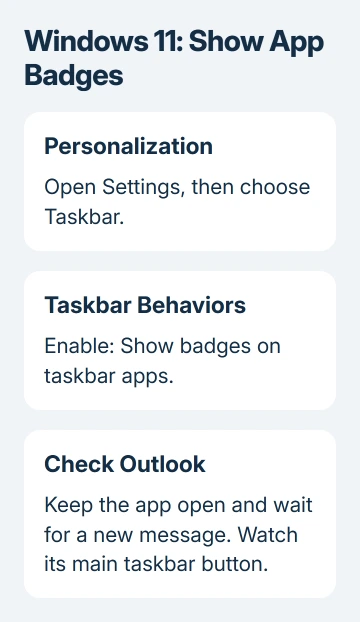
For Windows 11, open Settings > Personalization > Taskbar. Expand Taskbar behaviors, then select Show badges on taskbar apps.
With Outlook running, ask a colleague to email that account. Watch its main taskbar button rather than only the clock area. If an envelope appears on the button, Windows was hiding the app's badge.
An owner in the missing-badge discussion confirmed this switch restored the envelope on Windows 11. Another reported success after enabling both badges and Outlook's tray visibility.
On Windows 10, open Settings > Personalization > Taskbar and enable Show badges on taskbar buttons. If Use small taskbar buttons is enabled, turn it off: badges aren't displayed on those small buttons.
Microsoft's taskbar controls distinguish app badges from notification-area icons. That distinction matters if the envelope appears beside the clock after a change but still isn't attached to Outlook's button.
If the badge switch was already on, keep going. The owner reports include installations where that setting alone didn't help, so that Windows checkbox alone doesn't tell you whether Outlook's own indicator is on.
2. Refresh classic Outlook's envelope setting
In classic Outlook, select File > Options > Mail. Find Message arrival and select Show an envelope icon in the taskbar, then select OK.
If it's already selected, clear it and choose OK. Open the same options again, select it again and choose OK. A later owner reported that this off-and-on sequence restored the indicator without creating another mail profile.
Wait for another new message to arrive normally. Changing the setting might not bring back the indicator for a message already in your inbox, so test with a new arrival.
This is the classic Windows app's menu. New Outlook doesn't have File > Options, and Outlook running in a browser uses the browser's taskbar button. Those versions won't have this classic Outlook settings window.
For new Outlook, choose View > View Settings > General > Notifications and enable Mail under Notify me about. Leave Windows badges on too, though the indicator may still behave differently from classic Outlook's.
If the new app still lacks the indicator, record its version for support. The thread describes different results between classic and new Outlook, so a fix for one app may not help the other.
I'd try the two switches before repairing Office. They take little time, and the original asker had already reinstalled Outlook without restoring the badge.
3. Turn on banners when the switches haven't helped
On Windows 11, open Settings > System > Notifications. Open Outlook's entry in the list of apps that send notifications. Enable notifications and Show notification banners.
On Windows 10, open Settings > System > Notifications & actions. Select Outlook in the sender list and enable Show notification banners there.
Retest with Outlook open. One reply described fixing someone's missing indicator by turning banners back on. Another reply confirmed the advice helped, though other settings had also been changed in a later report.
Banners and badges have separate settings. This workaround helped in the discussion, but turning on banners won't always fix a badge. If it helps, you'll see a fresh-mail indicator after the next arrival.
If banners are missing too, the broader Outlook alert fixes cover Do Not Disturb, Teams status and other notification blocks. Stay with this badge procedure when sounds and banners already work.
If you don't want the extra pop-up, turn banners off after testing. Tell support the indicator returns only with banners enabled, which points them toward a badge problem rather than a failure affecting every mail alert.
4. Keep the separate tray envelope visible
When an envelope is present near the clock, Outlook is producing a notification even if the main taskbar button hasn't changed. It may be inside the hidden-icons menu rather than visible beside the clock.
On Windows 11, open Settings > Personalization > Taskbar. Expand Other system tray icons and turn on Microsoft Outlook when it's listed. The apps that provide tray icons control which entries appear in this list.
On Windows 10, open Settings > Personalization > Taskbar. Under Notification area, open the app-icon selection and enable Outlook. You can also drag an available icon from the hidden area into the visible notification area.
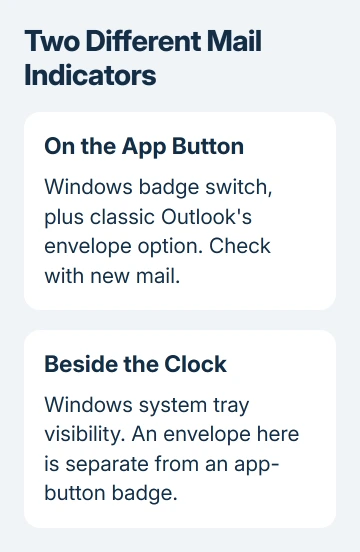
This makes the existing tray indicator easier to notice. It doesn't move that indicator onto the main Outlook button, so check whether it's the notification you wanted to see.
If your only complaint is that the blue envelope blends into Outlook's logo, keep that separate from a missing badge. Changing the color and turning on notifications solve different problems.
5. Escalate the badge failure with the right details
Check whether the message itself arrives in the inbox. For missing mail as well as a missing indicator, use the Outlook mail-delivery checks first. A taskbar switch can't fix a mailbox that isn't syncing.
For classic Outlook, note the version under File > Office Account > About Outlook. Also note Windows 10 or 11 and whether the envelope appears in the tray, on the main app button, both places, or neither.
Send your version details and test results to your organization's mail administrator or Outlook's Help support. Describe what happened with badges, the envelope reset and banners. Ask them to check that build's notification behavior.
Owners in the discussion tried a new profile and a reinstall without success. Those are big changes for a missing indicator, so don't repeat them just because the accepted reply suggests creating a profile.
The Short Version
Enable Windows taskbar badges, then classic Outlook's envelope option. If that doesn't work, try the banner workaround and check for a hidden tray envelope. Tell support which indicator is missing and which Outlook version you're using.
Checked November 16, 2026.
 If you have any business, I can build it online






