Paper suits inexpensive handwritten notes with no charging or setup. An iPad helps when you need to search your notes, work with course PDFs or keep copies across devices. Choose for your work, not to change how you study.
If you already own an iPad, compare the same kind of lesson or meeting on paper and the tablet. Check writing, finding and sharing a note separately. A comfortable writing tool can still create extra work afterward.
In this guide
Compare the whole job, not just the writing surface
Write down what happens to a typical page after you finish it. Does it stay in a notebook, become a typed summary, get marked up beside a PDF, or need to reach someone else? Those are different reasons to choose a tool.
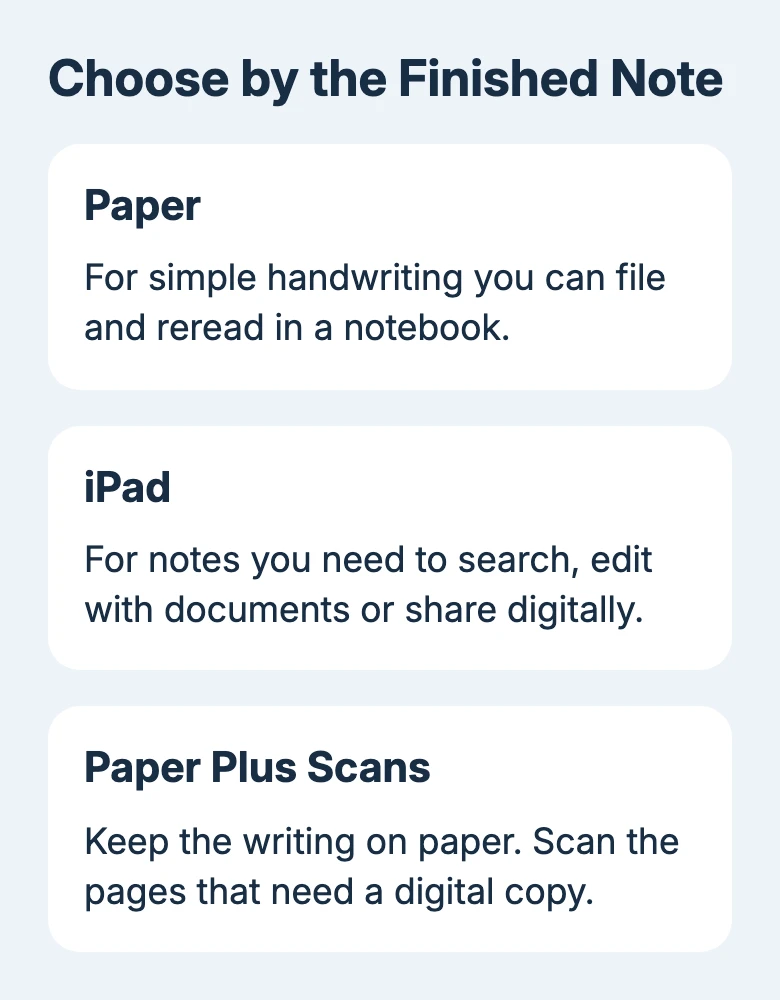
Paper suits a page you can file and reread in its notebook. The iPad helps when you also need to work with a digital copy, such as keeping an annotated handout beside meeting notes instead of maintaining separate collections.
Extra iPad features don't automatically make a note useful. A clear page on paper can serve you better than a digital folder you never review. Judge the finished note and the work needed to use it again.
I'd keep using paper until a repeated problem gives the iPad a clear job. Searching old notes or handling a stack of supplied PDFs is a stronger reason to switch than wanting a different writing surface.
Choose paper when simple handwriting is enough
Start with paper if the job is writing a quick explanation, sketching an idea or keeping a notebook you can open without a device. No battery needs charging and no account or accessory pairing to complete before writing.
The extra work comes afterward. Finding a detail depends on your labels and filing. Sharing means photographing, scanning or typing the page. Decide whether you do that often enough for the extra step to matter.
Give each paper page a date and useful heading. That makes a fairer comparison with a digital note that has a title and search field. An organized app versus an unlabeled notebook tells you more about filing habits than the tools.
For a lesson with equations or diagrams, compare the actual marks you need to make. Don't choose solely by how a paragraph of ordinary handwriting looks. Include erasing a mistake and adding an explanation between two existing points.
If paper handles those tasks comfortably and you rarely need a digital copy, there may be no practical reason to replace it. Keep the current setup and spend the effort on a review routine rather than a new device.
Choose iPad when the digital copy does useful work
Notes can keep typed text, handwriting, checklists, scans and attachments together. Apple says the full Notes features need notes saved locally or with iCloud. Email accounts can have fewer tools.
An iPad can keep a course handout or PDF with the explanation it belongs to. Check annotation and sharing in the app you plan to use, particularly when a recipient needs a PDF rather than an editable note.
Search is also a practical difference. Notes can search handwriting in supported languages, but recognition isn't a reason to skip clear titles. Give each note a date and subject so you have a second way to find it.
For an organized digital routine, the iPad study setup guide covers folders, course material and Focus. Those habits matter more than collecting apps before using one for a full session.
Typing and handwriting can serve different parts of the same task. A keyboard can suit a long written summary, while handwriting can suit a diagram. Try the controls you already own before deciding an extra accessory is necessary.
Check the Pencil and conversion features you need
Match the exact iPad model to the exact Apple Pencil before buying. Different Pencil models work with different iPads, so a Pencil that attaches or looks similar isn't enough to confirm compatibility.
Choose a pen for handwritten notes or Scribble with a compatible Apple Pencil for immediate typed output. The tools produce different results, so include the one you need in your comparison.
In a supported language, Notes can copy selected handwritten strokes into typed text. Check a sample containing your usual names, abbreviations and numbers before deciding it can replace typing your finished work.
The iPad note-writing guide covers the basic text, pen and account controls. Get those working before judging the device during a fast lecture or a meeting where you can't pause to learn the toolbar.
Include everything you'd carry: iPad, compatible Pencil if needed, charger, and any keyboard or case. Compare that with your notebook and pen. Choose the setup that handles your work at a cost you're comfortable with.
Keep paper and scan only the pages you need
A mixed setup can avoid buying a Pencil or rewriting a whole notebook. Write on paper, then scan the pages that need to be shared or kept with digital files. Leave the rest in the notebook if that filing system works for you.
In Notes, open or create a note. Tap Attachment > Scan Documents, then position the paper within the camera view. With automatic capture turned on, the iPad takes the scan when it recognizes the document.
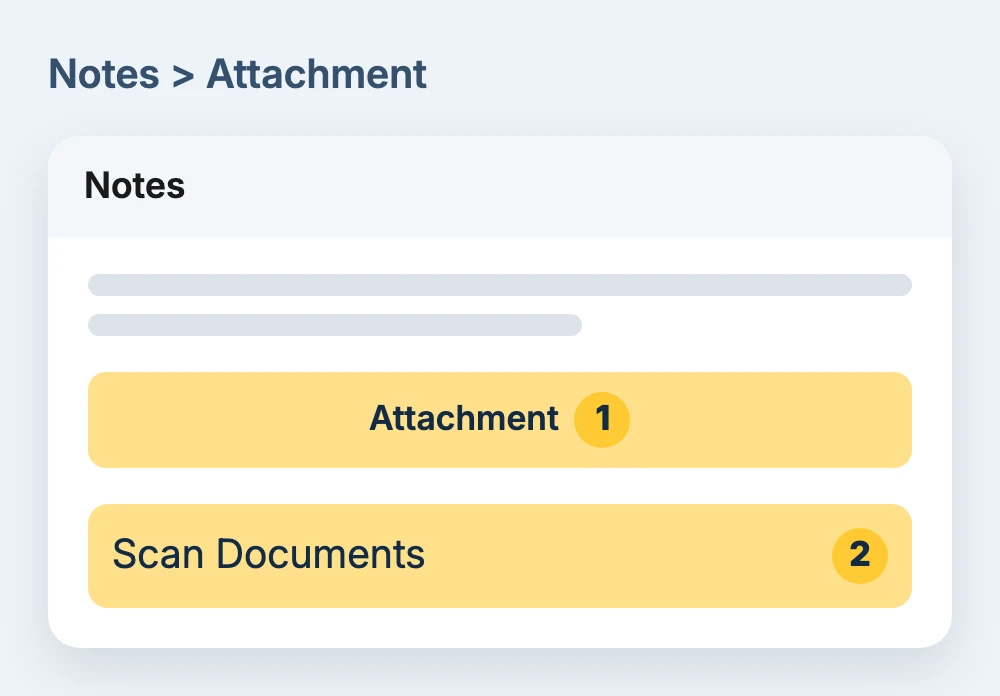
To take the scan yourself, tap the shutter or press a volume button. Adjust the corners to fit the page and tap Keep Scan. Add the other pages you need, then tap Done. Check every page before putting the notebook away.
That creates a scanned document, not an editable copy of every handwritten sentence. Keep the original page when the handwriting matters. A scan is a useful digital record even when it doesn't replace typed text.
Compare one real session before switching
Try paper for one session and iPad for another similar session. Include a heading, explanation, diagram and correction. Work at your normal pace instead of copying a carefully prepared demonstration.
Then do whatever you normally need to do with the finished note. Find one detail from the note, add a correction, and share a page if sharing matters. Count the awkward steps rather than choosing by how the handwriting looks alone.
Keep paper if writing and later filing work comfortably. Choose iPad if search, documents or sharing removes repeated work. Use paper plus scans if you prefer writing on paper but need a digital archive.
For a missing iPad control, check the app's help and account location first. For a Pencil that won't connect, ask Apple Support to check model compatibility and pairing. Neither problem needs to be settled by buying another note app.
The Short Version
Choose paper for simple handwritten work, iPad for notes you need to search, organize or share digitally, and scans for a mix of both. Compare writing, finding and sharing the same kind of note before spending money on a different setup.
Checked November 29, 2026.
 If you have any business, I can build it online