The Phone icon can disappear when it's removed from the Home Screen or moved to another page; calling hasn't been deleted. Search for Phone in App Library, then drag the result onto a Home Screen page.
If the icon disappears only during Work or Sleep Focus, check that Focus's selected pages. An app that opens but won't place calls has a separate problem from an icon that's simply out of sight.
In this guide
1. Find Phone in App Library
With Face ID, swipe from the screen's bottom edge upward to get Home. With a Home button, a press takes you there instead. Swipe left through every Home Screen page until you reach App Library.
Tap its search field, type Phone, then tap the Phone result to open it. This checks whether the app is still available before you change your layout or try to install something else.
If it opens, you can use the app from there for now. Return to App Library and use the next step to restore the shortcut where you want it.
An app removed with Remove from Home Screen stays in App Library. That option changes where its icon appears, rather than deleting the app from the phone.
Apple's App Library instructions explain how to find apps independently of their Home Screen placement. Search is useful when Phone has ended up inside a folder you don't remember making.
2. Restore the shortcut where you want it
In App Library, find Phone again. Touch and hold its icon, then drag it left out of App Library to a Home Screen page. Place it in an open position and release it.
If the menu that appears offers Add to Home Screen, that's another direct way to restore an app that's only in App Library. If that command isn't offered, dragging lets you choose the destination yourself.
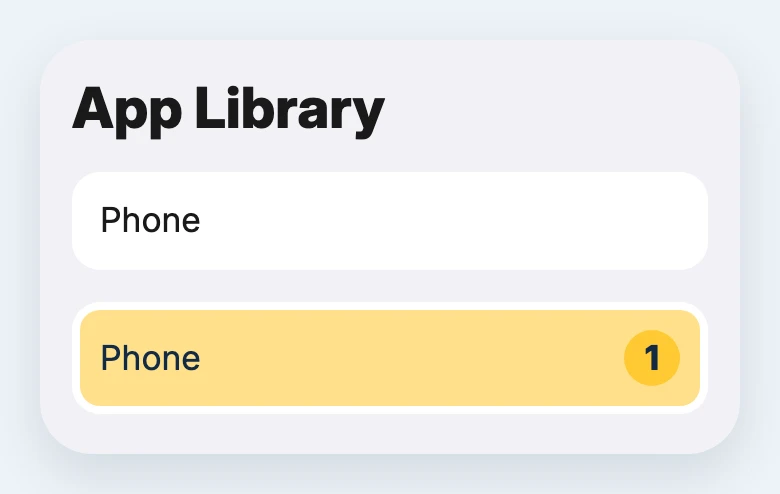
Wait briefly at the left edge if you need to move onto an earlier page. Moving away too quickly can put the icon on the wrong page.
For Face ID models, finish by tapping the wallpaper. For Home-button models, finish with a press of that button.
Open Phone from its new location before moving anything else. That confirms you've placed the working app rather than relying on a similarly named shortcut or another calling app.
If icons won't move at all, follow the iPhone Home Screen moving checks. That is an editing problem rather than a missing Phone app.
3. Put Phone back in the Dock if that's where it vanished
The Dock is the row that stays at the bottom while you change Home Screen pages. Phone doesn't have to live there, but putting it there makes it easier to reach from any page.
Press on the wallpaper between icons. Keep holding until they jiggle, then lift your finger. If the Dock is full, drag one of its existing apps onto the page first. Then drag Phone into the open space.
Finish editing with the Home button or a tap on the background, depending on the model. Swipe to another page and check that Phone remains in the Dock.
Moving another app out of the Dock doesn't uninstall it. It changes that app's position, so choose one you don't need available from every page.
I'd restore just the Phone icon this way before resetting the whole layout. It's a small change and keeps your folders and the rest of your arrangement intact.
4. Show a hidden Home Screen page
When several familiar icons vanished together, check the page itself. Hold a finger on the wallpaper, then select the dots that represent your pages.
Find the page with the missing icons and select the circle for it, then tap Done. Leave editing mode and look through your pages for the restored one.
Hiding a page leaves its apps in App Library. That's why Phone can open from search while the entire page you remember using seems to have disappeared.
Deleting a page also leaves its apps available in App Library, but there won't be a hidden page to turn back on. In that case, restore the individual icon using the drag method.
5. Check a Focus that changes the visible pages
A layout that changes when Work, Sleep or another Focus starts is different from an icon that stays missing all day. Open Control Center and turn the active Focus off for one comparison.
For Face ID models, pull down from the display's top-right corner. For Home-button models, pull upward from its bottom edge. Tap Focus, then the active Focus to turn it off.
If the familiar page returns, open Settings > Focus and select that Focus. Review its Home Screen choice under the screen-customization controls and choose the pages you need available.
The Focus can select particular Home Screen pages without removing the apps. Keep Phone on a page included in that Focus, or in the Dock if you want the same position across pages.
6. Reset the layout only when individual moves aren't enough
In Settings, open General > Transfer or Reset iPhone. Select Reset, then Reset Home Screen Layout. Confirm with Reset Home Screen when you're ready to restore the default arrangement.
Your custom folders disappear, and downloaded apps follow the built-in apps in alphabetical order. Take pictures of your current pages first if you want to recreate the arrangement afterward.
Choose Reset Home Screen Layout specifically. Erasing the iPhone or resetting all its settings is unnecessary for putting an icon back, and those commands have much wider effects.
If Phone remains absent from App Library and the restored layout, open the Support app and ask Apple for help. Ask for help with a missing built-in Phone app and give the iPhone model, iOS version and search result.
Phone isn't listed among the removable iPhone apps in the built-in app instructions. The regional option to remove Phone applies to iPad, so those iPad reinstall steps don't apply to a missing iPhone icon.
If Phone opens but calls fail, use the iPhone Call Failed checks. Restoring an icon won't repair a carrier or cellular connection problem.
The Short Version
Look up Phone in App Library. Restore that icon to a page or the Dock. Check hidden pages and Focus if a whole page vanished. Use Reset Home Screen Layout only when individual moves aren't enough.
Checked November 27, 2026.
 If you have any business, I can build it online