Photoshop running in the background caused Esc to stop ending PowerPoint slide shows for several owners using older Office versions. Save your Photoshop work, quit the app completely, then return to the show and try Esc again.
If Photoshop isn't running, check for a virtual keyboard utility next. For an immediate exit, right-click the slide and choose End Show instead of forcing PowerPoint to close.
In this guide
1. Quit Photoshop rather than minimizing it
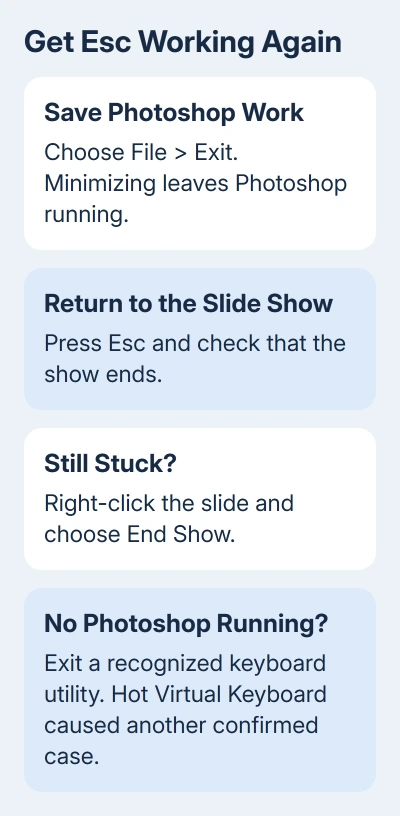
Save any unfinished image work and choose File > Exit in Photoshop. Minimizing the window leaves the program running, so you'll need to exit it to check whether it's interfering. Switch back to PowerPoint's slide show and press Esc.
When it works, the full-screen show ends and PowerPoint returns to its editing window. That points to interference from the background app rather than damage to the presentation or a faulty Esc key.
Several owners in Microsoft's forum confirmed this connection. One said Esc worked after restarting the PC, stopped after they opened Photoshop, then started working again as soon as Photoshop was closed.
The thread began with PowerPoint 2010 on Windows 8. Another owner reported it in PowerPoint 2007 and 2010. Those reports concern older software. A current Photoshop installation won't necessarily have the same conflict.
Try the same deck before and after quitting Photoshop so you're comparing only that change. If Esc remains unresponsive, check the next background app instead of reinstalling the graphics software.
2. End the show from its menu
Right-click a blank area of the slide and select End Show. This was the working exit for the original asker even while Esc did nothing. It closes the slide show without discarding edits to the presentation.
If a full-screen show is covering another application you need, Alt+Tab switches between open apps. Use it to reach Photoshop, quit it normally, then return to PowerPoint and check the shortcut again.
Ending the show is different from closing PowerPoint. Use PowerPoint's own menu instead of forcing its process to close when only a shortcut has failed.
If you're giving a talk now, I'd use End Show and finish the session before changing add-ins or background utilities. Once the audience has left, a short practice deck gives you room to check the keyboard calmly.
If you're unfamiliar with the full-screen and presenter controls, the PowerPoint guide explains the basic slide show workflow. Keep the immediate exit method handy while checking the shortcut.
3. Close a virtual keyboard utility
Another owner had Photoshop installed but not running. Their Esc key started working after they closed Hot Virtual Keyboard in Task Manager. That gives you a second app to check if Photoshop isn't running.
Look for a virtual keyboard app you've installed, including its notification-area icon beside the clock. Exit the utility through its menu first, return to the slide show and press Esc.
For the specific Hot Virtual Keyboard case, Ctrl+Shift+Esc opens Task Manager. On Windows 8, choose More details if needed, find the named utility in Processes, and use End task if it won't exit normally.
Only close an app you recognize. Ending unrelated processes one by one can interrupt work. Start with the named utility an owner successfully closed, and leave unfamiliar processes alone.
If Esc works afterward, keep that utility closed while presenting. Check Office and Windows compatibility with the utility's developer before enabling its keyboard features again.
4. Check whether PowerPoint receives the key
Start a new blank presentation, add a second slide, then run it with F5. Press Esc while the show is the active window. This checks whether the fault follows PowerPoint across presentations or belongs to one file.
Also try Esc in another app where you'd normally use it to close a menu or cancel an action. A key that fails throughout Windows needs keyboard or input-utility checks; if it works elsewhere, focus on your presentation setup.
Microsoft's slide show shortcut list lists Esc as the command to end a presentation. It isn't a shortcut that requires Ctrl or a special loop configuration.
If a presenter remote fails but the laptop's own Esc works, check the remote's mode or button assignment. In that case, check the remote before changing the slide file.
5. Check slide show add-ins only if the fault remains
An add-in can change presentation behavior, so check any you've installed for slide control or kiosk use. In PowerPoint 2010, open File > Options > Add-Ins. Select the relevant add-in type in Manage and click Go.
For a COM add-in, choose COM Add-ins. Clear the checkbox beside a suspect add-in, click OK, and run the practice show again. Write down the disabled add-in's name. Re-enable it if the test leaves Esc unchanged.
The original asker found no add-ins, so this wasn't their confirmed fix. Check this if the earlier fixes didn't help, especially if Esc stopped working after you added presentation software.
Our PowerPoint add-ins guide explains where the different types appear. A downloaded Office add-in and a COM add-in don't necessarily live in the same list.
A looping show should still respond to Esc
The thread included advice about Slide Show > Set Up Slide Show > Loop continuously until 'Esc'. That option controls repeating the show; it doesn't make Esc start working when a background app is blocking it.
The asker said the problem affected all presentations, not just loops. Don't rebuild slide timings or animations for that pattern. First get the shortcut working in the simple practice deck, then return to the original file.
If Esc still fails, ask IT to check the PC's input utilities and PowerPoint add-ins. Include your Office version and whether Esc worked in the blank presentation. Plan to replace old Office so you won't keep running into the conflict.
The Short Version
Quit Photoshop, then test Esc in the show. Next, exit Hot Virtual Keyboard or another recognized keyboard utility. Right-click > End Show gets you out immediately. Check add-ins if the background-app checks don't help.
Checked November 21, 2026.
 If you have any business, I can build it online