PowerPoint 2010 can get stuck opening an Outlook attachment in Protected View, its restricted opening mode. Save a trusted attachment and unblock that file first; owners got it open without disabling protection for all attachments.
The older fault can also produce a repeating error dialog that won't close normally. Missing attachments, damaged presentations, and modern Office graphics faults need different repairs. Pick a repair based on your screen.
In this guide
1. Save the presentation and unblock only that file
In Outlook 2010, right-click the attachment and choose Save As. Choose an easy-to-find folder, then close any PowerPoint window that appeared. Work with this saved copy rather than repeatedly double-clicking the email attachment.
Find the file in Windows Explorer, right-click it, and select Properties. On the General tab, look near the bottom for Unblock. Depending on Windows, this appears as a button or a checkbox. Apply the change and select OK.
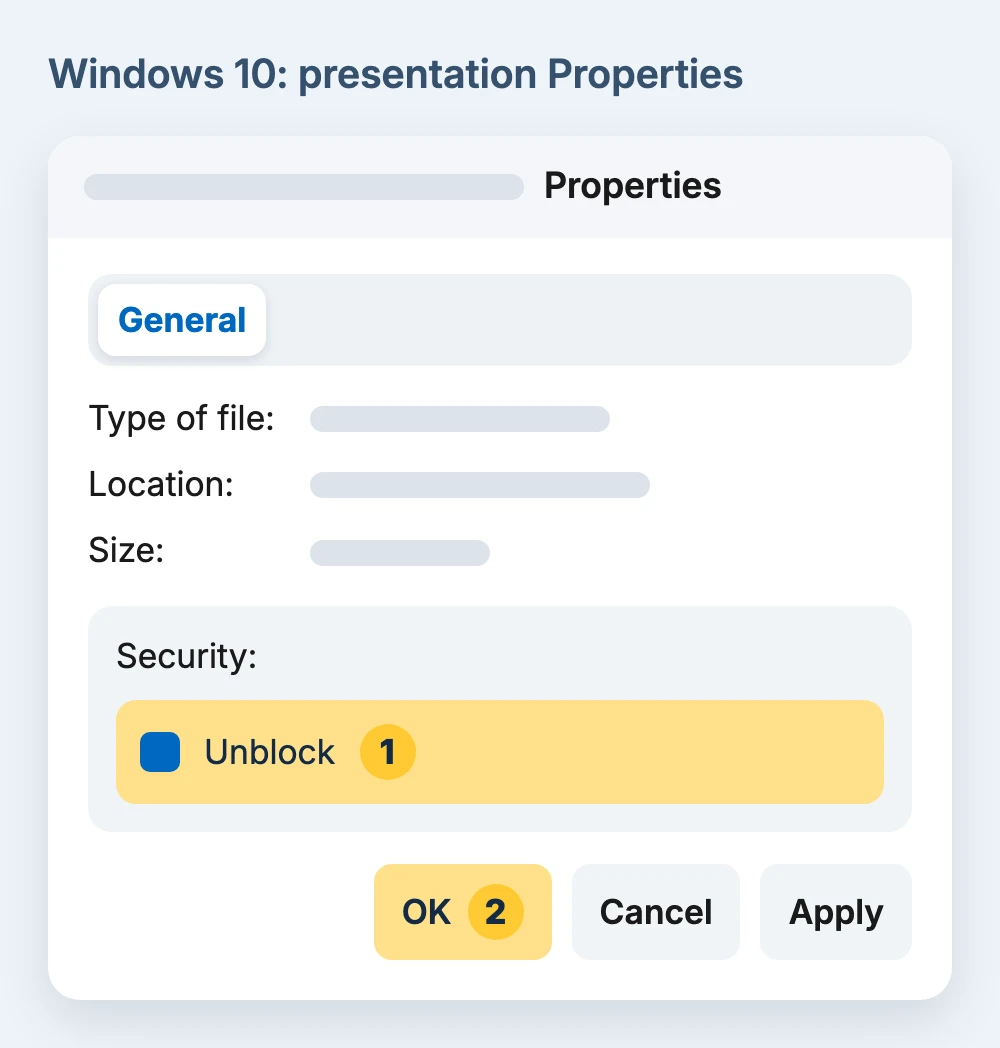
Unblock a file only when you've checked its sender and expected contents. This removes Windows' downloaded-file restriction for that copy; it doesn't check the presentation's contents or make an unexpected file safe.
Open the saved presentation in PowerPoint. Check that it opens without the error returning. In the original attachment thread, the asker confirmed that changing the saved file's blocked status allowed it to open.
The asker's first message said saving alone worked, but their later update corrected that: the saved copy could fail too, until it was unblocked. Don't stop at Save As if the same message appears from the folder.
If Unblock isn't present, compare your error with the messages in section 2. Then try another presentation to check whether this is one damaged file or a problem opening attachments generally.
2. Separate a stuck Protected View dialog from other errors
The PowerPoint 2010 message says it encountered an error it cannot resolve and asks you to save, quit, and restart PowerPoint. An owner also saw a Protected view banner behind the recurring dialog.
Protected View is the restricted mode used to open potentially unsafe documents. That banner points to a problem opening the file with those restrictions. An unreadable-presentation or unsupported-format error can have another cause.
Try a locally created presentation, then another expected attachment from a trusted sender. If local presentations open but email attachments fail when Protected View starts, continue with the attachment setting next.
If only one attachment fails, have the sender check their original presentation and resend it. Tell them whether both the attachment and saved copy fail. This avoids changing application-wide settings for one damaged file.
For current PowerPoint editions that report they can't read the file, Microsoft's individual-file unblock instructions provide the same Properties route. They don't promise that unblocking repairs file damage.
If the error dialog prevents PowerPoint from closing, save other work if possible. Open Task Manager with Ctrl + Shift + Esc, select PowerPoint, and choose End task only when normal closing won't work. Unsaved changes can be lost.
3. Use the attachment setting only as a temporary workaround
I'd use the individual-file method first. The alternative changes how future Outlook attachments open, so it's a wider change than repairing the presentation you need today.
Open PowerPoint 2010 by itself, without opening an attachment. Select File > Options > Trust Center > Trust Center Settings > Protected View. Find Enable Protected View for Outlook attachments and note whether it's selected.
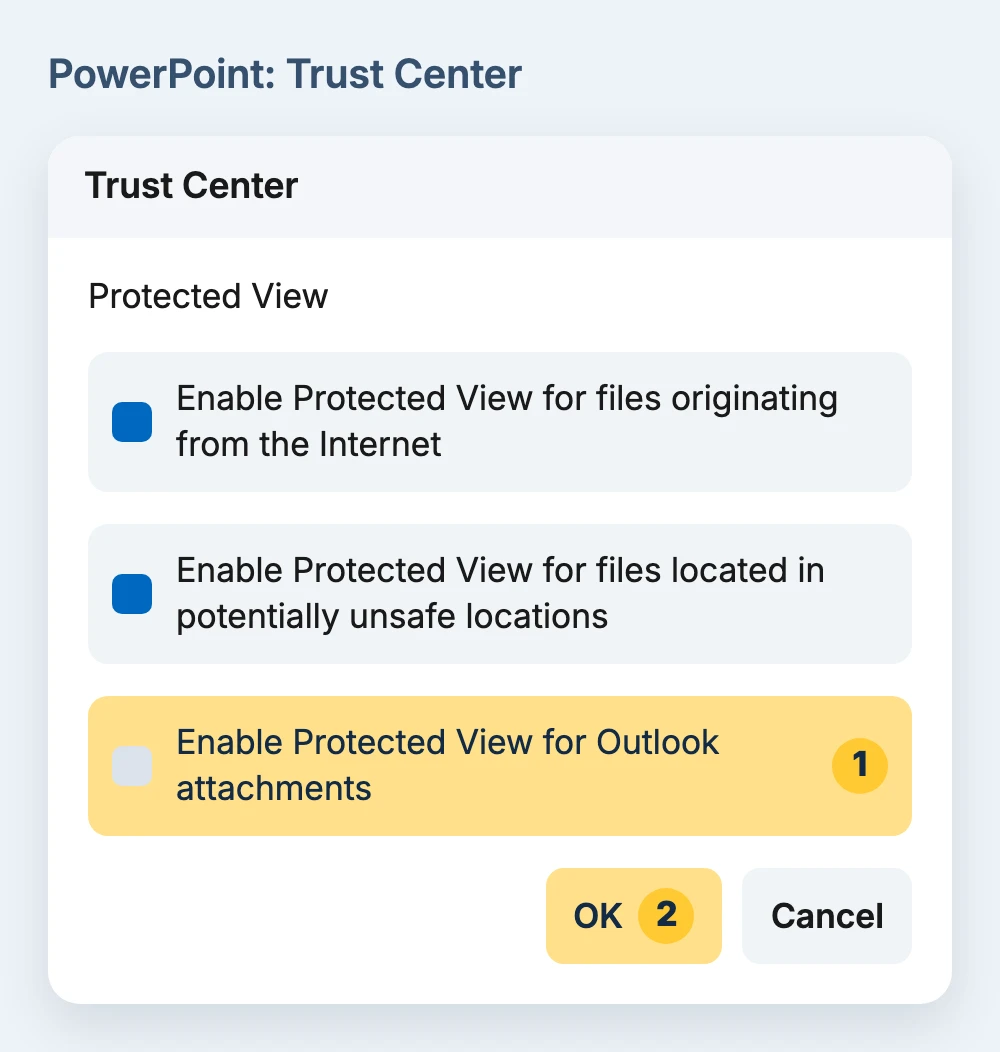
An owner cleared that checkbox and confirmed attachments opened again. Later replies confirm success through 2017. That makes it a reported workaround for this old fault, rather than a repair for all PowerPoint opening errors.
On a work computer, ask IT before changing this security setting. If they approve a temporary test, clear only Enable Protected View for Outlook attachments, select OK through both dialogs, and retry a known, trusted attachment.
Leave the Internet-files and unsafe-locations options alone. Changing several controls together removes more protection and leaves you unsure which setting helped.
When the test ends, reopen Protected View and select that checkbox again. If opening works only while protection is disabled, give that result to IT and use the individual-file route while they arrange an upgrade or further repair.
4. Keep modern Outlook and PowerPoint faults separate
These reports concern Outlook and PowerPoint 2010. They don't mean that every newer attachment-opening problem needs Protected View disabled. Check the installed edition before following a repair meant for a different generation.
If Excel attachments also crash while your laptop is docked, the Excel Protected View crash guide covers its display-driver checks. That problem needs different checks from this PowerPoint 2010 fault.
If Outlook itself won't start, the presentation hasn't reached PowerPoint yet. Use the Outlook startup checks to restore the mail app before changing presentation security settings.
Compare what opens where: a local presentation, the saved attachment, and the attachment launched from Outlook. Keep a note of those results. If a local file opens, that helps narrow the problem, but an attachment could still be damaged.
When to move the file to a supported Office setup
October 13, 2020 was the end of Office 2010 support. It no longer receives bug fixes or security fixes, so changing a setting won't bring those updates back. Ask IT about replacement instead of disabling attachment protection.
For help, provide the full error text, Windows and Office versions, and whether Unblock changed the result. Mention the Protected View banner if it appeared. Share a sample presentation only if its contents can leave your organization.
If the sender's original also fails, ask them to recover or recreate that presentation. If the file opens on a supported Office installation, use that installation to finish the work while the old computer is retired or repaired.
The Short Version
Save a trusted attachment and unblock that copy in Properties. For PowerPoint 2010's repeating error, the Outlook Protected View setting has confirmed successes, but affects future attachments. Restore it after testing and upgrade Office.
Checked November 27, 2026.
 If you have any business, I can build it online