

Align to Slide stays checked with one object selected because relative alignment needs a second object. Select two objects, then choose Align Selected Objects. These are alternative choices, so they can't both be switched off.
For a shape that jumps while being dragged, change the snapping settings instead. Align to Slide tells an alignment command to use the slide's edges or center. It doesn't force objects into position while you drag them.
In this guide
1. Select two objects to unlock the other choice
Select your first shape or text box using its outside edge. Hold Shift and click the second object's edge. Both objects should show selection handles before you open the alignment menu.
In PowerPoint 2010, open Home > Arrange > Align. Select Align Selected Objects, then choose the command you need, such as Align Top or Align Left.
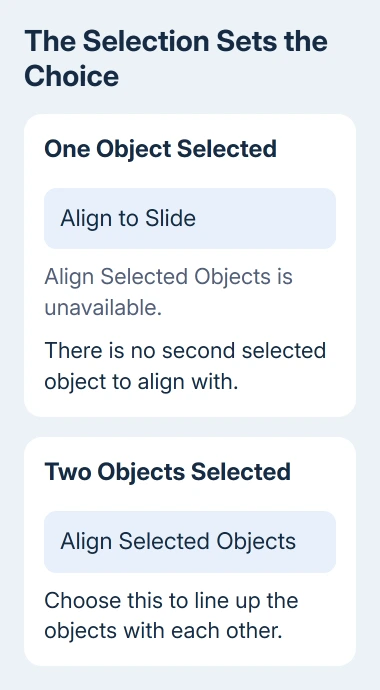
With one object selected, Align Selected Objects is unavailable and Align to Slide stays active. With two or more selected, you can choose whether the objects line up with each other or with the slide.
Choosing Align Selected Objects worked for an owner in the old discussion. Other replies describe shapes snapping while being dragged, which needs a different setting.
If your selection contains only one object, clicking the already-selected Align to Slide choice won't clear it. Select another object to enable Align Selected Objects, or close the menu if you don't need to align anything.
Reinstalling PowerPoint won't change this normal single-object behavior. First make sure the objects you intend to align are actually selected together.
2. Check that you're selecting objects, not text
A blinking insertion point is for editing words inside the box. Select the box using its outer edge, then Shift-click the second object.
For objects hidden behind others, open Home > Select > Selection Pane in PowerPoint 2010. Use the object names there to locate the items instead of repeatedly clicking through a crowded slide.
An item you can't select in Normal view may belong to the slide master. Check whether the item belongs to the master before adding another shape just to enable the command.
A group also behaves as one selected object when the whole group is selected. Two visible shapes inside a selected group aren't necessarily two separate objects in the current selection.
For a useful check, add two simple rectangles to a spare slide and select both. If Align Selected Objects becomes available there, the menu works; return to the original slide and check its selection or grouping.
In current Windows editions, look under Shape Format > Align or Picture Format > Align, depending on the selection. The tab name has changed since PowerPoint 2010, but the reference choice still matters.
3. Pick the reference before running Align
Select one shape and choose Align to Slide > Align Center to center it horizontally on the slide. Align Middle centers it vertically. Using both puts that object at the slide's center.
For a row of text boxes, select the boxes and use Align Selected Objects > Align Top. Their top edges will line up with each other, instead of each box being sent to the slide's top edge.
Microsoft's object-alignment instructions distinguish these reference choices. If the wrong reference is selected, the command can send your objects to an unexpected place.
An alignment command can make objects overlap. If that happens, press Ctrl+Z immediately and check the selected objects and the reference choice before trying another command.
For a grid, align each row first, then each column. The four-text-block layout steps show how to line up pairs without collapsing all the boxes onto the same edge.
The menu's checkmark by itself doesn't move anything. PowerPoint uses that reference when you actually choose a command such as Align Left, Align Center or Align Bottom.
4. Turn off snapping if dragging is the problem
If the shape jumps to nearby positions while you drag, leave the alignment menu and open Grid and Guides. In Windows PowerPoint, open that command by right-clicking unused slide background.
Clear Snap objects to grid, then drag the same shape again. That changes whether movement follows the invisible grid. Hiding visible gridlines alone doesn't turn the snapping setting off.
For a single precise move on Windows, hold Alt while dragging. This temporarily overrides the snap-to behavior without changing your usual grid settings. I'd try that first if only one object needs an awkward position.
Current Mac editions use View > Grid and Guides > Snap to Grid for the grid setting. Hold Command while dragging for finer placement. Use those Mac controls rather than copying the Windows modifier key.
Smart guides are another aid: they appear while objects approach matching positions. On a current Mac, View > Grid and Guides > Smart Guides controls them. In Windows, look for the smart-guides option in the Grid and Guides dialog.
If the guides themselves are missing, restore PowerPoint's guides rather than trying to repair Align to Slide. Guides, snapping and the choice between aligning to the slide or other objects each have their own controls.
When the alternative still stays unavailable
Try two rectangles in a new presentation. One owner restored alignment by copying their objects to another slide, without knowing the cause. Try that file-specific workaround after checking the selection.
If two rectangles still won't enable Align Selected Objects, record your PowerPoint version. Use Help > Contact Support in a supported edition, or ask your Office administrator to reproduce that two-object case.
The Short Version
With one object selected, Align to Slide can't be cleared. Select two and choose Align Selected Objects to line them up together. If a shape jumps while you drag it, change Grid and Guides or temporarily override snapping.
Checked November 21, 2026.
 If you have any business, I can build it online






