PowerPoint's table menu can close before you choose Insert or Delete, leaving the table unchanged. Use the ribbon's Table Layout commands first. They bypass the disappearing pop-up without rebuilding your table.
A missing command and a command that vanishes need different checks. Click inside a real table to reveal its tools. If the pop-up opens and immediately closes, check the Dropbox badge and then the Office installation.
In this guide
1. Use Table Layout instead of the disappearing menu
Place the cursor inside the row or column that needs editing. Microsoft lists the table row and column controls on Table Layout in current desktop PowerPoint.
In PowerPoint 2016, look for Table Tools > Layout. These extra tabs appear when you click inside a table. They aren't part of the ordinary slide layout menu on Home.
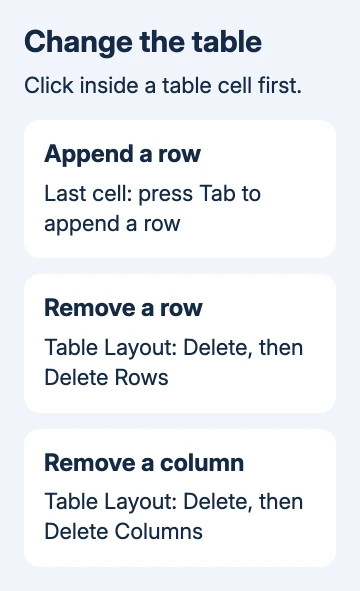
To add a row at the end, put the cursor in the table's last cell and press Tab. To add a column, choose Table Layout > Insert Left or Insert Right. Check the selected cell before inserting a column.
To insert between existing rows, select a cell at that position. In Table Layout > Rows & Columns, use the button that adds a row before or after the selected row.
To remove a row, open Delete in the table layout tools and choose Delete Rows. Choose Delete Columns for a column. Delete Table removes the entire table, which isn't the same operation.
Pressing the keyboard's Delete key while cells are selected can clear their contents while leaving the rows and columns in place. Use the named ribbon command when you want the row itself gone.
The result should be immediate: another empty row appears, or the selected row disappears and its neighbors move together. If this works, keep editing through the ribbon while checking the pop-up problem separately.
On Mac, select a table cell and use Table Layout too. In PowerPoint for the web, select a cell and look for the table layout tools. Skip the Windows-only Dropbox and Office repair checks in the Mac and browser editions.
2. Check that the object is an editable table
Click within the words in one cell. In an editable PowerPoint table, you can select a cell and see the table tools. A screenshot of a table gives you picture controls, even if its rows look perfectly clear.
If picture controls appear, find the original slide or spreadsheet containing the editable table. A pasted image doesn't contain rows PowerPoint can insert or delete. You'll need the original data or a newly created table.
A collection of rectangles and text boxes is also different. Clicking one may select a shape rather than a cell. Don't delete a whole group while trying to remove one supposed row.
For a separate label beside the table, use a PowerPoint text box. Put the table's own values in its cells so later row changes keep the values together.
Try Insert > Table on a blank slide and create a small test table. Add one row through the ribbon, then remove that same row. If this works, table editing is available and the original object needs a closer look.
If the test table works, check whether the original is a table and whether that presentation allows editing. If both tables fail, continue with the program checks rather than rebuilding every slide.
3. Turn off the Dropbox badge if the pop-up keeps closing
The reported pop-up problem affected PowerPoint 2016 on Windows. The accepted answer points to the Dropbox badge, a small control for working with others that can appear beside an open Office document.
The asker didn't confirm that the answer worked. Turning off the badge is a check to try when Dropbox is installed; it doesn't explain every missing table command.
Click Dropbox beside the Windows clock, then use its account menu to open Preferences. On its General tab, find Dropbox badge and select Never show. Save the preference if the dialog asks.
Close and reopen PowerPoint, then try the same table's right-click menu. The submenu should stay visible while you pick a row or column command. Check both insertion and deletion before calling the problem fixed.
This changes the desktop badge preference. It doesn't require deleting the presentation or removing the Dropbox folder. If Dropbox isn't installed, skip this check entirely.
If your Dropbox app lacks the badge setting, keep using the ribbon and continue. The report describes a feature of the Dropbox desktop app. Don't install Dropbox on a PC that never had it.
4. Restart, then repair Office if both editing routes fail
Save the presentation and close every Office app. Restart Windows and repeat the blank-table test. Check whether the menus work now before starting Office repair.
On Windows 11, right-click Start > Installed apps. Find Microsoft 365 or your Office product, open its three-dot menu and select Modify. On Windows 10, use Start > Apps and Features, select Office, then choose Modify.
For a Click-to-Run installation, start with Quick Repair, the smaller repair. If the problem continues, choose Online Repair > Repair. If Office uses the MSI installer instead, you'll see Repair > Continue.
Close your work before starting. Office repair covers the suite, including apps besides PowerPoint. Follow its completion prompts and restart if requested.
Reopen the small test presentation. If its commands work, test the original file and save a changed copy. If only the original still fails, send the affected slide to whoever manages its template instead of repairing all of Office again.
I'd keep the working ribbon route while preparing a presentation on a deadline. Rebuilding a finished table can introduce data errors when the missing piece is only a pop-up menu.
Get help when a new table still won't change
On Windows, copy the version and build shown in File > Account > About PowerPoint. Tell Microsoft Support whether a freshly created table accepts ribbon commands and whether its pop-up closes before you can pick anything.
For a table that changes rows correctly but won't move with nearby objects, use the table grouping workarounds. Grouping restrictions are separate from inserting and deleting cells.
The Short Version
Select a real table cell and use Table Layout for row changes. If the pop-up closes, check the Dropbox badge where installed. Restart or repair Office only when a fresh table also fails, and keep the exact test results for support.
Checked November 26, 2026.
 If you have any business, I can build it online