A reported PowerPoint 2013 bug prevented Ctrl, Shift and Ctrl+A from selecting multiple external links. Use File > Info > Edit Links to Files to break them separately; a short macro can process many linked objects in a copy.
These are links to external files, such as Excel workbooks, not clickable website addresses. Breaking them keeps the displayed content but stops updates from the source file, so save a separate presentation before starting.
In this guide
1. Check that you're editing external file links
Open the file in Windows PowerPoint and save any changes. Select File > Info, then look for Edit Links to Files. This control manages content linked to external files, rather than website links on words or buttons.
For example, a chart pasted using Paste Link can depend on an Excel workbook. A chart embedded in the presentation has its own stored data instead. A normal hyperlink that opens a website belongs to a different editing tool.
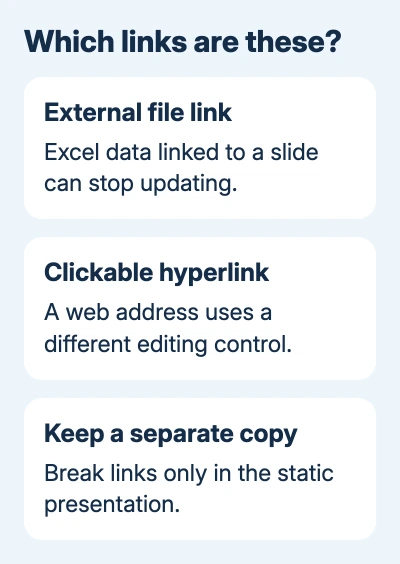
If Edit Links to Files isn't listed, check how the object was inserted before trying a link-breaking macro. There may be no external file links of the kind this dialog manages. Selecting slide text won't populate this list.
A fresh two-slide file behaved identically for the asker, with each slide linked to separate Excel data. Both links appeared in the dialog, but Ctrl and Shift still couldn't select them together. The list existed; multiple selection failed.
2. Break individual links when the list is short
Choose File > Save As and give the static presentation a different filename. Keep the linked original so you can update it if the disconnected copy needs changes later.
In File > Info > Edit Links to Files, select one source and choose Break Link. Confirm the action, then review the related slide. Repeat for the remaining sources you want to disconnect.
Microsoft's external file link instructions explain that breaking the link prevents future updates from that source. It isn't a way to repair a missing workbook while keeping automatic updates.
Check the chart's values before disconnecting it. Breaking a link preserves old content if its source couldn't update. Reconnect that source first when the final presentation needs newer data.
In the 2013 discussion, a moderator identified the multi-selection behavior as a bug. For longer lists, the workaround uses PowerPoint's built-in macro editor.
For a short list, I'd use the individual controls. It takes less setup than adding VBA and lets you check the result of each change as you go.
3. Use VBA for ordinary linked pictures and objects
VBA is Office's built-in language for macros. This macro calls LinkFormat.BreakLink for linked pictures and linked OLE objects directly on slides. An OLE object is content from another Office application, such as an Excel table or chart.
Grouped items, master layouts and other kinds of links need separate review. The macro only handles those two object types directly on slides. Its completion message won't count every link the file could contain.
Switch to your saved copy and press Alt + F11. In the Visual Basic Editor, choose Insert > Module and enter the macro:
Sub BreakSlideFileLinks()
    Dim sld As Slide
    Dim shp As Shape
    Dim broken As Long
    For Each sld In ActivePresentation.Slides
        For Each shp In sld.Shapes
            If shp.Type = msoLinkedOLEObject Or _
               shp.Type = msoLinkedPicture Then
                shp.LinkFormat.BreakLink
                broken = broken + 1
            End If
        Next shp
    Next sld
    MsgBox broken
End Sub
Click inside BreakSlideFileLinks and press F5. The number shown counts objects the macro finished disconnecting. If an error appears, stop and record its highlighted line before attempting another run.
The BreakLink method reference covers this operation for linked pictures and OLE objects. The code doesn't visit hyperlinks or try to open the linked Excel workbooks.
VBA needs desktop PowerPoint for Windows; the web app lacks this editor. If company policy blocks macros, break sources individually or have IT approve a suitable method for your presentation.
4. Verify the slides and save the static copy
Return to PowerPoint and inspect the slides containing linked content. Check chart labels, totals and image quality against the original. The aim is a usable static presentation, not just an empty list of sources.
Reopen File > Info > Edit Links to Files if it remains available. Review any sources left in the list. They may belong to objects the macro doesn't handle, so check each one before breaking anything else.
If the macro reports zero objects, don't assume all links have been removed. Confirm you're working in the right presentation and that the remaining item is a linked picture or OLE object directly on a slide.
Save the finished copy. A .pptx file doesn't retain VBA code; if PowerPoint asks whether to save without macros, you can accept for a static copy that no longer needs this helper. Keep the original presentation separate.
For a source workbook with its own remaining dependencies, our Excel Break Links guide covers those workbook links. Breaking a presentation's connection doesn't clean the source workbook's external references.
If linked content later needs to become part of a different slide deck, our slide copying guide explains how to copy those slides into another presentation, a separate task from breaking file links.
When a link refuses to break
Record the PowerPoint version from File > Account > About PowerPoint, the object type and the exact error. Ask Microsoft support through PowerPoint's Help area to check that object's external link.
Remove confidential content from any sample you send to support. Explain whether individual breaks work while multiple selection fails. This directs support toward the selection issue, rather than unrelated workbook repairs.
The Short Version
Break short lists individually in a separately saved presentation. For many ordinary linked pictures or OLE objects, VBA can call BreakLink across slides. Check remaining sources and slide content before saving the static presentation.
Checked November 26, 2026.
 If you have any business, I can build it online