

PowerPoint's Design Ideas button can disappear on Mac when an old purchase license overrides your Microsoft 365 subscription. Check that license first. If the button opens an empty pane, check the slide content and online service instead.
The name has changed on some installations: look for Designer on the Design tab, or Design Suggestions on Home for Copilot users. You don't need to reinstall Office just because the command has moved.
In this guide
1. Find the command and restart PowerPoint
Open a presentation in Normal view and select one slide thumbnail. Open Design > Designer. On a Copilot installation, check Home > Design Suggestions instead of searching only for the older Design Ideas label.
If the command is gray, click one slide thumbnail again. Multiple selected slides, focus in the notes area, or Slide Show view can leave Designer unavailable. Return to Normal view before changing any account settings.
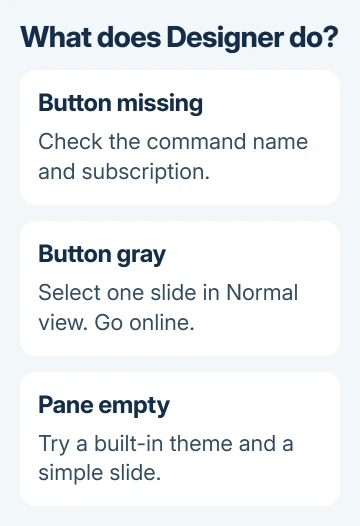
Designer needs an internet connection. Load an ordinary web page to check your connection, then retry Designer. Opening a presentation saved on the Mac doesn't mean the online design service is reachable.
If you just installed Microsoft 365, save the presentation and choose PowerPoint > Quit PowerPoint. Relaunch the app and look for Designer on the ribbon. Microsoft says a restart can restore Designer after a new installation.
If the suggestions pane is empty, try the slide-content check in section 4. If the ribbon has no Designer command, check the license next. These symptoms need different repairs.
2. Confirm the Mac is using your subscription
Open PowerPoint > About PowerPoint and read the version and license information. Check the signed-in email address, too. It should match the email address holding your Microsoft 365 subscription or assigned license.
One owner reported a Retail license despite buying Office 365. Reinstalling failed, but they confirmed deactivation and reactivation worked. Desktop Designer needs an active subscription license.
A one-time Office purchase isn't a Microsoft 365 subscription. Having PowerPoint installed, or being able to edit slides, doesn't mean this Mac has the same subscription features as another computer.
If the wrong account is signed in, switch accounts in the app, choosing the email address with the subscription. For work or school Microsoft 365, ask IT whether your assigned plan includes the desktop apps and permits Designer.
If PowerPoint still uses an old purchase license instead of your subscription, follow the official Mac license removal steps. Use this repair when the license is wrong. For an empty pane, check the slide's content first.
Have the subscription account's email address and password ready before running the tool. It removes all Office licenses on that Mac, so other Office apps will need activation again too.
Quit all Office apps. Download the official license removal tool from that support page, open its .pkg file in Downloads, and follow Continue and Install. Enter the Mac administrator password if requested.
After removal, open an Office app and activate it with the subscription account. Choose Microsoft 365 if both a subscription and a one-time purchase are offered. Restart the Mac after activation and check Designer again.
If the license already says Microsoft 365, leave the removal tool alone. Check privacy settings next. For installation trouble rather than a feature problem, the PowerPoint download guide explains the Mac installer and activation route.
3. Allow the online design service
Connected experiences let Office use online services for features such as Designer. Turning off services that analyze slide content can also turn off design suggestions, even when your subscription is correct.
On the Mac, choose PowerPoint > Preferences > Privacy. Open Connected Experiences > Manage Connected Experiences, where shown, and check Turn on experiences that analyze your content. Enable that option to allow Designer to analyze slides.
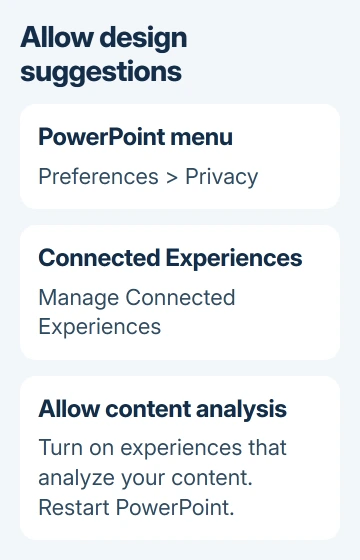
Confirm with OK, quit PowerPoint, and reopen it. Then select one slide and try Designer again. Changing the setting without restarting can leave you checking the old session.
On older copies, use Preferences > Privacy > Office Intelligent Services > Enable Services. Windows' File > Account privacy instructions don't apply to the Mac.
Some older versions also offer a Designer setting under PowerPoint > Preferences > General. Enable it for automatic suggestions when present. Open Designer yourself to see whether it works even when automatic suggestions don't appear.
If your organization manages or hides these controls, ask IT to check Designer and connected-experience policies for your account. Reinstalling PowerPoint won't change a company policy that disables the feature.
4. Give Designer a slide it can use
Create a separate blank presentation using a theme supplied with PowerPoint. Add a slide with a Title or Title + Content layout, then insert one ordinary photo. Open Designer on that slide.
If suggestions appear here, your account and service connection are working. Return to the troublesome presentation and compare its theme, slide layout and objects. Reinstalling Office won't fix a problem with that slide's content.
For picture suggestions, use no more than four photos on a slide, each larger than 200 by 200 pixels. Supported formats include JPG, PNG, GIF and BMP. Leave extra shapes and text boxes you've drawn off this test slide.
Text typed inside a layout's placeholder is different from a text box you draw yourself. Designer can work with placeholder text, while a separately drawn shape or text box can prevent suggestions for that slide.
For process text, use Title + Content without additional photos or shapes. If someone else is actively editing the same slide, wait until only one person is editing, then make a change Designer can respond to.
I'd keep your original slide and experiment on a duplicate. The point is to see which content prevents suggestions without dismantling a slide that already presents well. The PowerPoint basics explain layouts and placeholders.
5. Update the app, then request a license or policy check
For a Microsoft-installed Mac copy, choose Help > Check for Updates and let Microsoft AutoUpdate apply the offered updates. For an App Store installation, use the App Store's updates. Reopen PowerPoint afterward.
If Designer is still missing on your correctly licensed personal copy, contact support with the version, license shown in About PowerPoint, and whether a simple new slide produces suggestions. Keep private slides out of screenshots.
For a managed account, send IT those details and ask specifically whether Designer is disabled. An empty pane on one complex slide needs content changes; a missing command across new files needs the account or app checked.
The Short Version
Find Designer or Design Suggestions and check the subscription and privacy settings. For an empty pane, try a simpler supported slide. Remove old license files only when the Mac is using the wrong license.
Checked November 22, 2026.
 If you have any business, I can build it online






