PowerPoint's media file size limit message can refer to audio, even in a small presentation. For an older OneDrive deck with WAV sound, make a copy and replace the audio with a compatible file, then try playing it online.
The old service's WAV restriction isn't the current browser upload rule. Today's PowerPoint for the web audio instructions allow supported files up to 16 MB, so first identify whether you're opening an old deck or adding a new audio file.
In this guide
1. Separate the embedded sound from the presentation size
Keep the original presentation and make a repair copy. Check when the message appears: during an audio upload, when opening a presentation from OneDrive or when starting its slide show. Different limits apply to those tasks.
In desktop PowerPoint, open the copy and select the sound on its slide. Preview it there. If the sound plays on the computer but fails online, check the browser playback before replacing speakers or changing your computer's volume.
The original thread involved PowerPoint 2007, a presentation just over 7 MB and WAV audio. One owner later said that even smaller WAV files failed online. Making the entire presentation slightly smaller didn't address that restriction.
The older service guidance listed a 100 KB WAV limit. That explains how a small presentation could still produce a size complaint. It's a historical restriction, not a current universal limit for every WAV file in PowerPoint.
If the original audio doesn't play on the computer either, recover a working source file first. Converting a file for the web won't help if the original recording doesn't work.
2. Re-export old WAV audio into a suitable format
Use your audio editor's export function to create a separate M4A file encoded with AAC audio. Encoding is the way sound is stored inside the file. Changing the filename from .wav to .m4a doesn't convert it.
Microsoft's PowerPoint format guidance recommends that M4A/AAC combination for audio. Keep the original WAV for editing and listen to the exported copy before inserting it.
Choose an export quality that keeps speech clear or music acceptable for the presentation. Compare the actual file sizes afterward. The new file won't always be smaller; its size also depends on your export settings.
The asker in the old thread moved the presentation to a computer with PowerPoint 2013 and inserted MP3 background music. They planned to try M4A afterward, but didn't post a completed M4A playback result in the saved replies.
I'd try the recommended M4A export, but keep that advice separate from the owner's result. The accepted answer suggests it; the replies don't confirm that it played successfully for the asker.
If the exported audio is still too large for the route you're using, shorten the recording or adjust its export quality. Make those changes to a copy to preserve the full recording for later use.
3. Replace the audio rather than just moving its source
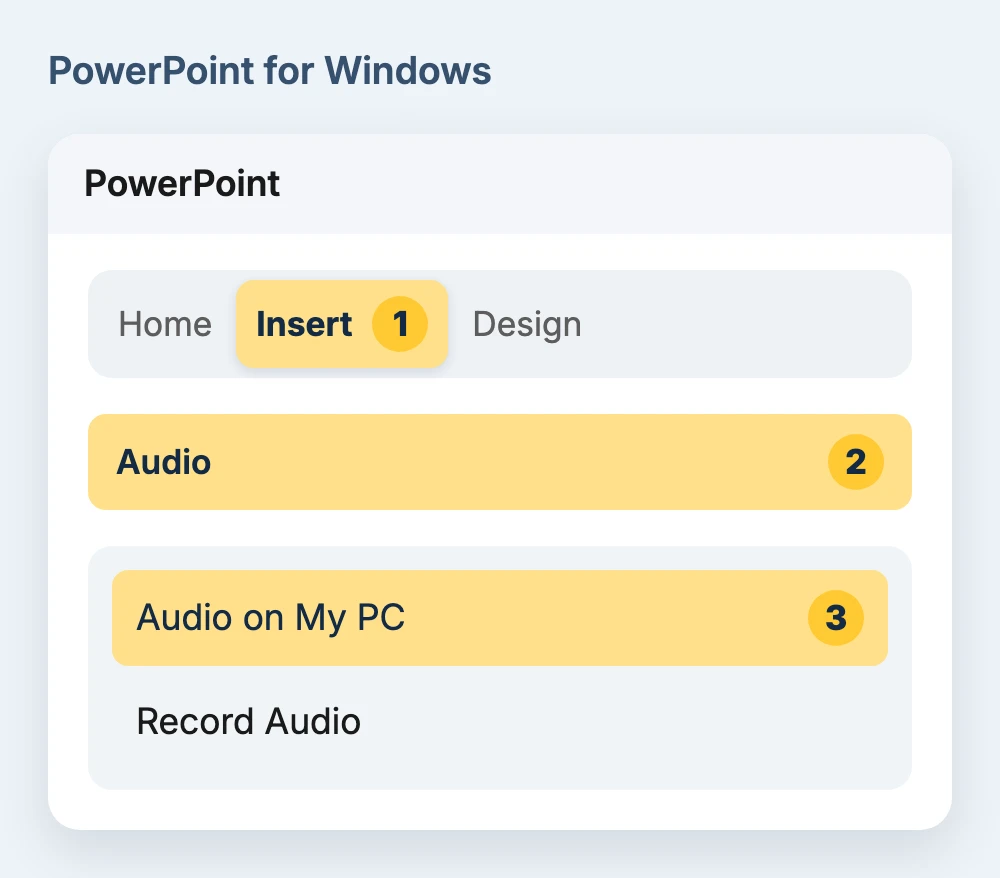
In a current Windows desktop edition, select the affected audio icon in the repair copy and remove it. Choose Insert > Audio > Audio on My PC, select the replacement and complete the insertion.
On a Mac, use Insert > Audio > Audio from File. The command names differ, so don't search the Mac ribbon for the Windows label.
Play the replacement on its slide before changing any background settings. Then save and reopen the deck. That lets you check the replacement in the version you'll share.
Review the audio's Playback controls afterward. After replacing the audio, you may need to set when it starts and whether it plays across slides again. A successful insertion doesn't tell you when the sound will start.
For background music, use the music across slides controls to restore the intended behavior. Check playback through a slide transition instead of judging only the first few seconds.
Upload the repaired copy to OneDrive under a different filename. Open that copy and run its slide show online. A different name helps you avoid accidentally checking the unchanged original.
4. Apply the current 16 MB rule to new browser audio
The current web audio instructions list MP3, WAV, M4A, AAC and OGA, with a maximum audio-file size of 16 MB.
That limit applies to the audio file being inserted. It doesn't mean the presentation must be smaller than 16 MB, and it doesn't revive the older service's separate WAV restriction.
Open the signed-in presentation in PowerPoint for the web. Choose Insert > Audio, browse to the supported file and select Open. If the file exceeds the listed maximum, export a smaller copy before trying again.
After insertion, select the audio and check the available start option. Run the slide show and use the selected click behavior or automatic start. Sound waiting for a click is different from an upload rejection.
If a supported file within the limit is rejected, save the full error and insert a short recording into another deck. If that works, focus on the original audio or presentation. Audio uploads aren't failing across the whole account.
Don't install Flash or Silverlight to follow old playback advice. Those references belong to the older web service, while current supported audio uses the browser's modern playback path.
5. Use desktop playback when the online copy still fails
Open the repaired deck in desktop PowerPoint and run the entire affected section. You can present from the desktop app while working on the online problem, as long as the computer you'll use can play the media inside the file.
For failures in desktop PowerPoint as well, the cannot-play-media checks cover missing source links, file formats and media compatibility. Those steps address desktop playback failures as well.
Before a meeting, rehearse on the computer and connection you'll use. Check the end of the audio and any slide transitions it crosses. Keep the source recording and original deck until the repaired version has passed that rehearsal.
For a remaining web failure, send Microsoft 365 support the exact message, audio format and size, presentation format, and desktop-versus-browser results. Ask for a review of that file's browser upload or playback failure.
The Short Version
A small deck can contain audio that exceeds a service-specific limit. Replace old WAV sound with a compatible export, save a separate deck and test online. For new web audio insertion, use a supported file within the current 16 MB maximum.
Checked November 27, 2026.
 If you have any business, I can build it online