A PowerPoint POTX file can open for editing instead of creating a fresh presentation. Choose the template through File > New > Personal or Custom to create a separate deck and keep the reusable template intact.
What matters is which file you're changing. A new presentation should get its own name and be saved as .pptx. A window still using your template's name needs checking before you save over it.
In this guide
1. Create the presentation from the New screen
In the Windows desktop app, choose File > New. Select Personal or Custom, then double-click your template. The label varies with your setup; both are places for reusable templates rather than existing presentations.
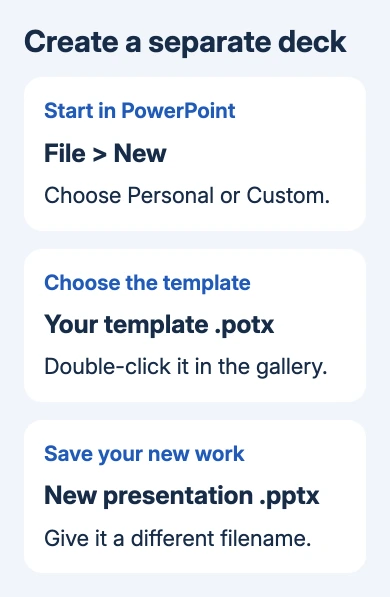
Microsoft documents this personal template workflow for creating a presentation from your template. That keeps edits to your new deck separate from changes to the template itself.
Check the title bar after selecting it. Save the new presentation with a different name and PowerPoint Presentation (.pptx) as its file type. Close it and reopen that saved presentation to confirm you're working on the new file.
If the template isn't listed, use the next section. Once it creates a separate presentation, you can keep using this route without repairing Office or changing file associations.
I'd use this route first, especially for a shared company template. It's quicker than changing what every POTX file does when double-clicked, and you can see which template you're choosing.
If the POTX file's right-click menu offers New, that also creates a presentation. Open edits the template. If double-clicking edits the source, use the gallery while support checks the default file action.
2. Put a missing template in the personal folder
A downloaded template or one stored on a server might not appear under Personal. Copy the .potx file to Documents > Custom Office Templates in your Windows user folder, then return to File > New > Personal or Custom.
The usual full path is C:\Users\your-name\Documents\Custom Office Templates. Replace your-name with your actual Windows user folder. Copy the template itself, instead of creating a shortcut to the server copy.
If Documents has moved, use File > Options > Save and check Default personal templates location. Point that setting at the folder where you've stored the template, then try the New screen again.
If the template creates a separate presentation, you can use it. If the server copy still opens for editing, keep using the personal copy and ask the shared template's manager to check its launch method.
A missing gallery entry and a template opening for editing need different fixes. Putting it in the gallery's folder fixes the first without changing what's inside the file.
3. Check that the file really is a template
Use File > Save a Copy in Microsoft 365, or File > Save As elsewhere. Choose Browse if needed and check the file type. A reusable template uses PowerPoint Template (.potx). A normal presentation uses PowerPoint Presentation (.pptx).
Renaming a file's extension doesn't convert its format. Save a presentation as a separate copy with the template file type, keeping the original until you've created a new deck from the template.
For a template that contains macros, the matching format is PowerPoint Macro-Enabled Template (.potm). Saving it as POTX removes the ability to store those macros, so ask the template's author which format they intended.
A PowerPoint theme, .thmx, is different again. It stores design choices rather than reusable slides. If you need prepared slides, placeholders and recurring text, start from the actual template supplied for that purpose.
Check the slide master and layout steps if a newly created presentation opens correctly but its footer or layout doesn't match. That's a content issue inside the deck rather than a failure to create it.
4. Keep template editing separate from daily work
Opening a template through File > Open lets you edit the reusable design. After changing its master, sample slides or default text, save the template and create a new presentation from it to check the result.
For an ordinary presentation, use File > New instead. Before a large edit, read the filename and its selected format. If you're editing the template accidentally, use Save As to create a separate PPTX before continuing.
Already saved unwanted changes to a shared template? Ask its owner to restore the intended version from their backup or version history. A new presentation created afterward will otherwise inherit the changed template.
Changes to a template don't automatically rewrite presentations that were created earlier. If an existing deck needs a font change, the presentation-wide font procedure explains how to change that deck's master and layouts.
5. Use the desktop route for a POTX file
These Windows gallery steps apply to desktop PowerPoint, including Microsoft 365, PowerPoint 2024 and PowerPoint 2021. Follow the labels your installation shows when Personal and Custom differ.
On a Mac, start with File > New from Template and choose the available template. Windows' Custom Office Templates path doesn't apply to Finder. If it isn't available there, ask its author where to store it on a Mac.
PowerPoint for the web has different template handling. For this fault, open the POTX in desktop PowerPoint, create the separate presentation there and save it as PPTX before using that presentation in a browser.
If a presentation opens but won't save to a shared folder, save a copy on your computer to check whether the shared folder is the problem. A permission error while saving is a different problem from PowerPoint opening the reusable source.
When the New screen still opens the source
Have your template administrator check a POTX copy, or send it to Microsoft 365 support. Include the file location and whether a built-in template creates a separate deck.
For the application version, use File > Account > About PowerPoint on Windows, or PowerPoint > About PowerPoint on a Mac.
Explain that File > New opens the template itself, if that's what actually happens. That detail matters more than saying templates are broken. Send a sample that shows the same behavior and contains no confidential information.
The Short Version
Choose your template through File > New > Personal or Custom, then save the resulting presentation as a separate PPTX. Check the personal template folder and actual file type if the gallery doesn't show it.
Checked November 26, 2026.
 If you have any business, I can build it online