

A graphics-driver fault can leave a PowerPoint screen recording with sound but a frozen picture. An owner restored moving video by removing their AMD driver. Try driver rollback first if recording stopped after an update.
A picture sitting still on the slide isn't always a failed recording, though. Play the clip before judging it: the slide normally shows a still preview until playback starts.
In this guide
1. Confirm that the recording itself is frozen
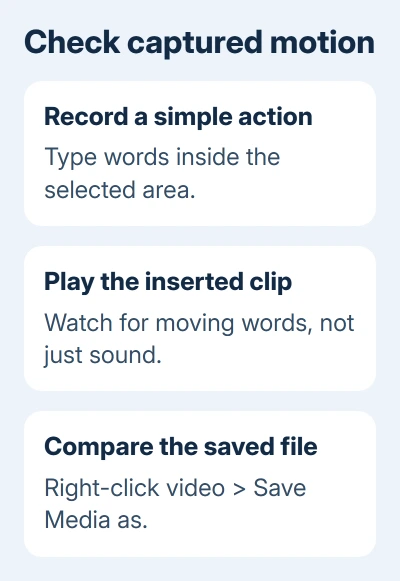
Select the inserted recording and start playback with its play control. Watch an action that should move, such as a window being dragged or words being typed. A thumbnail that stays still before playback is expected.
If audio plays but the same frame remains throughout, record a short comparison in a blank presentation. Use a simple local app such as Notepad, with the recording area covering the text you're about to type.
Choose Insert > Screen Recording, then Select Area. Drag around the app, select Record and perform the visible action. Finish with Windows+Shift+Q. Play the recording that PowerPoint adds to the slide.
The screen-recording instructions cover this desktop Windows feature. Keep the selected area over content that changes, so a perfectly recorded static screen isn't mistaken for a broken video.
If the test moves normally, compare the area and app used in your original recording. If the simple test is frozen too, it isn't just the original presentation. Check the display driver next.
2. Roll back a display driver after a recent update
Right-click Start and choose Device Manager. Expand Display adapters, then open the affected graphics adapter's Properties > Driver tab. Note the adapter name, driver version and driver date.
If recording stopped after that driver changed, select Roll Back Driver when it's available. Choose the reason, confirm the rollback and restart if prompted. Administrator permission is required for this change.
Make another short recording after restarting. Success means that your typed words or moving window appear as moving video during playback, rather than hearing the new audio over the same old frame.
The driver rollback procedure is intended for problems following driver updates. A dimmed Roll Back Driver control offers no usable rollback for this adapter. Leave the other devices alone.
If your PC lists two display adapters, note both models and check one before changing the other. The report involved a Lenovo T495 with AMD Radeon Vega 8 graphics; that doesn't mean every AMD or dual-graphics laptop has this fault.
3. Update or reinstall the affected graphics driver
If the problem didn't begin after an update, or rollback isn't offered, right-click the adapter in Device Manager and choose Update driver > Search automatically for drivers. Follow any offered Windows Update route for additional drivers.
Install an available compatible update, restart if requested and repeat the same short recording. Repeat that test to see whether the new driver restored moving video.
If the driver still seems damaged, save any open files, then shut your apps before reinstalling it. In Device Manager > Display adapters, right-click the correct adapter, choose Uninstall device and confirm Uninstall, then restart Windows.
After restart, Windows tries to install that device's driver again. Check the adapter's Driver tab afterward. Windows can reinstall the same version, so another failure can still need help from the laptop maker.
In the original owner discussion, one owner got moving recordings with the basic display driver, then lost them when the AMD driver returned. The asker also confirmed success after uninstalling the AMD driver.
A later reply says the AMD issue still wasn't fully fixed. Give that report to your manufacturer and ask for a compatible driver that preserves recording and normal display features. Don't leave graphics support removed as the repair.
I'd try rollback before that reinstall when the timing clearly follows an update. Trying the previous driver makes sense when the presentation itself hasn't changed.
4. Compare the saved clip with playback on the slide
Right-click the recording's video frame and choose Save Media as. Give the file a clear name and open it in a separate video player. Compare the same point where movement should occur.
If the saved video moves but the slide playback doesn't, keep that file. The recording contains motion, so the problem is with playback inside PowerPoint. The clip did record the movement.
If both copies show the same frozen image, inserting the file again won't restore missing motion. Keep the original recording as evidence if needed, but make a new short capture after the driver check before redoing a long session.
For a clip that works outside the presentation, the video insertion controls explain how to add the saved file to a fresh slide. Compare that slide before replacing media throughout the original deck.
Recording your screen is different from exporting a narrated slideshow. For turning slides and narration into a movie, PowerPoint's presentation-video workflow is the relevant process, rather than Insert > Screen Recording.
5. Report a repeatable capture failure with the driver details
If the short local-app capture remains frozen, open File > Account > About PowerPoint and record the Office version and build. Include Windows version, laptop model and the display adapter's Driver tab details.
Tell support whether rollback was available, which driver version was used afterward, and whether the exported media was frozen too. Send a harmless sample showing typed test words instead of a recording of private work.
Ask the laptop maker about screen-capture compatibility with that driver. Let IT handle a work PC's managed driver. Repeated Office reinstalls aren't useful when reinstalling the same driver reproduces the fault.
In supported Office, use Help > Contact Support with the sample and driver details. The 2020 report gives you a specific cause to check; it doesn't mean every AMD PC has this problem in today's PowerPoint.
The Short Version
Play a short test capture. For audio with frozen video, roll back a changed graphics driver or update the adapter. Compare Save Media as playback, then give support the driver version and sample if capture still fails.
Checked November 17, 2026.
 If you have any business, I can build it online






